We've added the ability to edit and delete responses and notes in chats. The updated settings are available under Agents and Agent roles in the Additional permissions block.
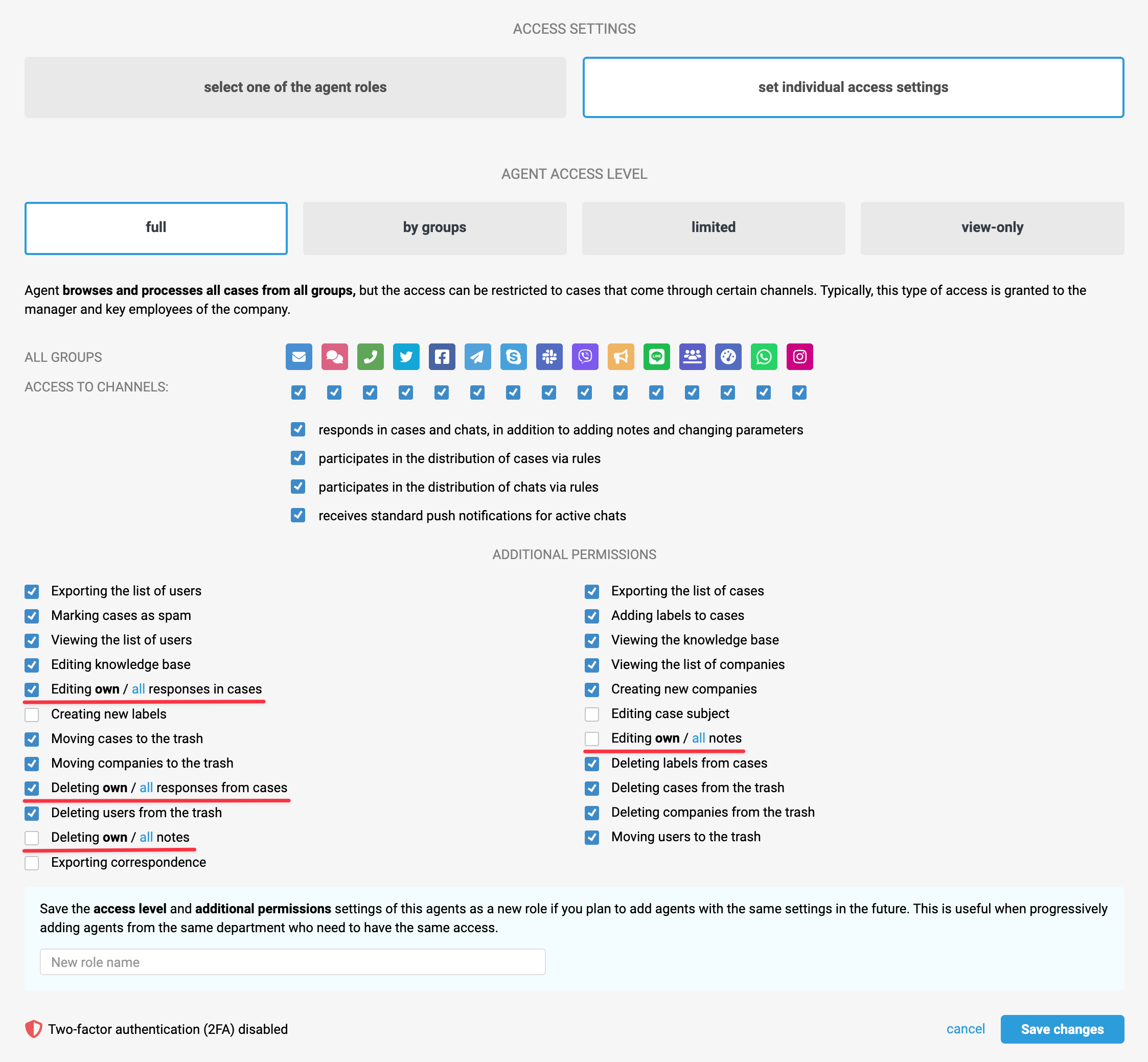
Checkboxes now have an "own / all" toggle:
- if "own" is selected, the agent can edit/delete only their own responses or notes;
- if "all" is selected, the agent can edit/delete any message in the case, including customer responses and auto-responses added via rules.
After the update, existing agent permissions were not changed — the new settings defaulted to "own" so no one would receive expanded permissions by mistake.
Editing and deleting messages in custom channels is also supported. Learn more
Messages: how to edit or delete in chats
The logic of editing messages in asynchronous channel cases is described here.
The logic for editing and deleting responses in chats depends on whether the channel supports these actions, and whose reply you want to change — an agent's or a customer's.
If the channel supports editing or deleting messages and the message belongs to an agent, Deskie sends a request to the corresponding service after the action is performed. If the request succeeds, a record is added to the action log; if it fails, you'll be notified of the error.
If the channel doesn't support editing messages after sending, or you're trying to edit or delete a customer's reply, the changes will apply only in Deskie. This is also reflected in the action log entry.
Let's look at how this works in detail.
Hover over a message to see the edit and delete icons on the right.

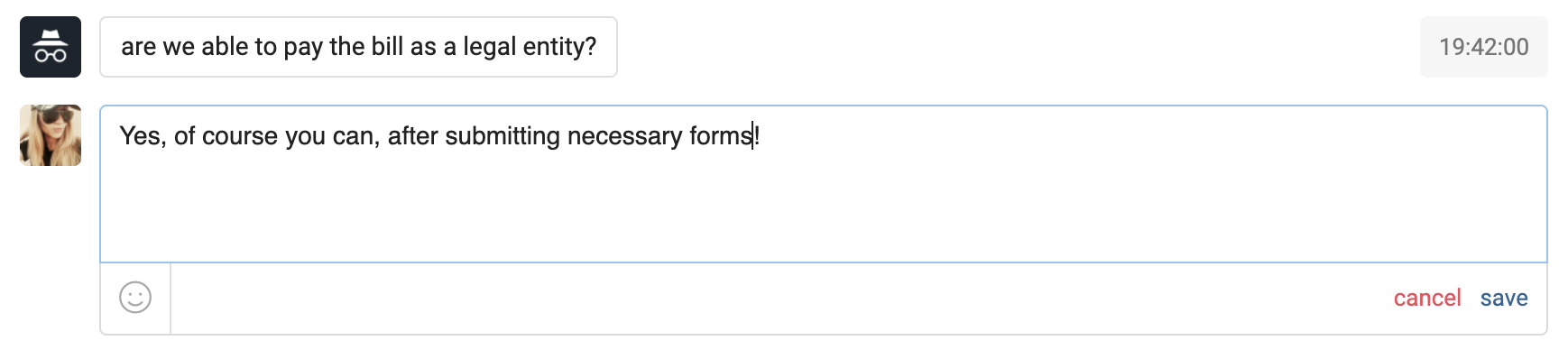
a) Clicking the edit icon opens a form where you can change the text or emoji.
Working with attachments
Whether you can edit or delete attachments depends on the specific channel. If the channel supports this, you can perform the action from Deskie.
b) Clicking the delete icon opens a confirmation modal.
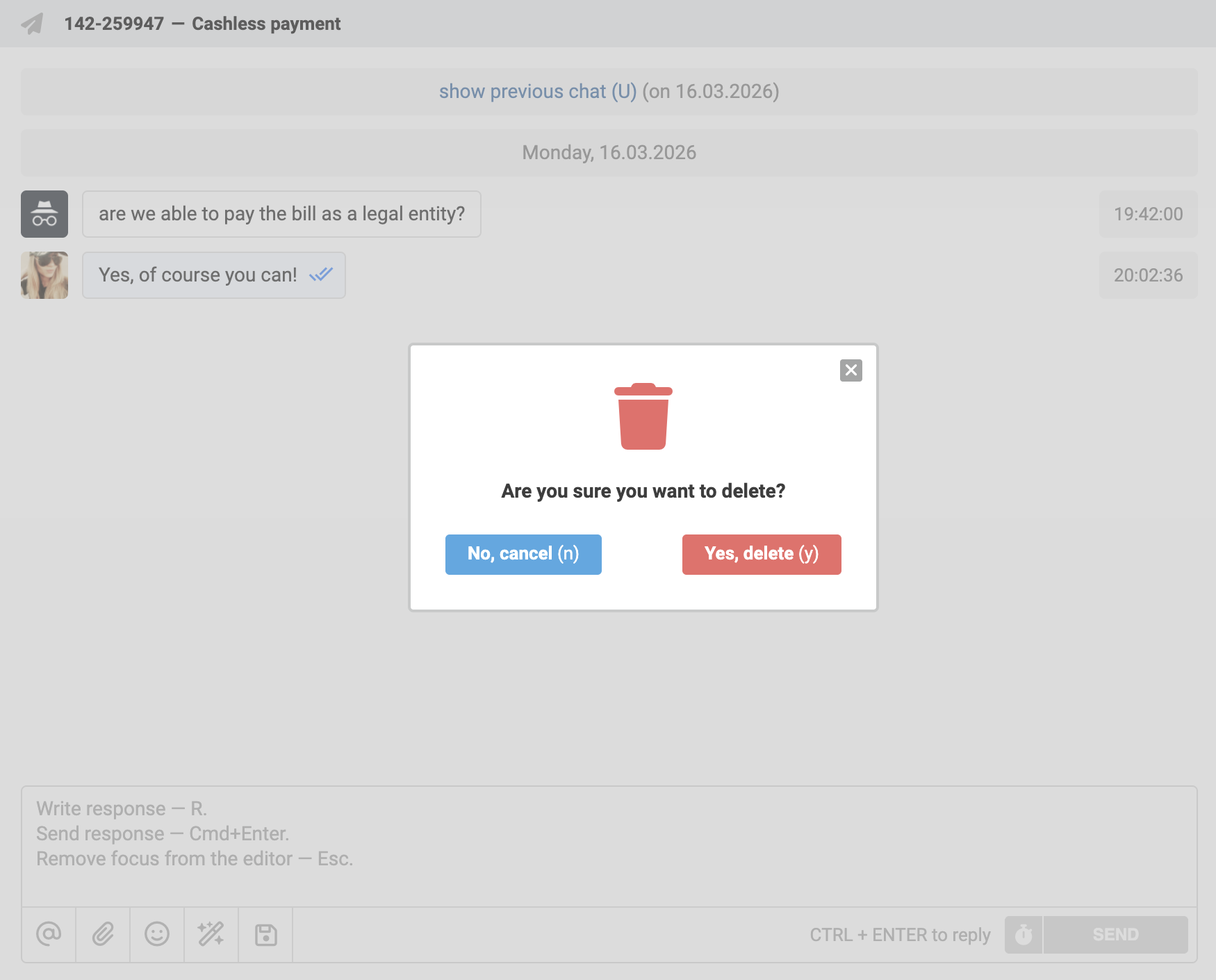
After saving changes or confirming deletion, one of two scenarios plays out.
1. Changes in Deskie and in the channel
If the channel supports changes and you're editing/deleting an agent's response:
- Deskie sends a change request to the channel;
- the message is updated or deleted both in Deskie and in the channel's interface;
- a record appears in the action log: "Reply from [date, time] was edited / deleted" under the name of the agent who made the change;
- if the channel returns an error, we show it to the agent.
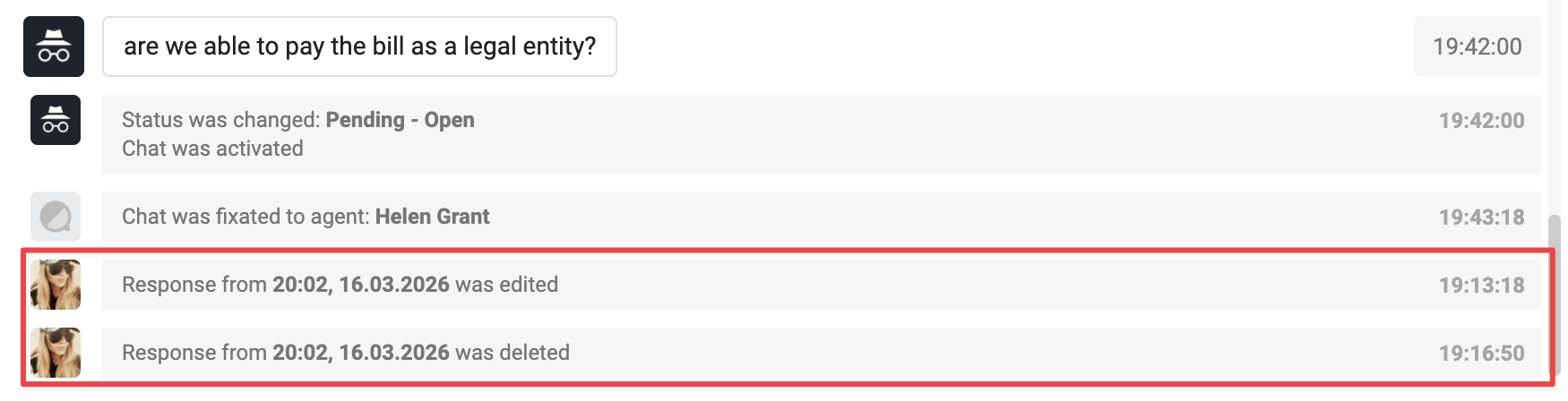
Channel errors during change requests
a) If the channel API returns an error when editing or deleting a message, Deskie shows a notification on an orange background describing the problem.
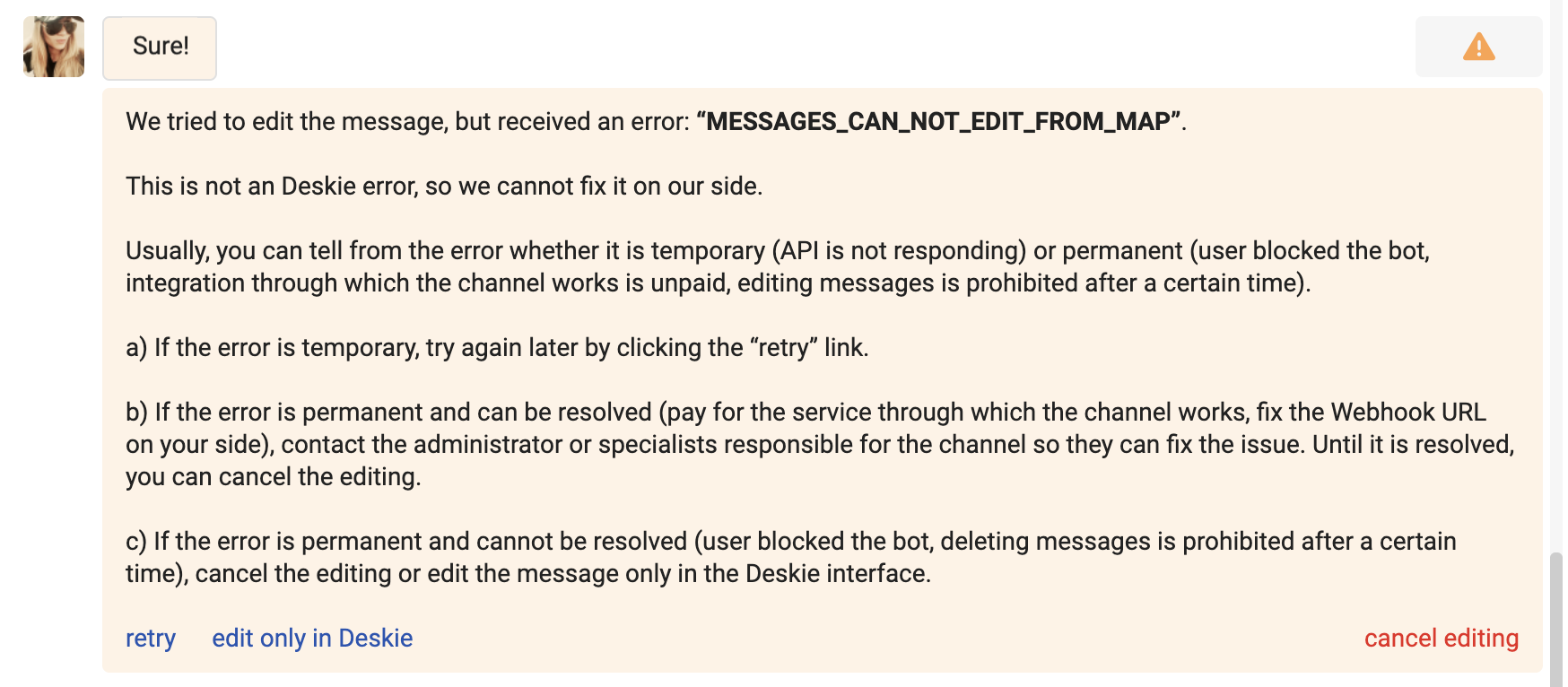
Available actions in the notification:
- retry — send the request to the channel again (helpful if the error was temporary);
- edit / delete only in Deskie — apply the changes only in Deskie, without re-sending the request to the channel;
- cancel edit / deletion — revert the message to its original state.
b) If the channel has a time limit for deleting messages, an error is also shown. The error message usually indicates that the deletion request was rejected by the channel's API.
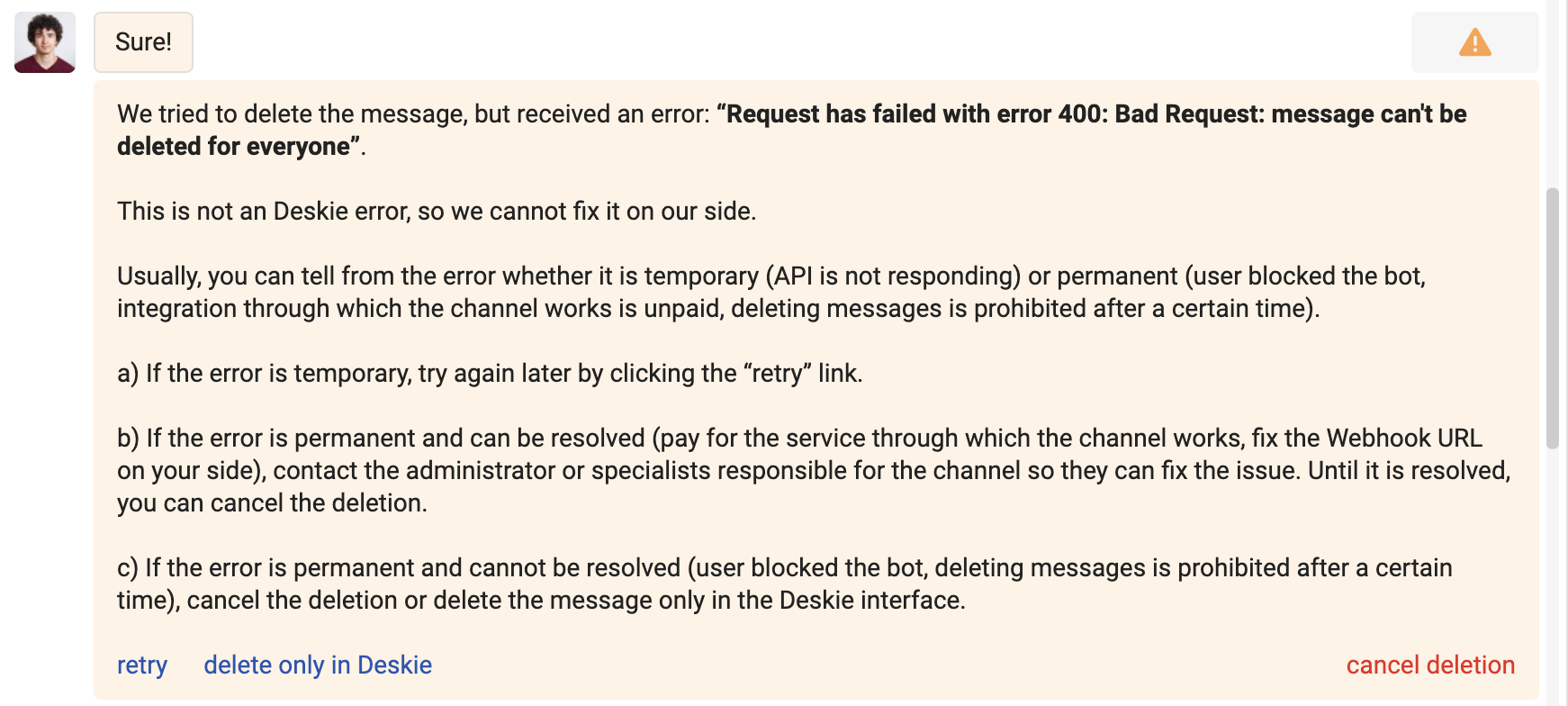
In this case, retrying the deletion makes no sense — you can either delete the message in Deskie only, or cancel the action entirely.
2. Changes in Deskie only
If the channel doesn't support changes, or you're editing/deleting a customer's reply, the result appears only in Deskie — the message in the messenger or social network stays as is.
When hovering over the "Save" link in such cases, a tooltip appears: "Editing will be performed only in Deskie".

In the action log after the changes are applied, the corresponding entry appears:
- "Response from [date, time] was edited only in Deskie"

- "Response from [date, time] was deleted only in Deskie"

Notes: how to edit or delete in chats
The logic for editing and deleting notes in active and closed chats is the same as in email cases, with a slightly different interface.
Hover over a note to see the edit and delete icons on the right.

Clicking the edit icon opens a form where you can:
- change the text or emoji;
- add or remove attachments.
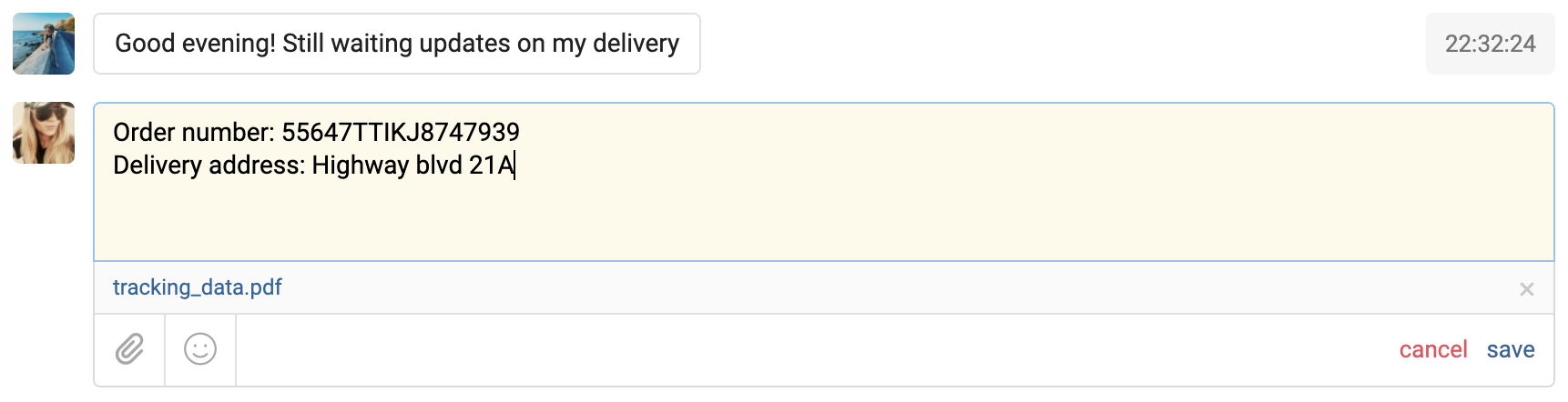
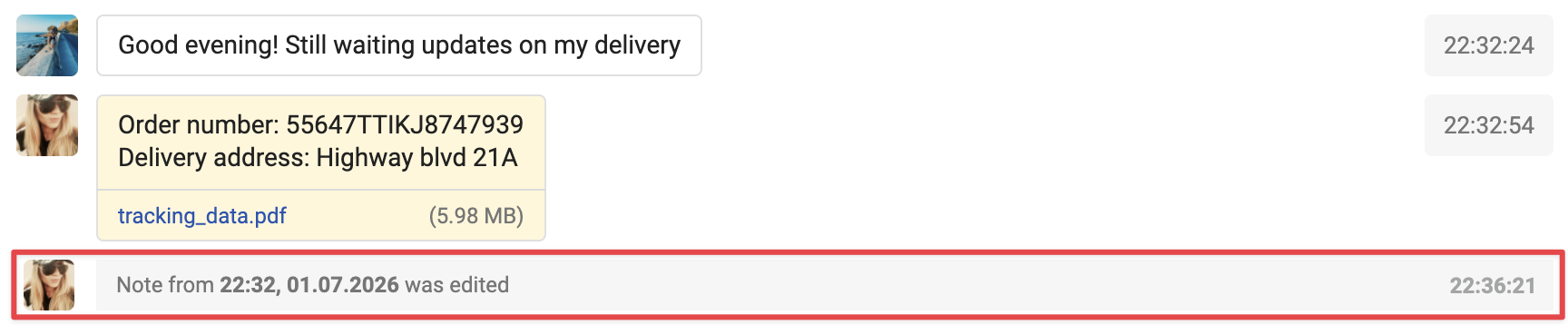
After saving, a record appears in the case action log : "Note from [date, time] was edited" under the name of the agent who made the change.
Clicking the delete icon opens a confirmation modal.
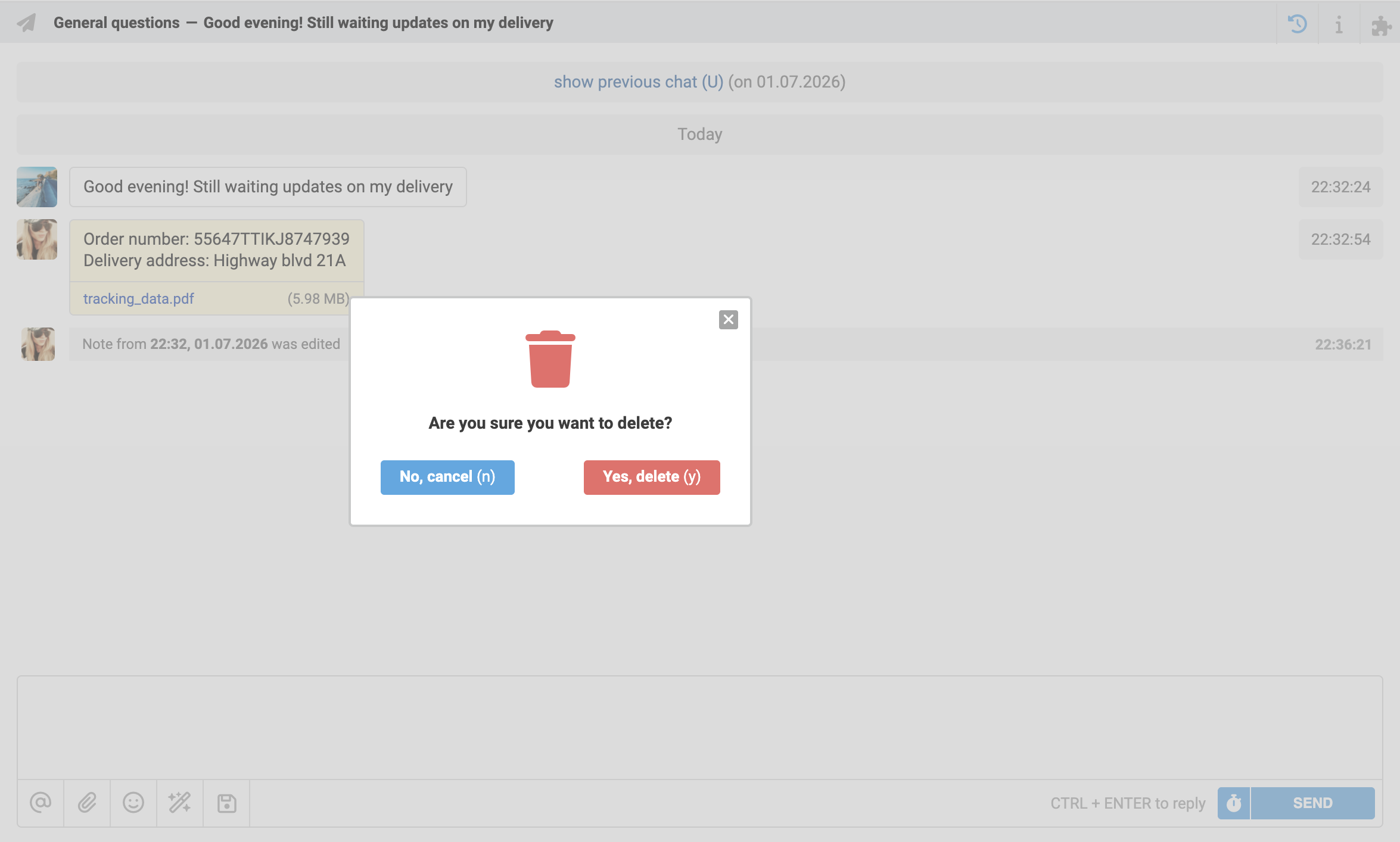
After confirming deletion, the note is deleted and the case action log shows: "Note from [date, time] was deleted" under the name of the agent who made the change.

Rules: how to track editing and deleting replies and notes
Before getting started, we recommend reading the article on the general logic of automation rules in Deskie or watching the short video guide on rules
For modified cases rules, new conditions have been added to track editing and deleting responses and notes:
- "Response deleted — from Deskie and the channel / only in Deskie";
- "Response edited — in Deskie and the channel / only in Deskie";
- "Note deleted";
- "Note edited".
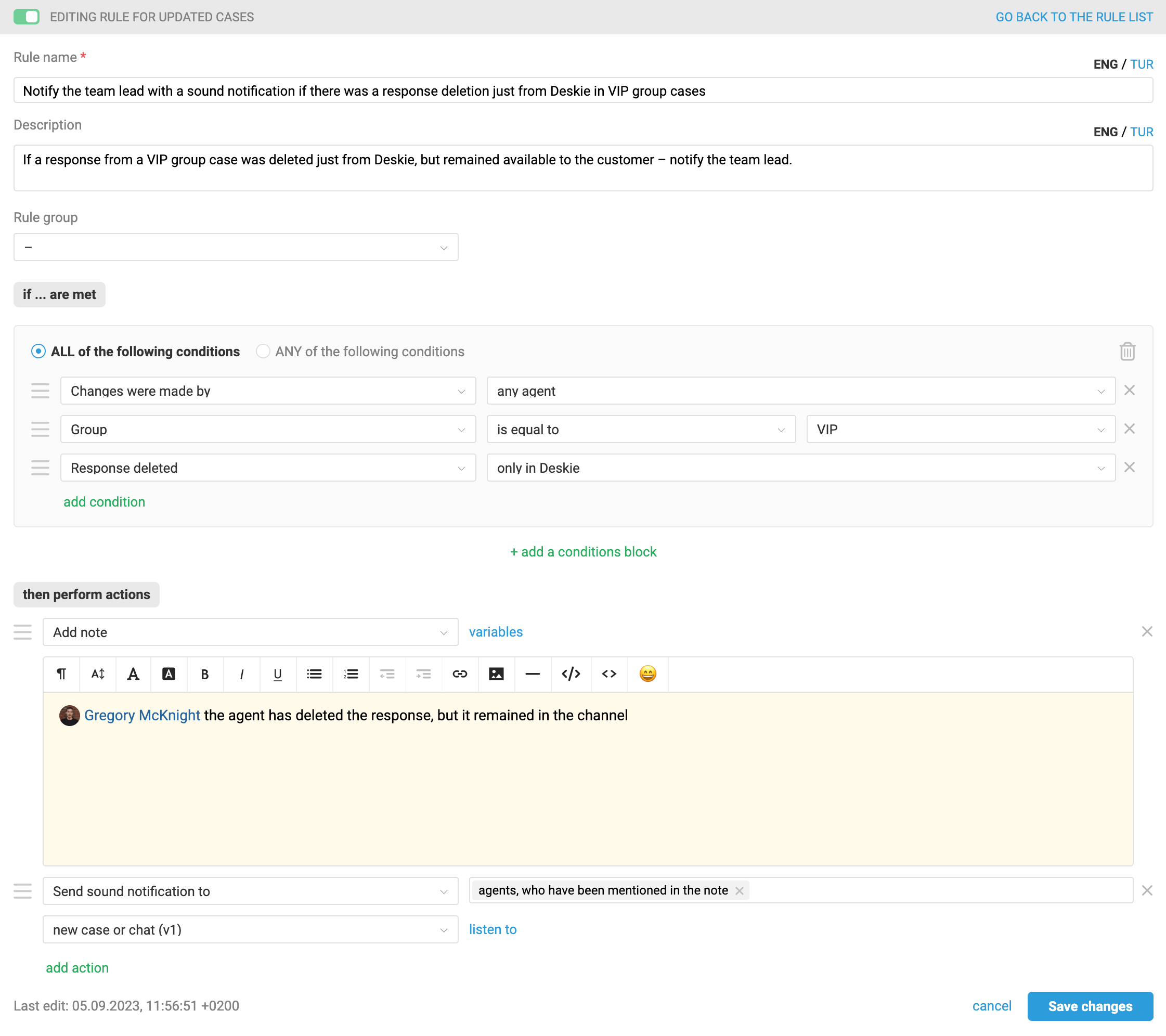
For example, you can set up a rule to notify management when an agent deletes a message from Deskie but the customer can still see it on their side: