
We've updated the mailbox channel connection and editing forms: added Microsoft OAuth support, moved POP3 to a separate tab, simplified changing the connection type, and added the ability to configure a third-party SMTP right away. Here's a detailed breakdown of all the changes.
All settings for mailboxes previously connected to Deskie were automatically migrated to the new form. Additional action is only required if you use Microsoft mailboxes. Learn more
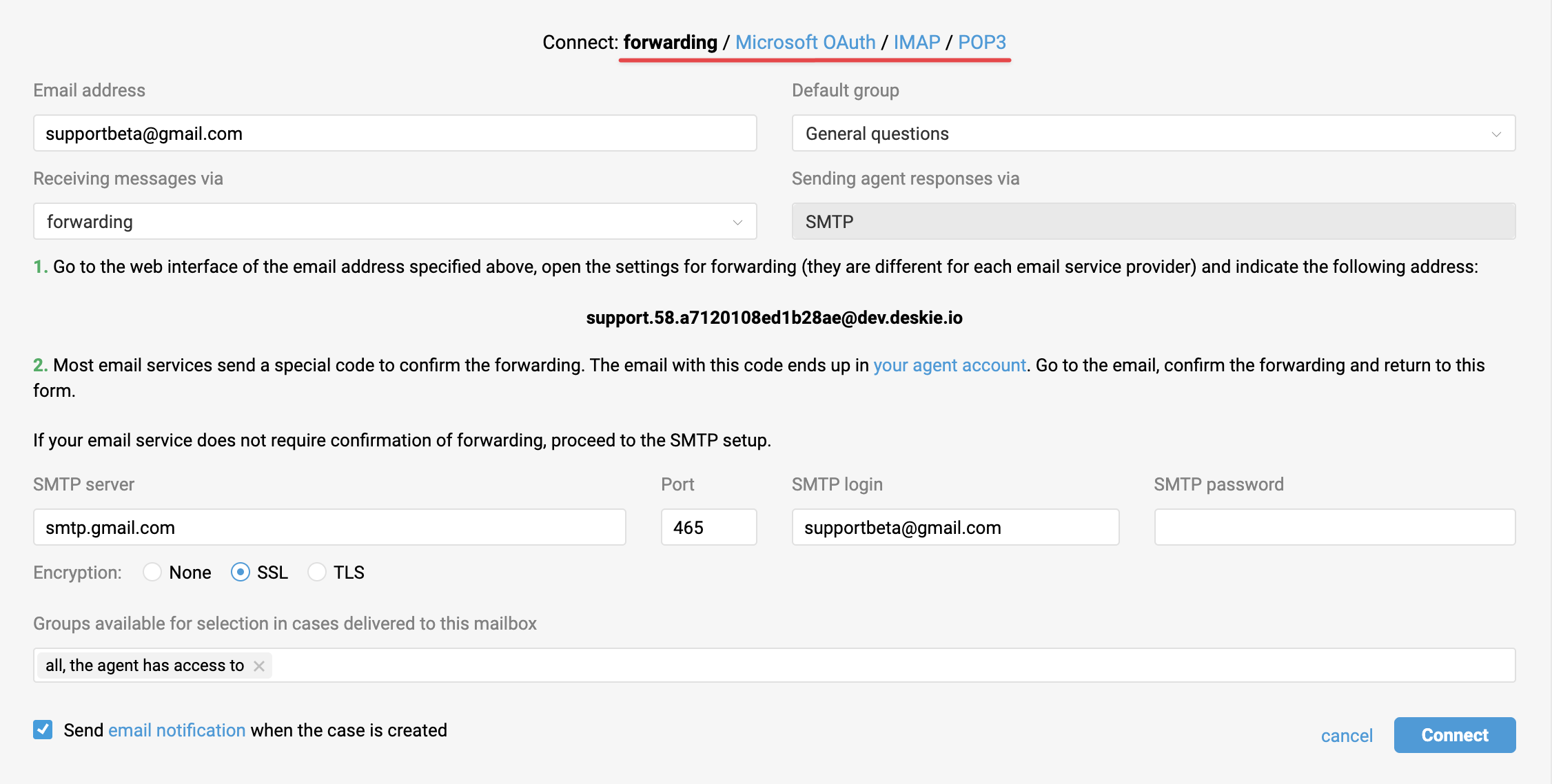
1. We've added separate tabs for connecting mailboxes via Microsoft OAuth and POP3. There are now four tabs for selecting the connection type: forwarding, Microsoft OAuth, IMAP, and POP3.
Microsoft mailboxes
We've made Microsoft mail a separate connection type — Microsoft OAuth. This is because Microsoft has discontinued support for connecting mailboxes to third-party services using a login and password — both for personal addresses on @outlook.com, @hotmail.com, and @live.com, and for corporate account mailboxes in Microsoft 365.
The current guide for connecting Microsoft mail is available here.
2. You can now change the mailbox connection type yourself.
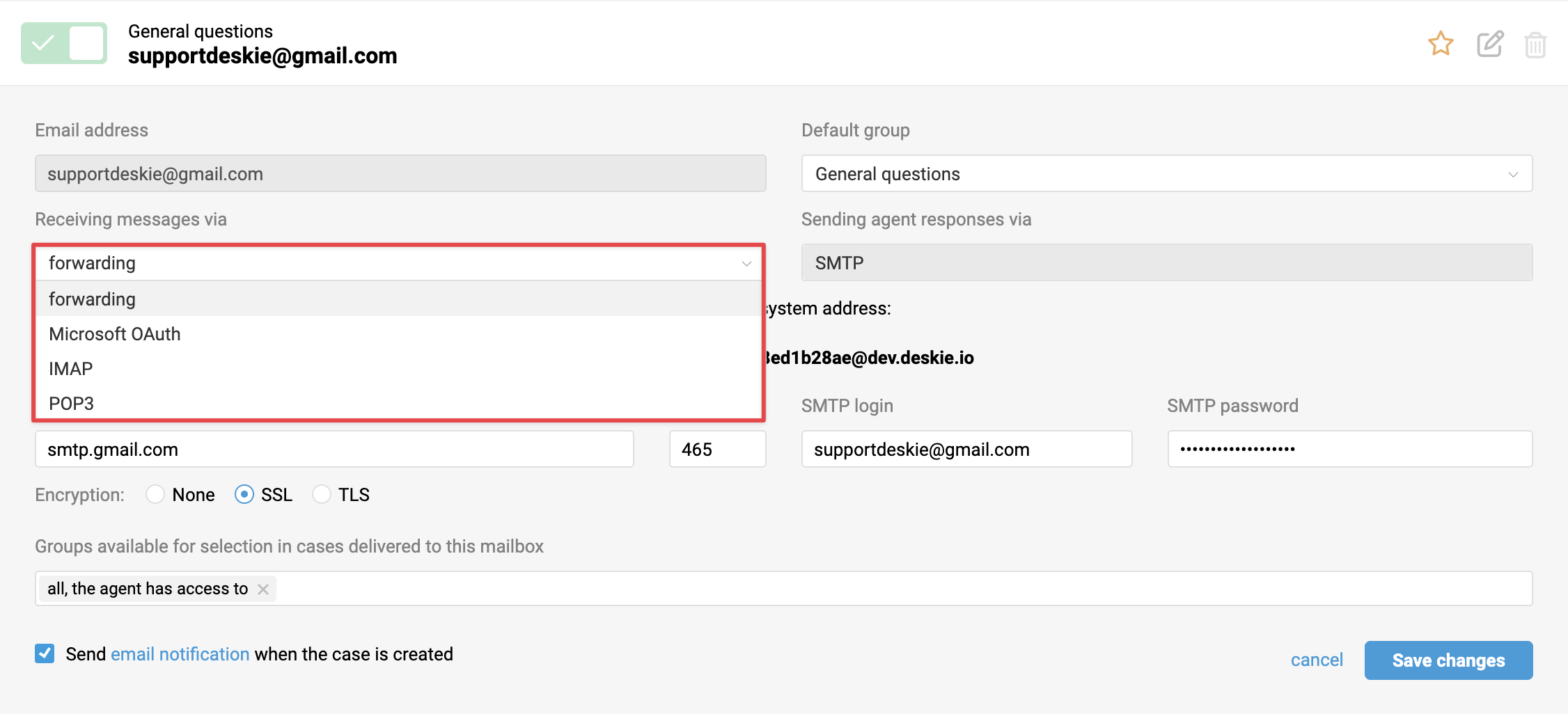
When changing the mailbox connection type, make sure to apply the necessary changes on your mail service's side:
- for IMAP and POP3 — grant the required permissions to allow IMAP or POP3 connections;
- for forwarding — set it up to the unique system address of your account shown in the mailbox connection form;
- for Microsoft OAuth — complete the required setup and grant access to the mailbox using the link in the mailbox editing form in Deskie.
3. We've simplified third-party SMTP server settings:
- added an SMTP login field — you can now enter it directly instead of appending it with a colon after your mailbox address as before;
- a third-party SMTP can now be used with any connection type, not just forwarding.
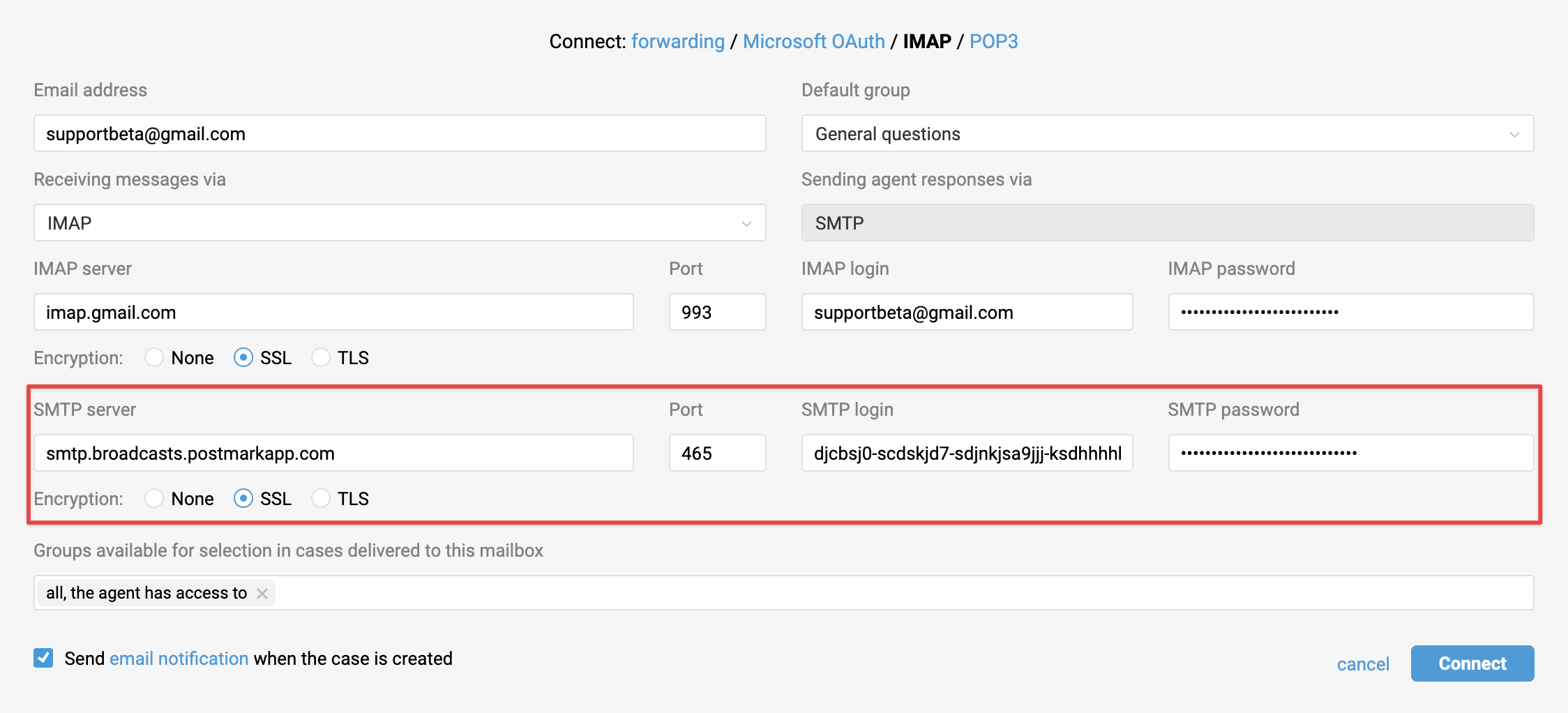
You can change the SMTP server settings at any time by specifying either your native SMTP details or a third-party specialized SMTP service responsible for sending agent responses.
Connection error
If the mail server returns an error when connecting to the mailbox, we display a notification in the header of the agent's and admin's accounts, and highlight the problematic address in red in the list of connected mailbox channels.
For mailboxes connected via IMAP / POP3 / Microsoft OAuth, we've added:
- the error text received from the server, so you can more easily understand what went wrong;
- a button to refresh the connection — after fixing the issue on the mail server's side, you can use it to initiate a new connection attempt.

Reconnecting Microsoft mailboxes
Settings for Outlook / Hotmail and Exchange Online (Microsoft 365) mailboxes connected to the service via forwarding, IMAP, or POP3 have been migrated to the new form. Mailboxes connected via IMAP or POP3 can be in one of two states:
1. Connection active — the mailbox is displayed in black. Emails from the mailbox continue to be received correctly.

2. No connection — the mailbox is displayed in red. In this case, emails from the mailbox are not delivered to Deskie.

Regardless of the current state, Outlook / Hotmail and Exchange Online mailboxes must be reconnected via Microsoft OAuth, as Microsoft is gradually disabling alternative authentication methods for both personal and corporate accounts. Without switching to OAuth, mail will eventually stop arriving in Deskie.
The exception is mailboxes connected via forwarding with a third-party SMTP, since in this case we don't connect directly to Microsoft's services — we wait for Microsoft to forward emails to your account's system address.
In the list of mailboxes connected via IMAP or POP3 for Outlook / Hotmail and Exchange Online (Microsoft 365) mail, a "Reconnect via Microsoft OAuth" button has been added.

If the necessary permissions for the mailbox to work with third-party services are already granted on the mail server's side, clicking the button will open the Microsoft authorization form. Select the mailbox for which you want to grant connection permission — after authorization, the mailbox connection type will change to Microsoft OAuth.
If the mail server settings haven't been completed yet, follow the mailbox connection guide. Learn more