
We've strengthened validation for fields required for any action: added instant tooltips, automatic highlighting, and protection against bypassing validation. We've also fixed several logic issues.
Key changes:
- fields required for any action are now marked with an asterisk (*) throughout the interface;
- a notification about unfilled required fields has been added;
- case creation is blocked if required fields are not filled in;
- required fields can no longer be bypassed by applying a macro.
Required field display
Throughout the Deskie interface, fields required for any action are now marked with an asterisk (*) to the right of the field name so they're immediately visible.
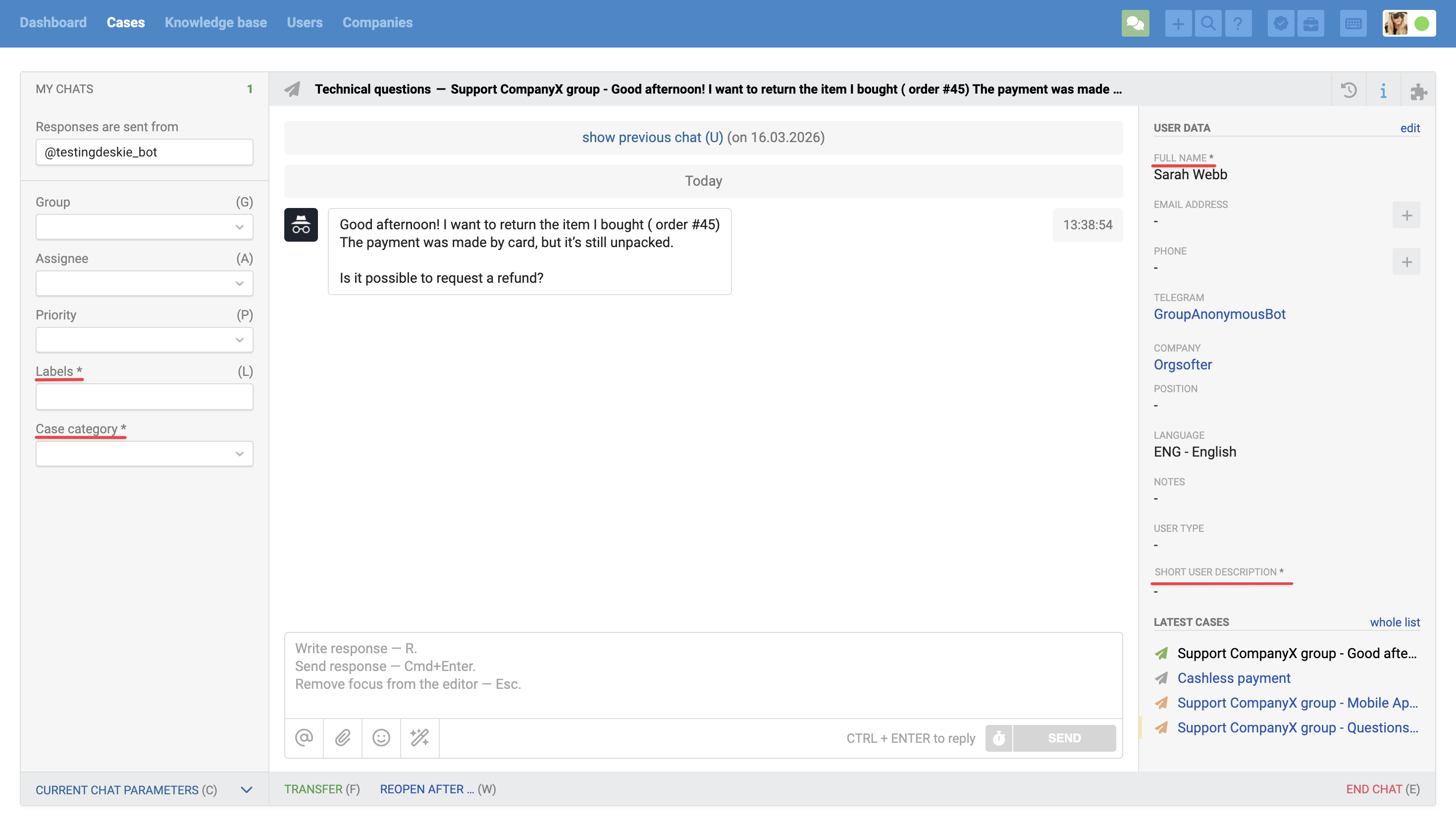
This visual change helps agents quickly identify which fields need to be filled in before sending a reply, saving changes, or ending a chat.
Data fields required only when closing a case are not marked with an asterisk.
User data
🕘 Previously, only user data fields in the right information panel on the case page could be made required.
You can now also make fields required in the user profile.
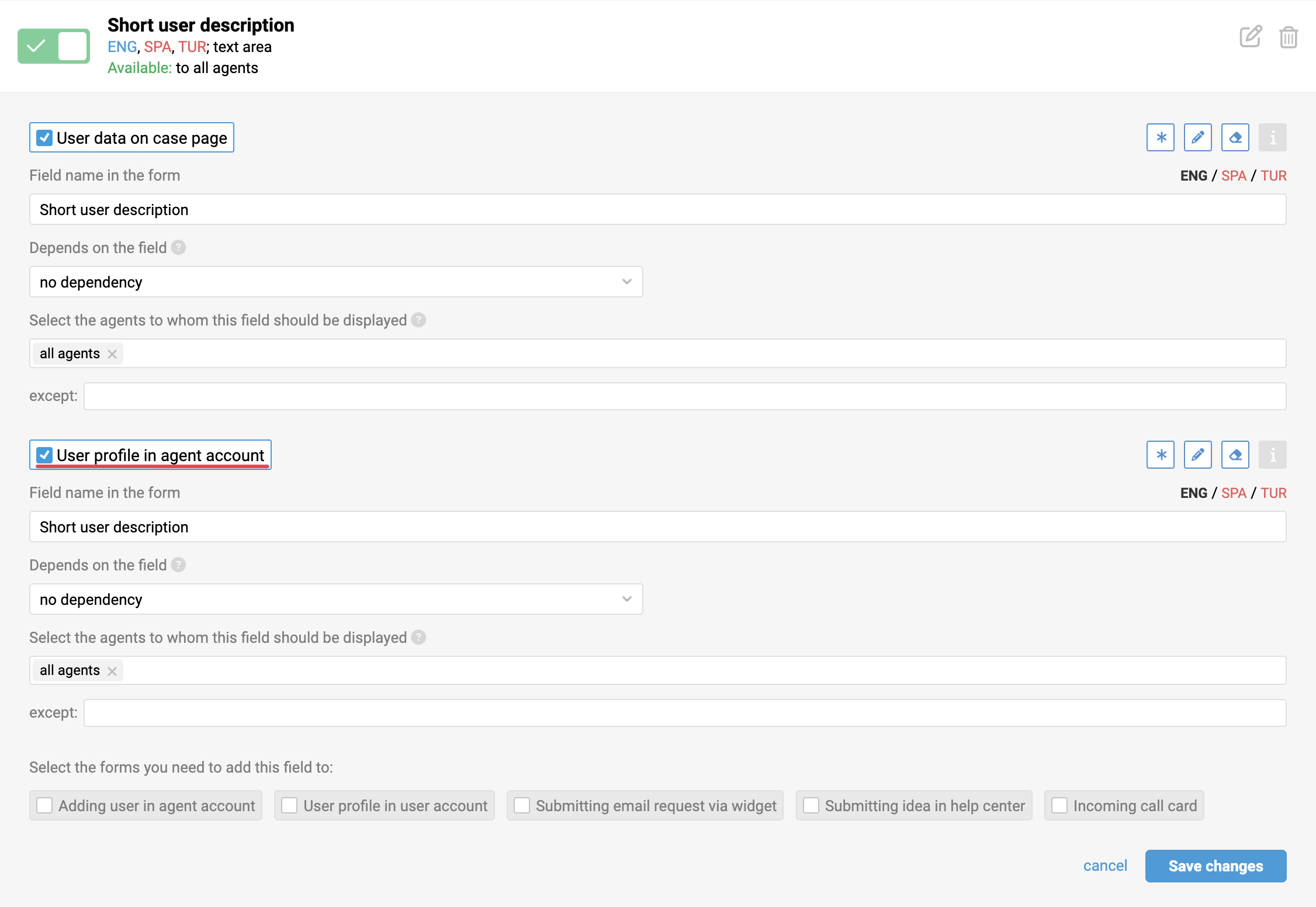
When you make a user field required, we automatically apply the same setting to all forms displayed in the agent account. The logic applies to the following forms:
- User data on case page;
- Adding user in agent account;
- User profile in agent account.
This prevents a situation where a required field could be cleared through another form in the agent account where the required setting is not enabled.
If you need different required field logic for these forms, you can manually uncheck the asterisk (*) when configuring the fields. Manual settings take higher priority and are not overwritten.
Additionally, the ability to edit and clear the value cannot be disabled for required fields.
Field validation
If a case has unfilled required case or user fields, the agent cannot send a reply, save changes, end a chat, or create a case until each of them is filled in.
Actions exempt from validation
The following actions can be performed without filling in required fields:
- change the case subject;
- add a note;
- schedule a reopening;
- mark the case as spam or move it to trash;
- transfer an active chat to a colleague.
This allows you to perform administrative actions on a case even when filling in the required fields isn't yet possible.
1. Validation while typing a reply
a) All required fields are highlighted with a red border so they're immediately visible;
b) The send button becomes inactive;
c) A tooltip about unfilled fields is shown;
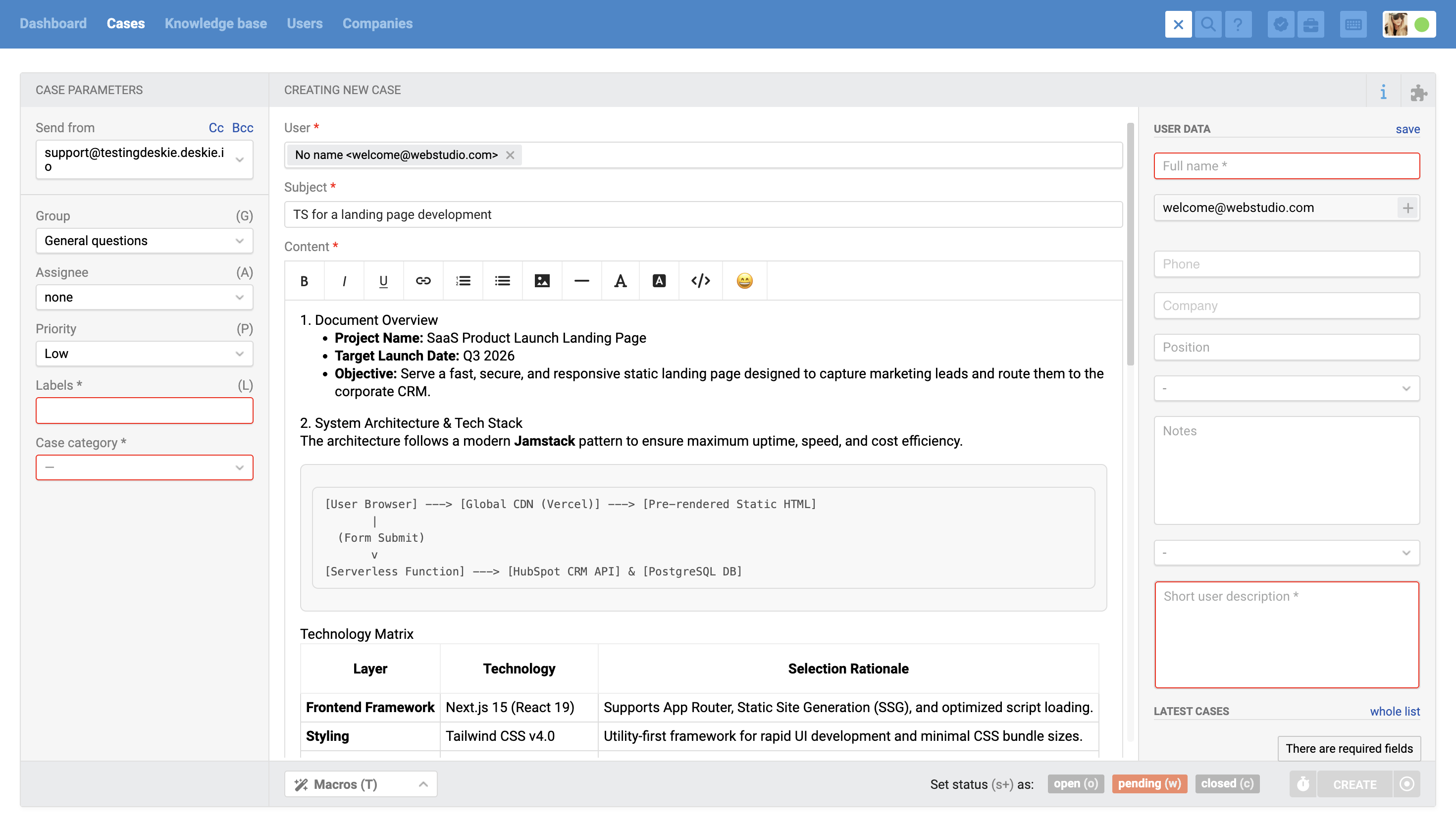
d) In a new unassigned chat, the "Take all incoming" / "Take selected chats" link turns red. After clicking, the case parameters panel automatically expands and the required fields are highlighted.
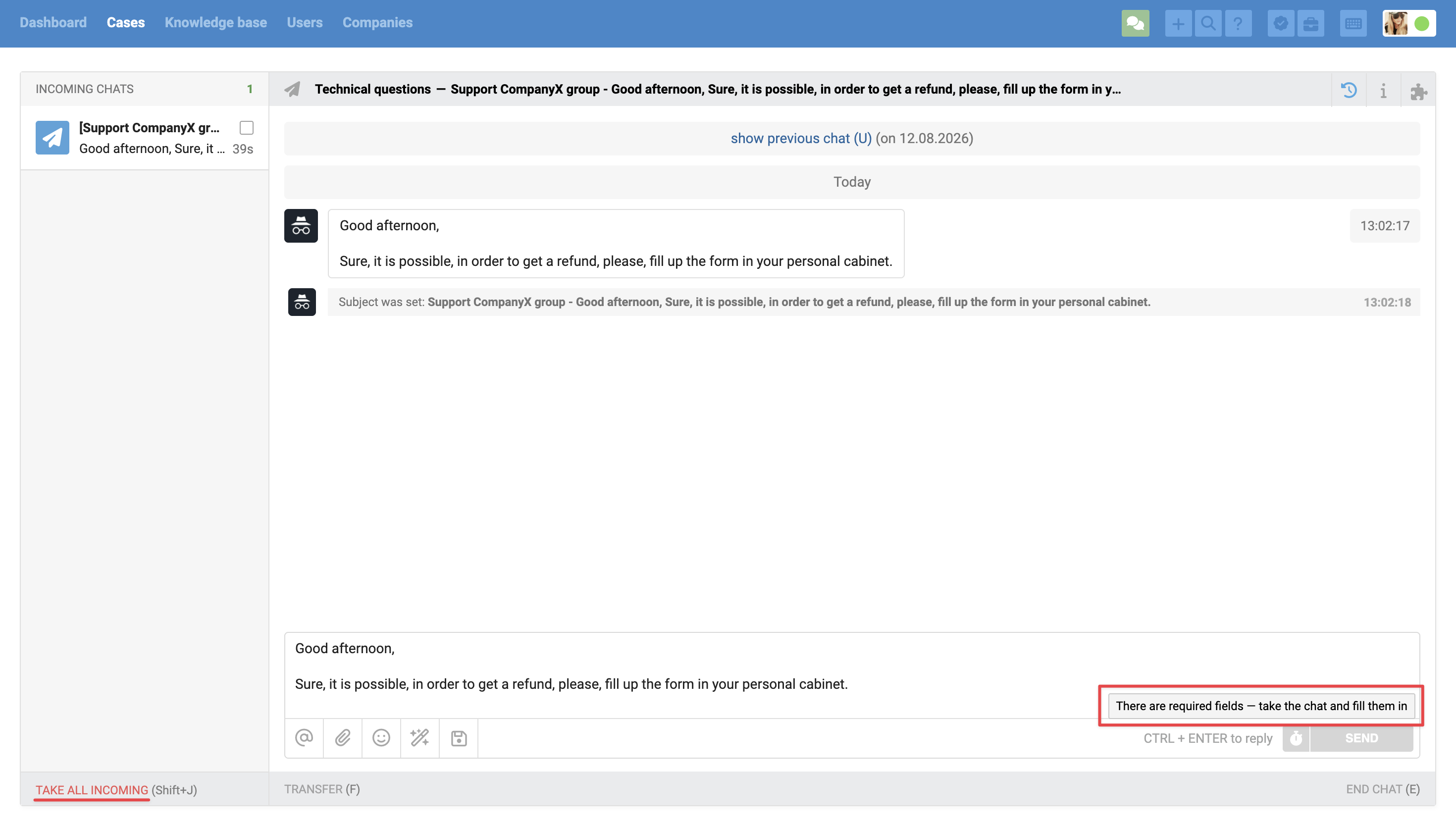
🕘 Previously, an agent could change case parameters and send a reply in a new chat without filling in the fields required for the next action.
Text typed in the reply field is saved and not lost when changing case parameters or performing any other action, including switching between tabs or signing out of the agent account.
2. Field completion order
a) While required case parameter fields are not filled in, other fields are not available for editing: hovering shows a blocked cursor, and attempting to change them displays a tooltip "There are required fields";
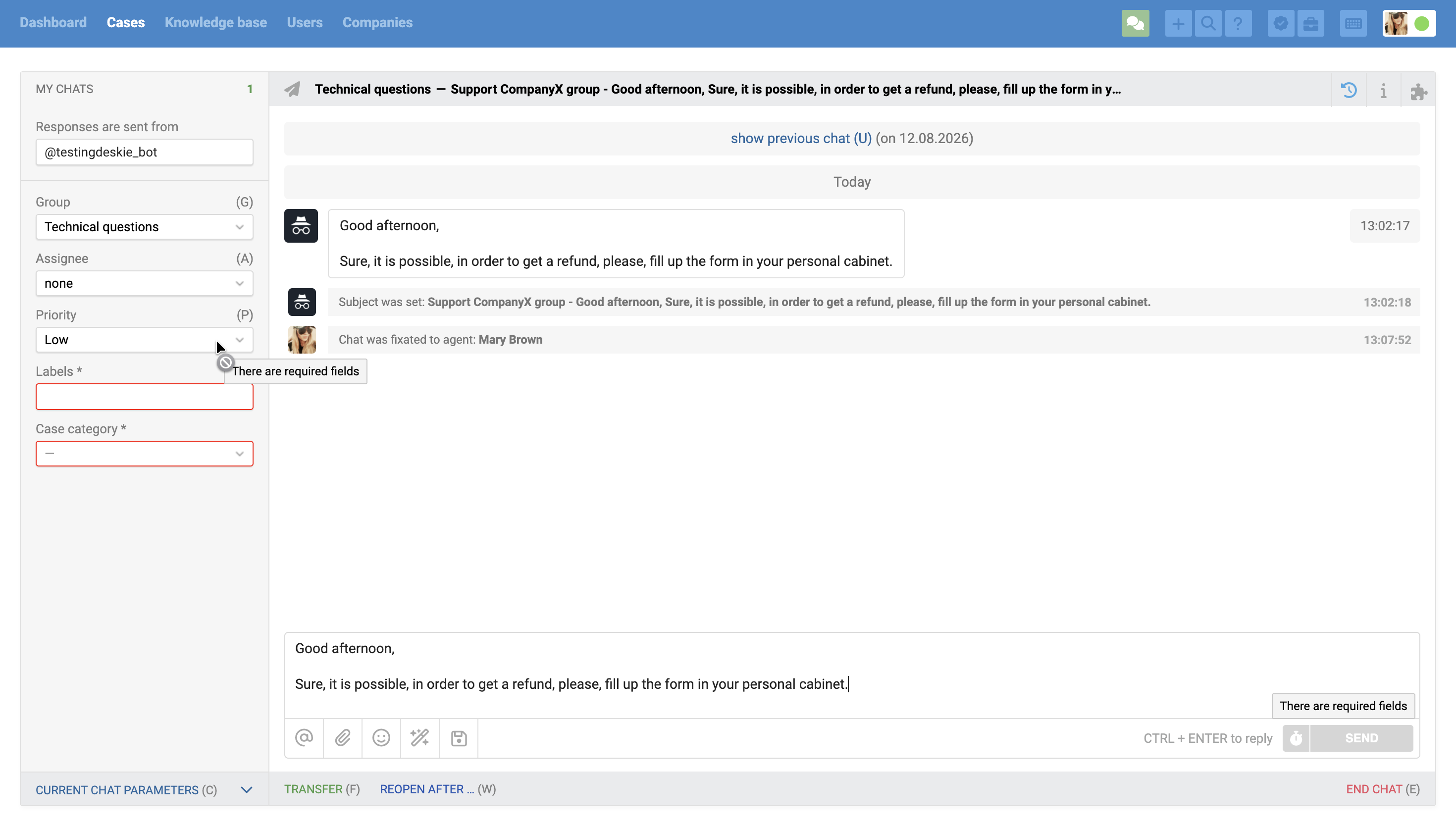
b) User data fields can be filled in any order.
If there are required fields in user data, the right panel automatically opens in edit mode and scrolls to the first required field.
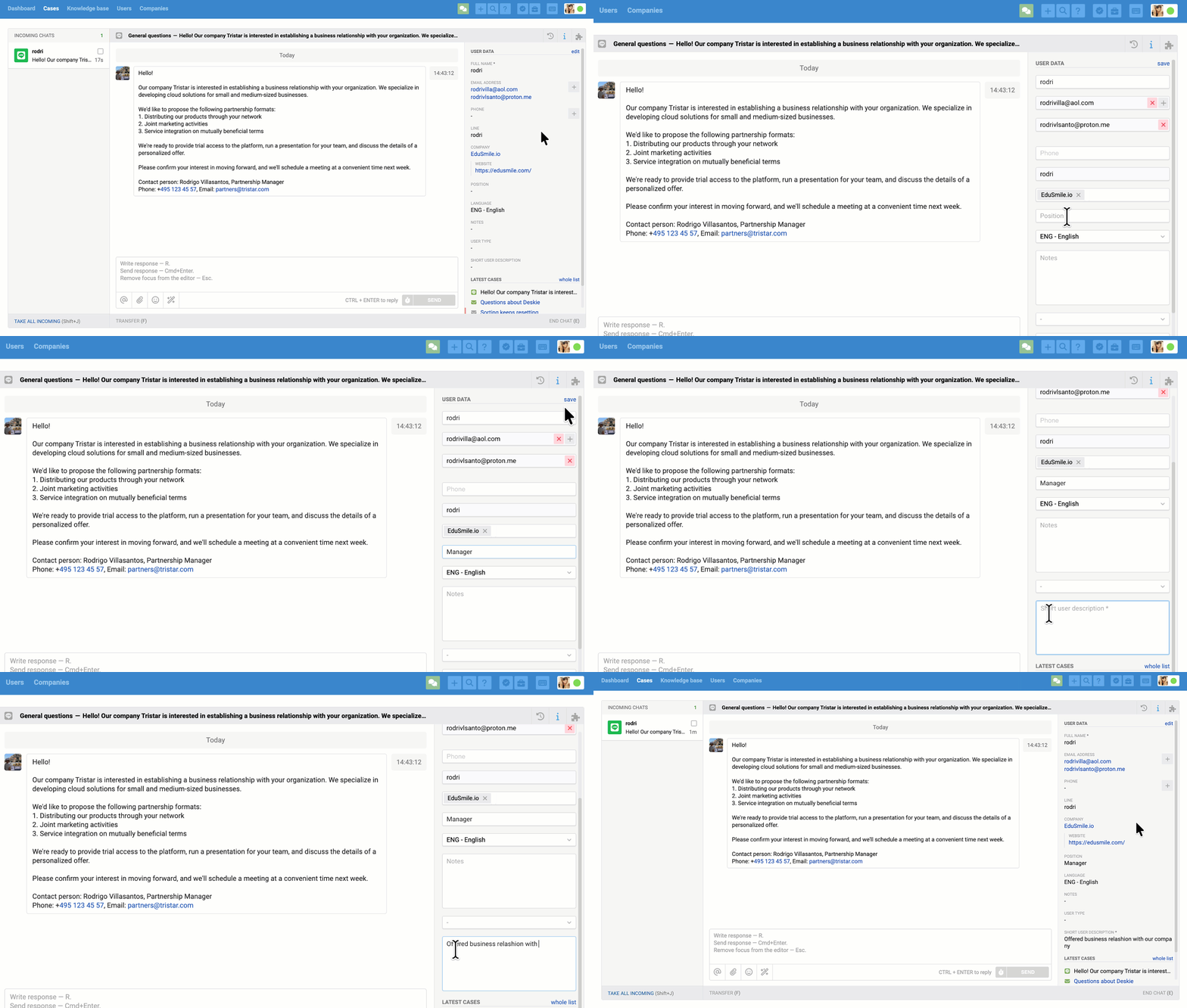
The same behavior for required fields in user data also applies when clicking the "Save" link. The scroll also works for dependent required fields.
3. Validation when changing case parameters
When changing case parameters with unfilled required fields, hovering over the "Save" button shows a tooltip about the unfilled fields.
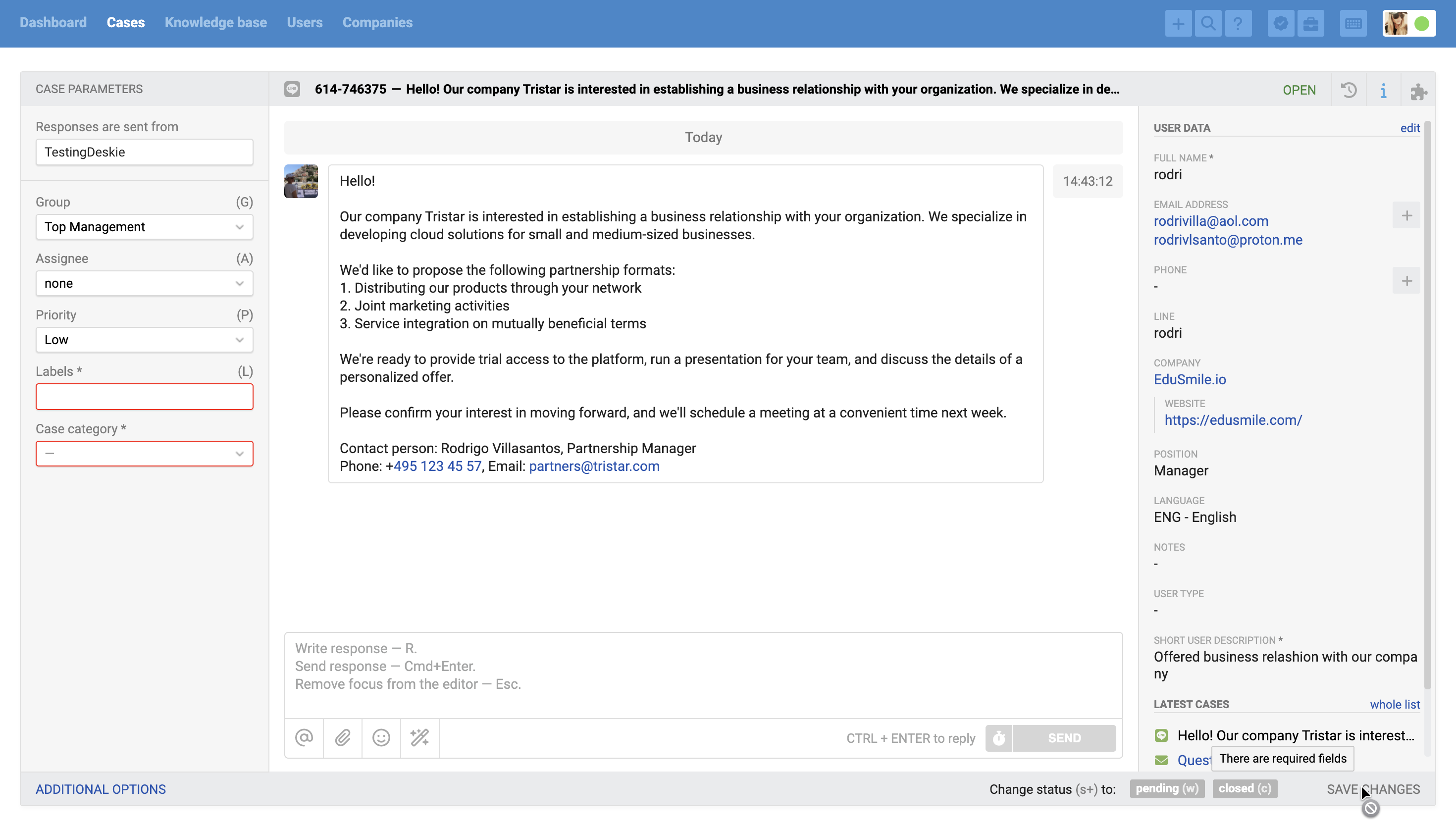
In a closed chat or asynchronous channel case, changes to case parameters can be saved in two ways:
- by clicking the "Save" button in an asynchronous channel case or the "Save changes" link in a closed chat;
- by sending a reply: in this case, the changed case parameters are also saved.
🕘 Previously, in closed chats, even if the reply text had already been entered, you first had to separately save the changes to required fields in case parameters. Only then did the send button become available.
4. Validation when creating a new case
When creating a new case, we check whether required fields in the case parameters and user data are filled in. Until they are, the "Create" button remains inactive and a tooltip is shown above it.
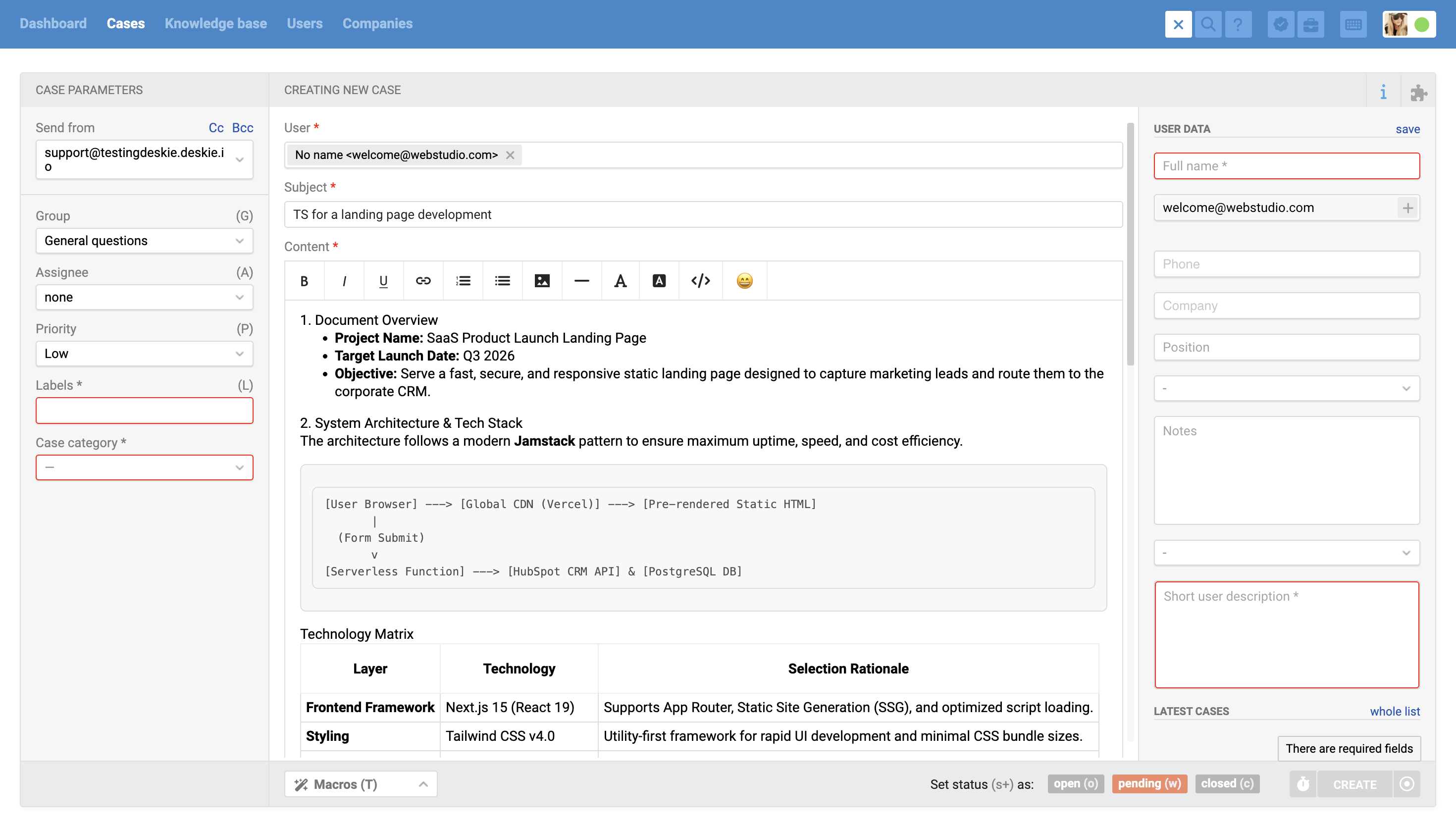
If there are unfilled required fields in user data, the right panel opens in edit mode automatically when creating an outgoing case for a new user.
When creating a case for a user with all required fields already filled in, the information panel opens in view mode.
5. Dependent field logic
If all required fields are already filled in but selecting a value in an optional field reveals a new dependent required field, the parent optional field can still be changed.
6. Incompatible macros in chats
If required fields remain unfilled after applying a macro, the macro will not be applied and a notification appears below the page header.
The agent needs to either fill in the required fields manually or choose a macro that fills in all the necessary fields.

This also applies to macros that end a chat or set a case to closed status.
🕘 Previously, when using a macro with the "End chat and set status to closed" action, if a field required for closure was unfilled, the chat could still be ended with a closed status.