
1msg is an official WhatsApp Business provider you can use to get your own WhatsApp Business account.
This article explains how to connect the 1msg integration to Deskie. For a detailed description of how the WhatsApp channel works, see this article.
Connection
1. If you haven't used 1msg before, register and connect your WhatsApp Business account to it.
You need a paid channel in your 1msg account to set up the integration. A trial channel only lets you explore 1msg and send messages to your own number. You'll be able to configure the integration with Deskie only after you pay for the channel and complete all the connection steps.
2. Once WhatsApp is connected to 1msg, copy your API URL and token from 1msg and paste them into the matching fields in the integration connection form in Deskie: administrator account — "Settings" section — "Integrations" subsection — Add integration — WhatsApp block — 1msg.

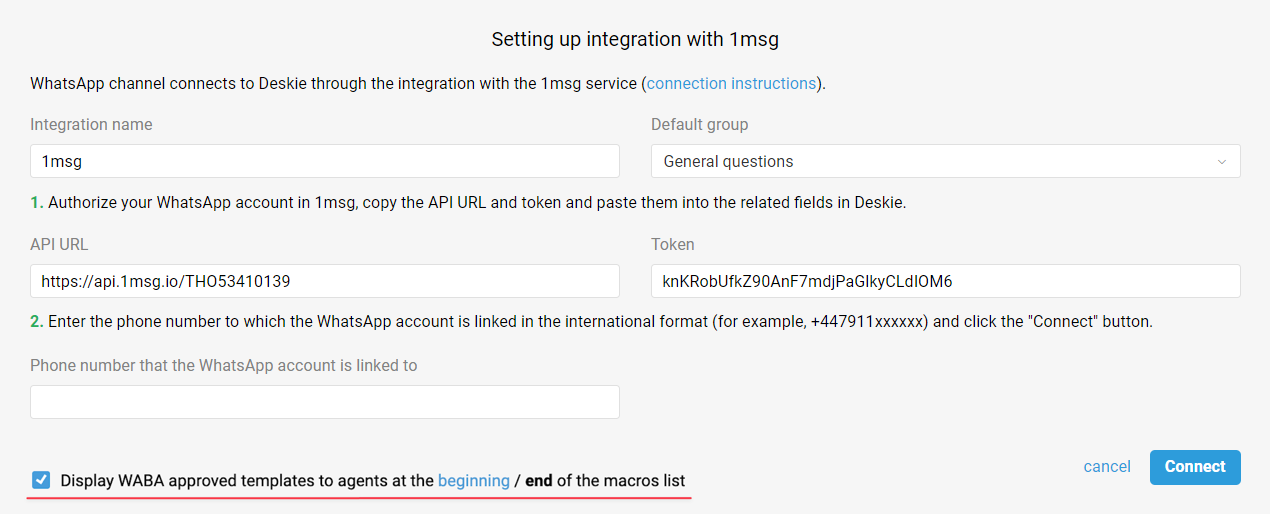
3. To add the WhatsApp channel to your widgets, fill in the "Phone number that the WhatsApp account is linked to" field. The link to a chat with your WhatsApp account is generated from this phone number.
Communication
The all cases list only shows cases with asynchronous communication — each side replies whenever they can. Real-time chats are shown separately and handled through a dedicated interface.
When a new chat comes in (WhatsApp, Telegram, Viber, Slack, Facebook messages, live chat, and other synchronous channels), a green icon appears in the top-right corner of the agent account. Incoming chats and new replies in chats show up there:
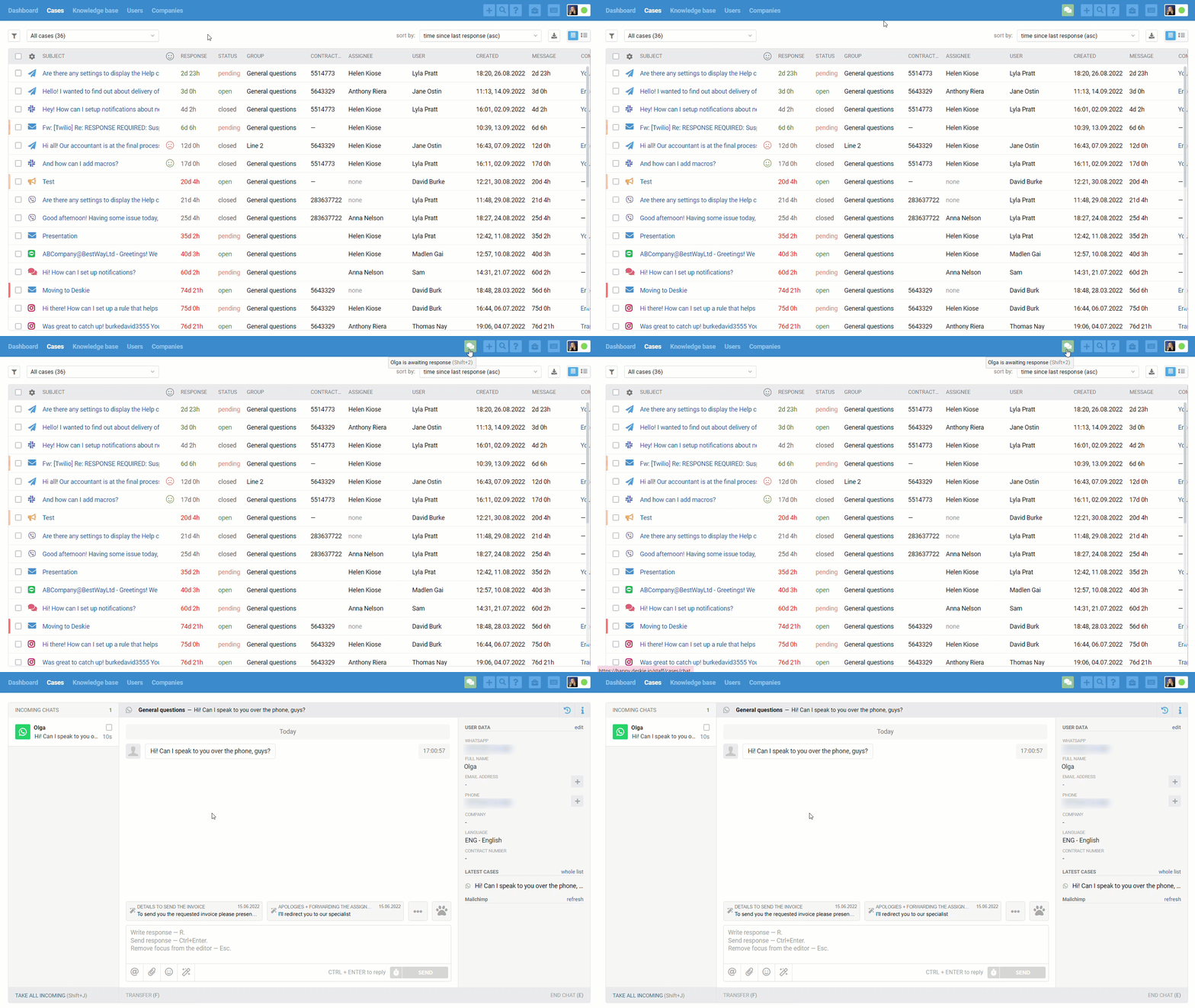
Chats also appear in the all cases list, but only once they've ended:
- if the agent ends the chat themselves via the "end chat" link in the bottom-right corner;
- after 10 minutes of inactivity on both sides, if you use the default value;
- when one of the automation rules with an "end chat and set status" action is triggered — for example, if you want to see chats in the all cases list right away.
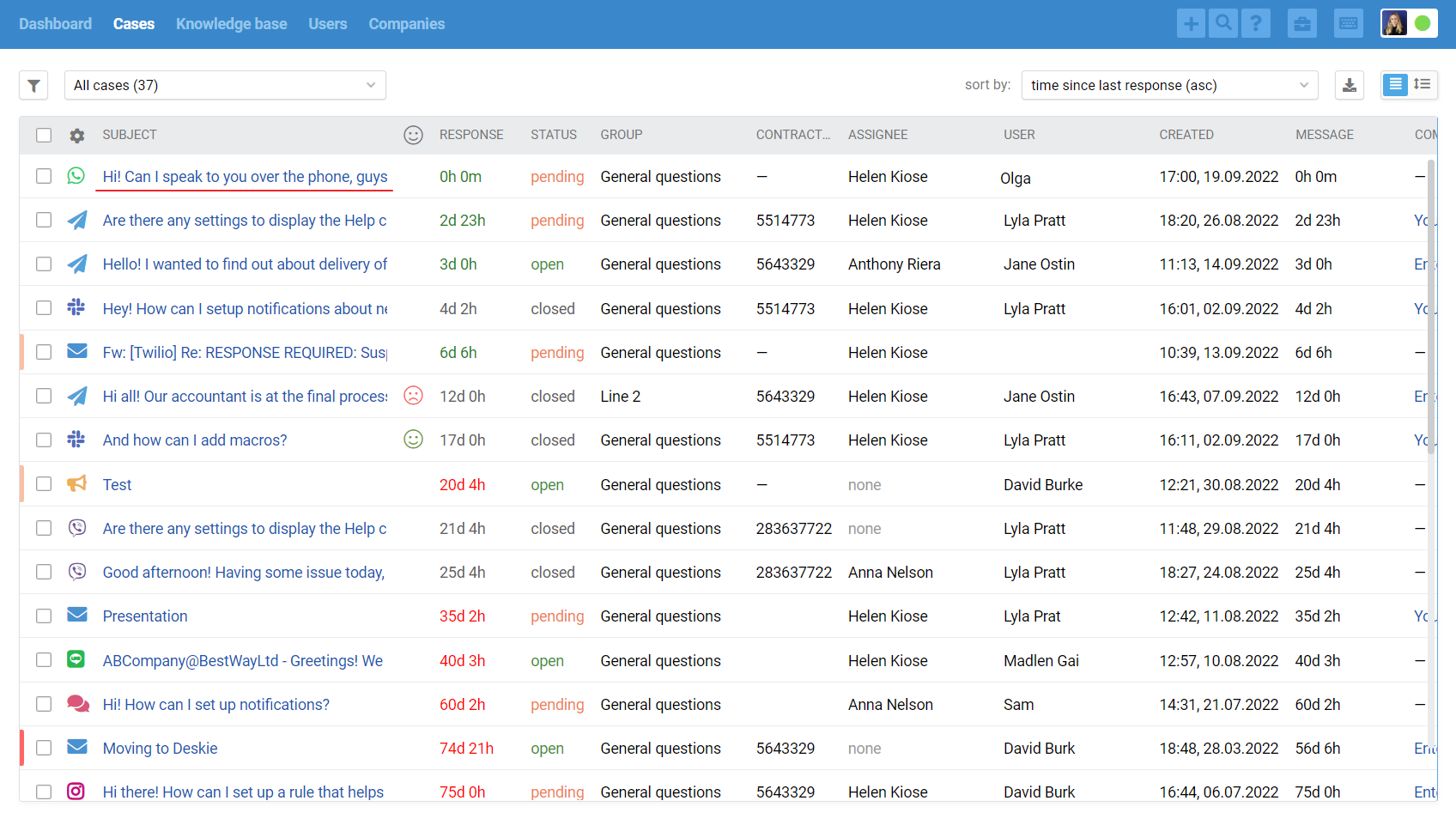
We separate synchronous and asynchronous communication on purpose, because providing top-notch support means accounting for the specifics and expectations customers have, depending on the channel they're using.
For example, a user emailing you is fine waiting a few hours for a reply, but in chats, even 5 minutes can feel like forever. If you don't take this into account and treat email and chat cases the same way, some customers will end up with an unpleasant experience.
You'll find more on working with chats in our video guide.