
The general logic for setting up notifications for new cases and customer replies is described here. Other instructions:
browser notifications (2 minutes to complete)
email notifications (2 minutes to complete)
notifications in Telegram (10 minutes to complete)
notifications in Slack (10 minutes to complete)
notifications in Mattermost (5 minutes to complete)
notifications in Discord (5 minutes to complete)
Before you start configuring, we recommend checking out our article on the overall logic of automation rules in Deskie or watching the quick video guide on rules.
Sound notifications
1. To receive sound notifications about new cases, set up a rule for new cases:
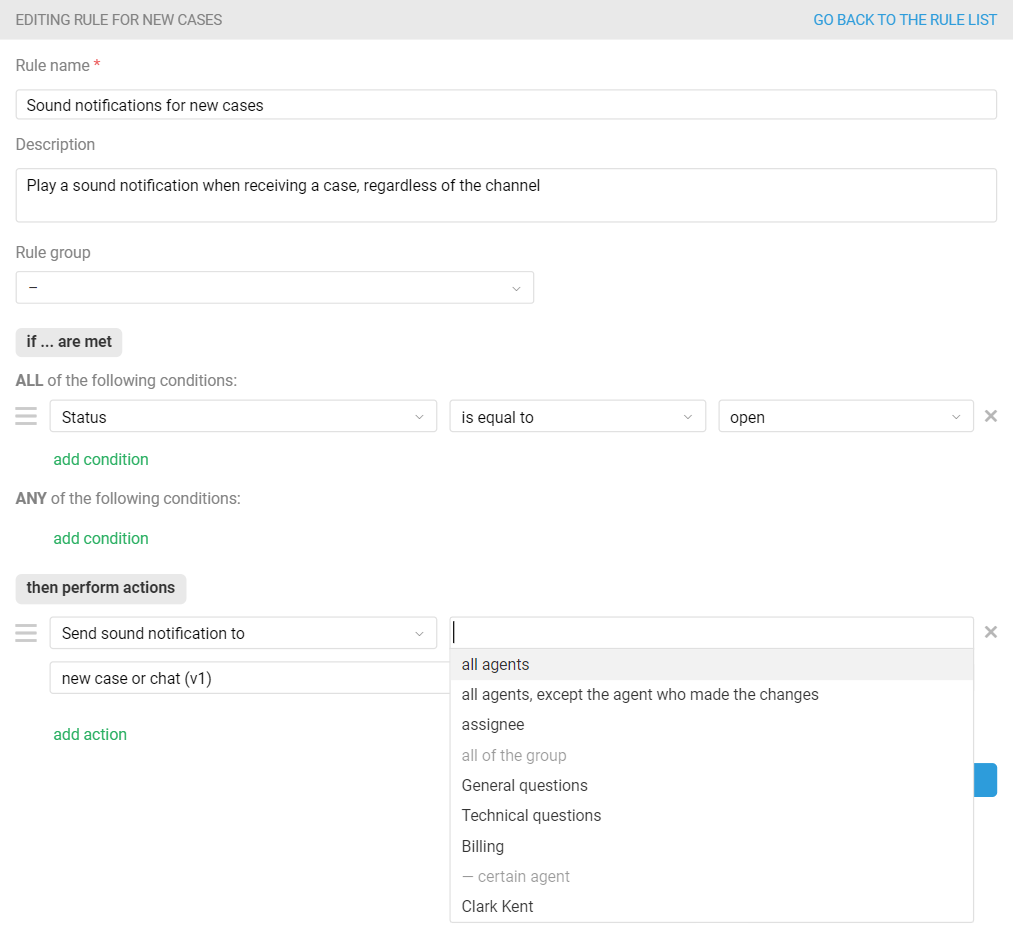
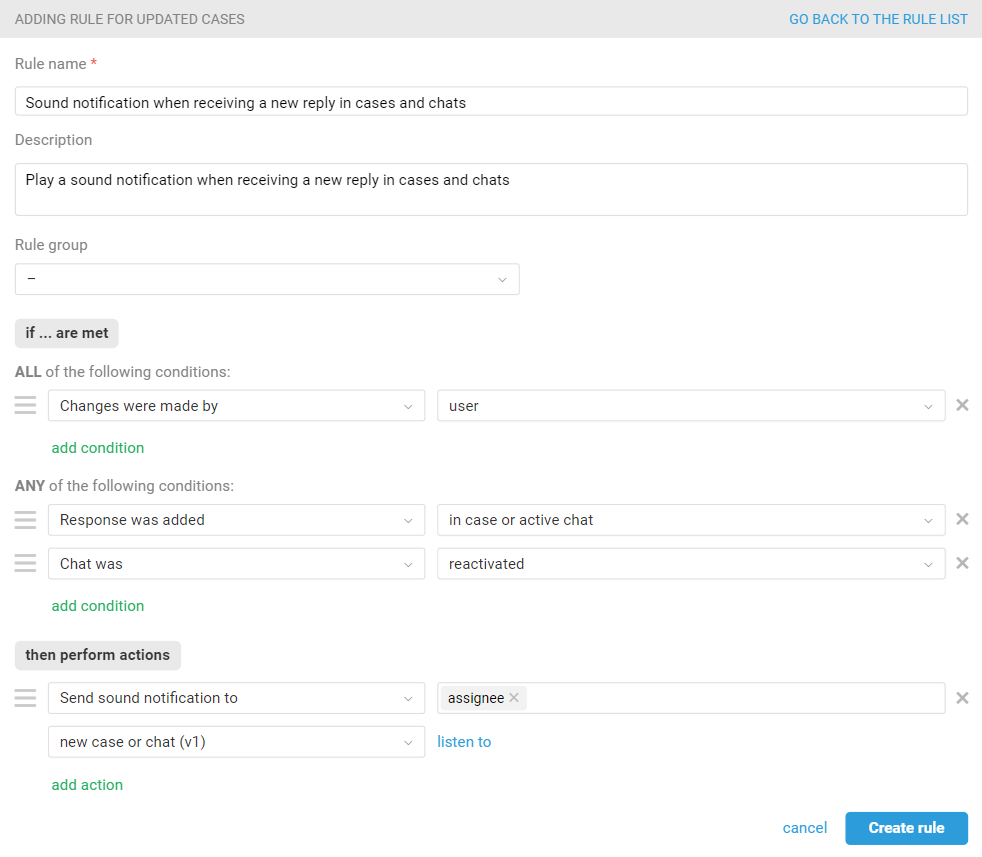
2. To receive notifications about new replies in cases and chats, create a rule for updated cases:
Advanced features
3. You can send a sound notification to all agents, to specific ones, and to a specific group.
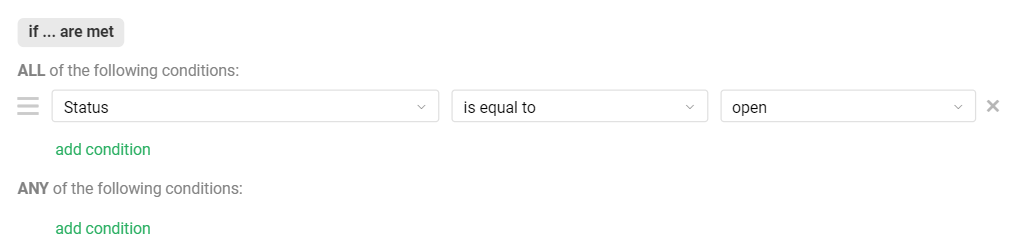
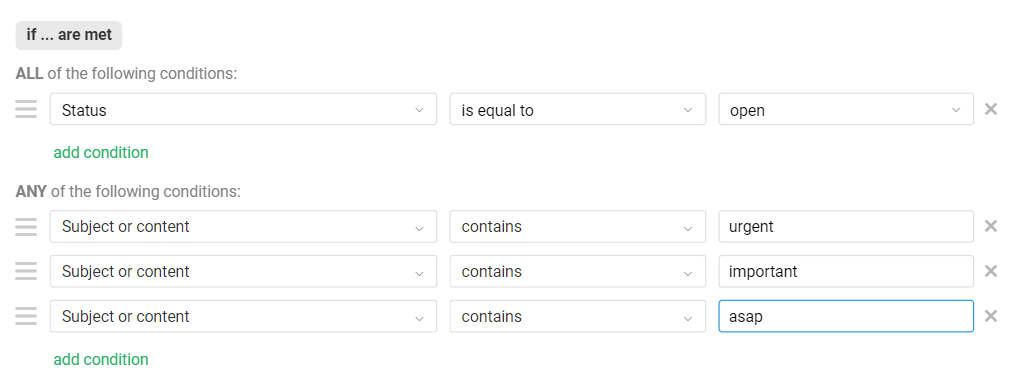
Depending on your tasks, you can receive notifications about all new cases or only about the most important ones. The difference between these rules is in the conditions:
a. Conditions to receive notifications about all new cases:
b. Conditions to receive notifications about urgent cases:
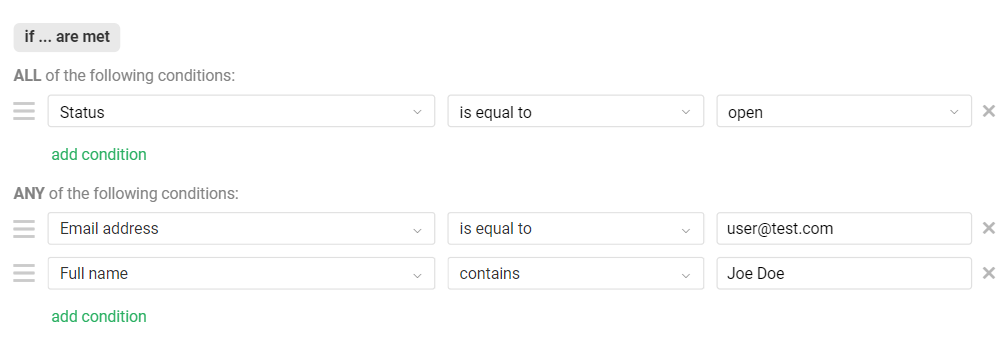
c. Conditions to receive notifications about new cases from specific customers:
No sound notifications are being received
- Check that the rules for sending sound notifications are configured and firing;
- Check that your browser has permission to play audio;
- Check that browser notification permissions are enabled in your OS settings;
- Check that Focus mode or other notification blockers are not active at the OS level;
- On laptops, check the power saving and memory settings: if the tab is unloaded from memory or suspended in the background, audio usually won't play.
In most browsers, audio playback is blocked on a newly opened tab — even if website permissions have been granted — if the user hasn't interacted with the page after opening it. This is how browsers protect users, as some websites abuse auto-playing audio.
To lift the restriction, simply click anywhere on the page — even on an empty area — and the browser's audio playback restriction will be removed.
Browser notifications
1. To receive browser notifications about new cases, set up a rule for new cases:
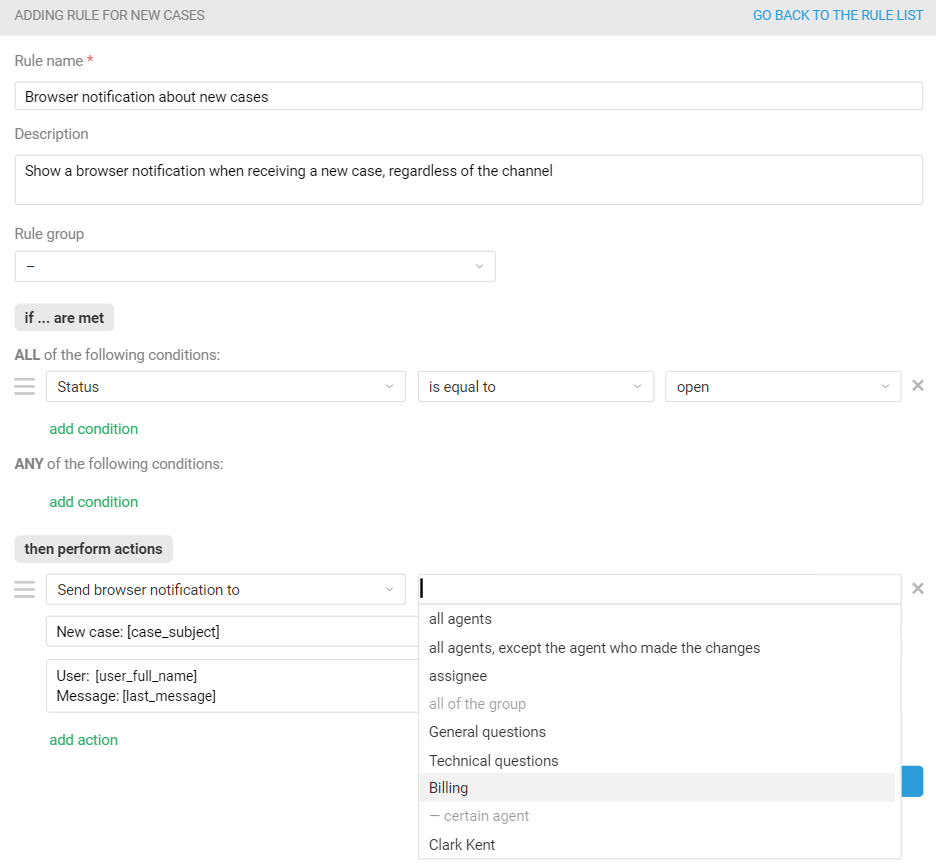
You can send a browser notification to all agents, to specific ones, and to a specific group.
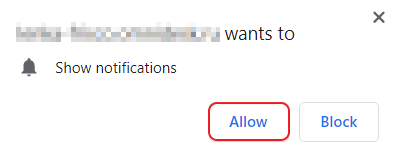
Upon receiving the first notification, the browser will ask you for permission to show notifications. Click "Allow" to be able to receive them:
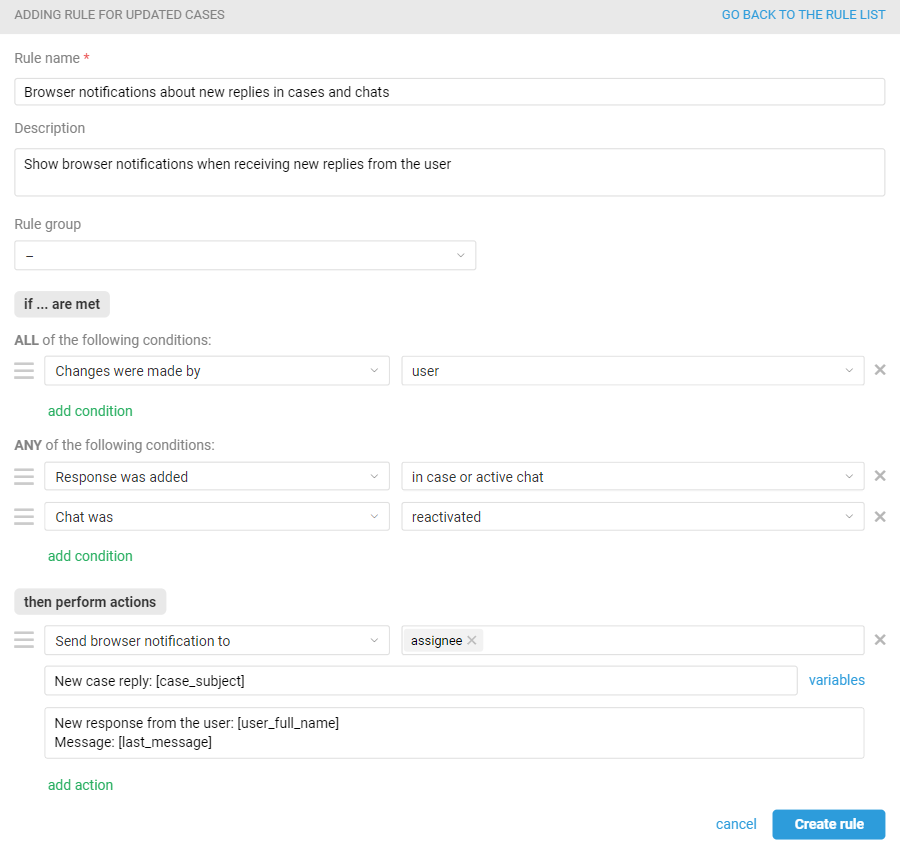
2. To receive browser notifications about new replies in cases and chats, create a rule for updated cases:
PRO hint: In new chats, the case subject is formed based on the first message from the user:
sometimes such a message can be quite long and break the layout of your case;
the text of the message itself will then duplicate the subject.
To avoid this, it is better to create separate rules for new cases by email and synchronous channels and not to use the [case_subject] variable in the request code to notify about new chats.