This integration connects Deskie cases with Jira work items and provides two-way data exchange between the two services. Support agents can work with Jira work items right from Deskie, while developers can view related cases and conversations in Jira and send notifications back to Deskie.
Please note: this integration only works with Jira Cloud. We have no plans to add Jira Server support — Atlassian discontinued support for its server products on February 15, 2024.
Connection
On the Jira side
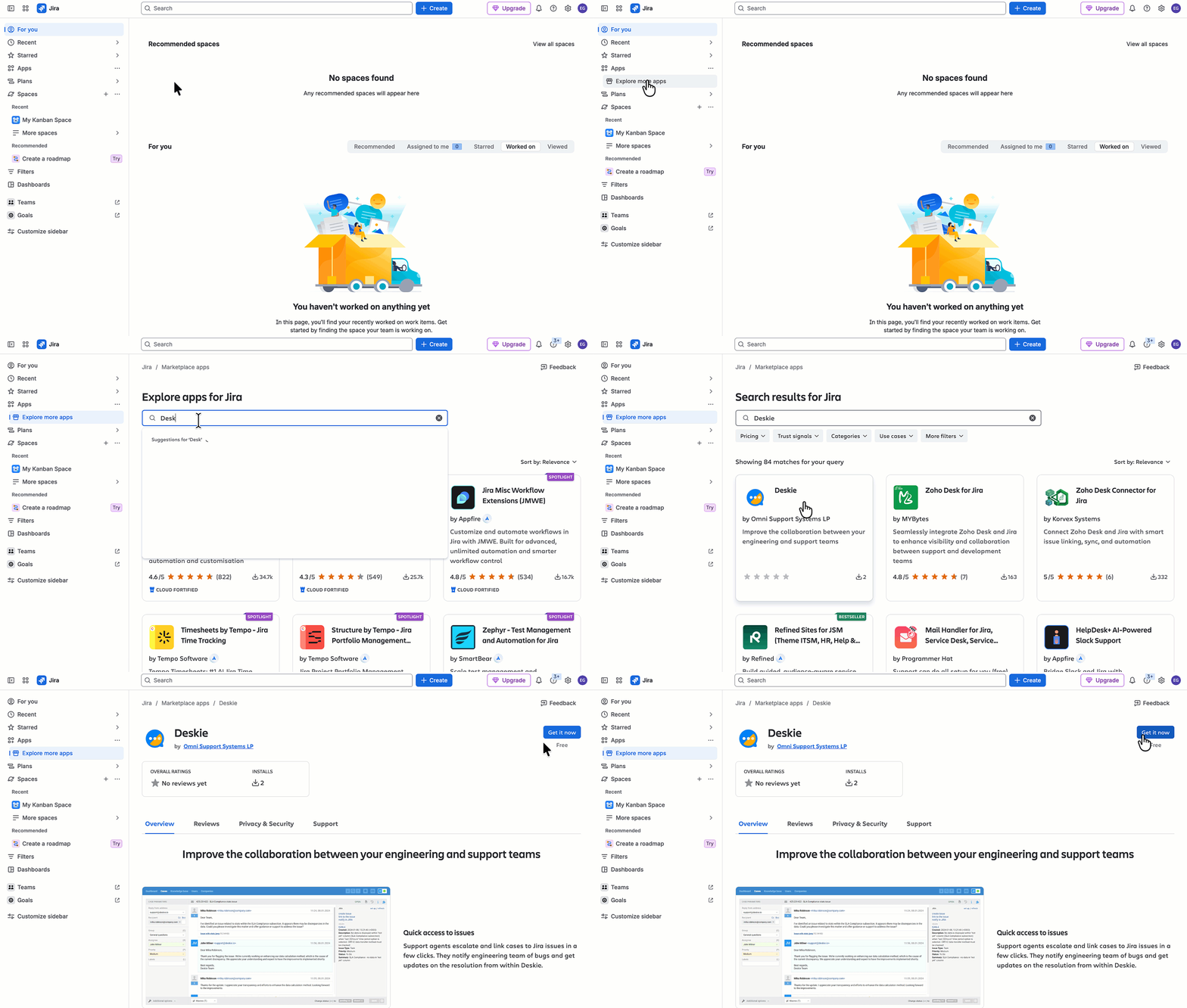
In your Jira account, click "Apps" in the left sidebar → select "Explore more apps" → search for "Deskie" → select the app → click "Get it now".
On the Deskie side
In your Deskie administrator account, go to the "Settings" section — "Integrations" subsection, click "Add integration", and select Jira in the "Project management" block.
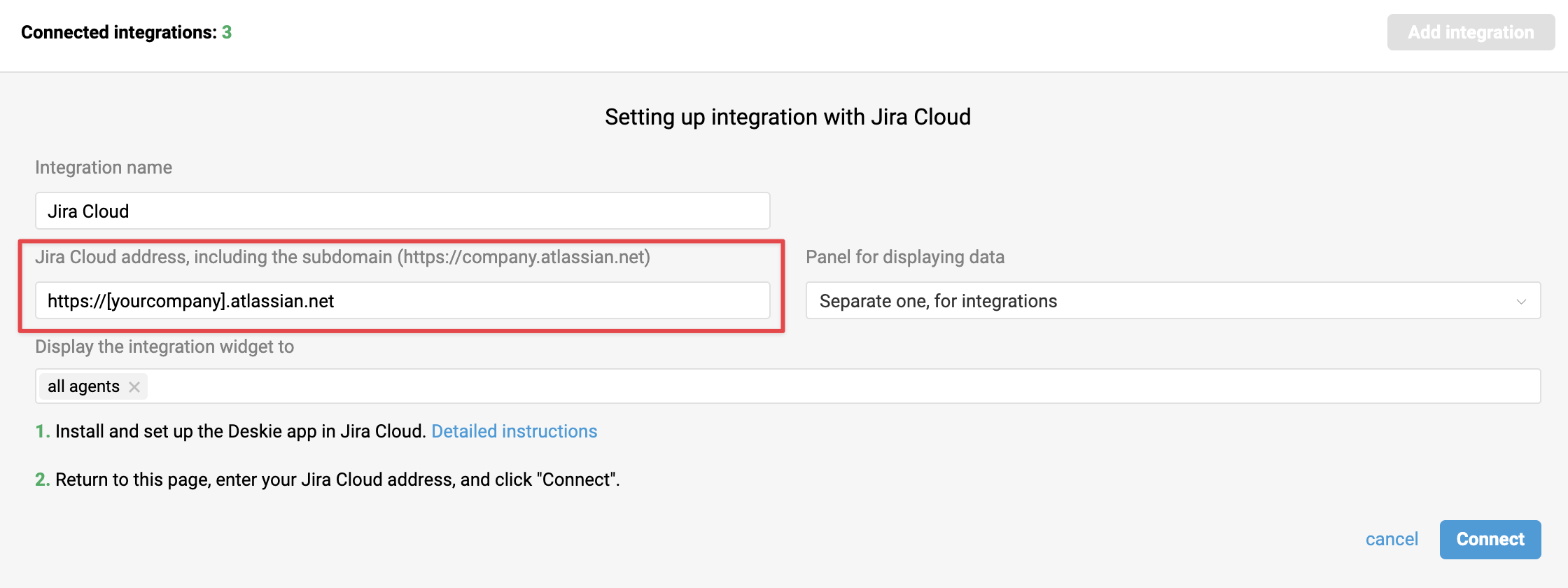
In the "Jira Cloud address" field, enter your Jira subdomain and click "Connect".
Settings
When connecting the integration, you can set the name that will appear in the list, and choose where the data is displayed in the agent account and who can see it.
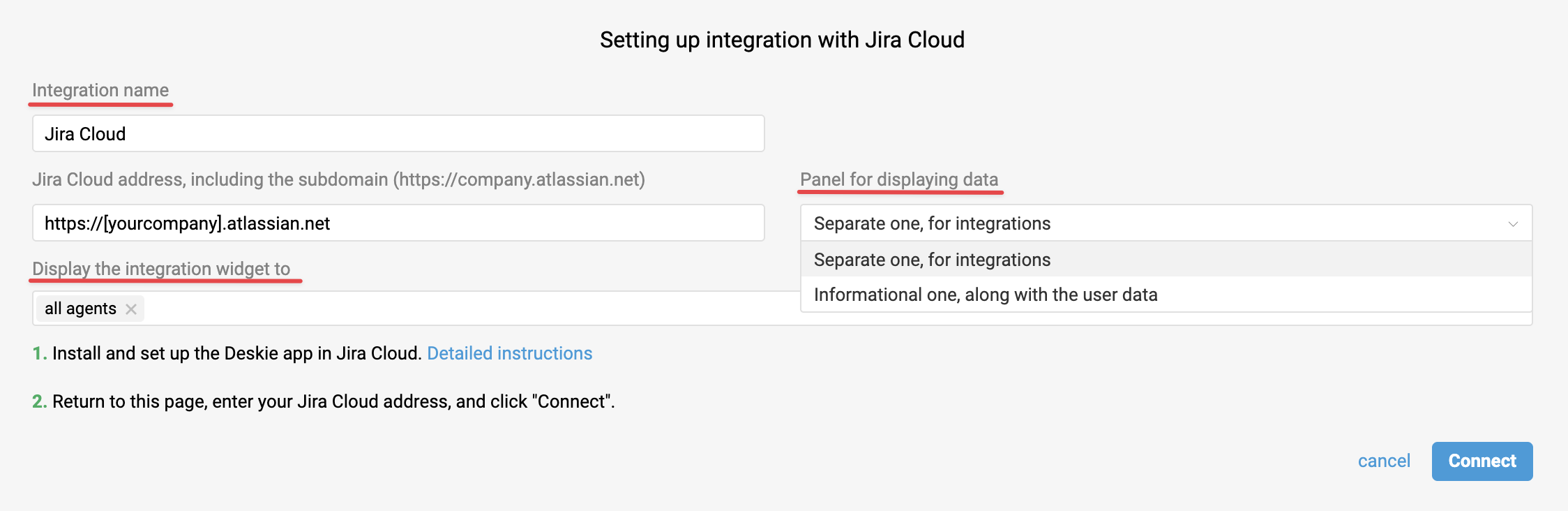
Where to display the data: choose one of two options — at the bottom of the user data panel on the case page, or on a separate integrations panel. Learn more
Who sees the widget: specify which agents should see the widget. You can list specific agents, roles, or groups.
How the integration works
Jira widget in Deskie
Once the integration is connected, Jira data appears in the right sidebar on the case page. Let's take a closer look at what the widget can do.
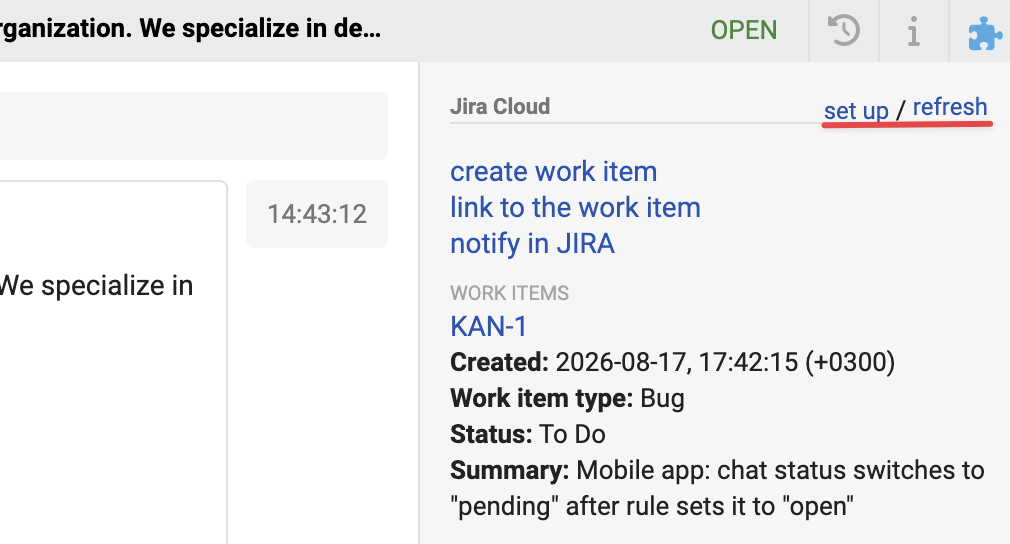
a) The "refresh" link lets you pull the latest data from Jira without reloading the whole page.
b) Clicking "set up" opens a popup where the agent can choose which data to show in the panel (the short version) and which to show in the popup (the detailed version):
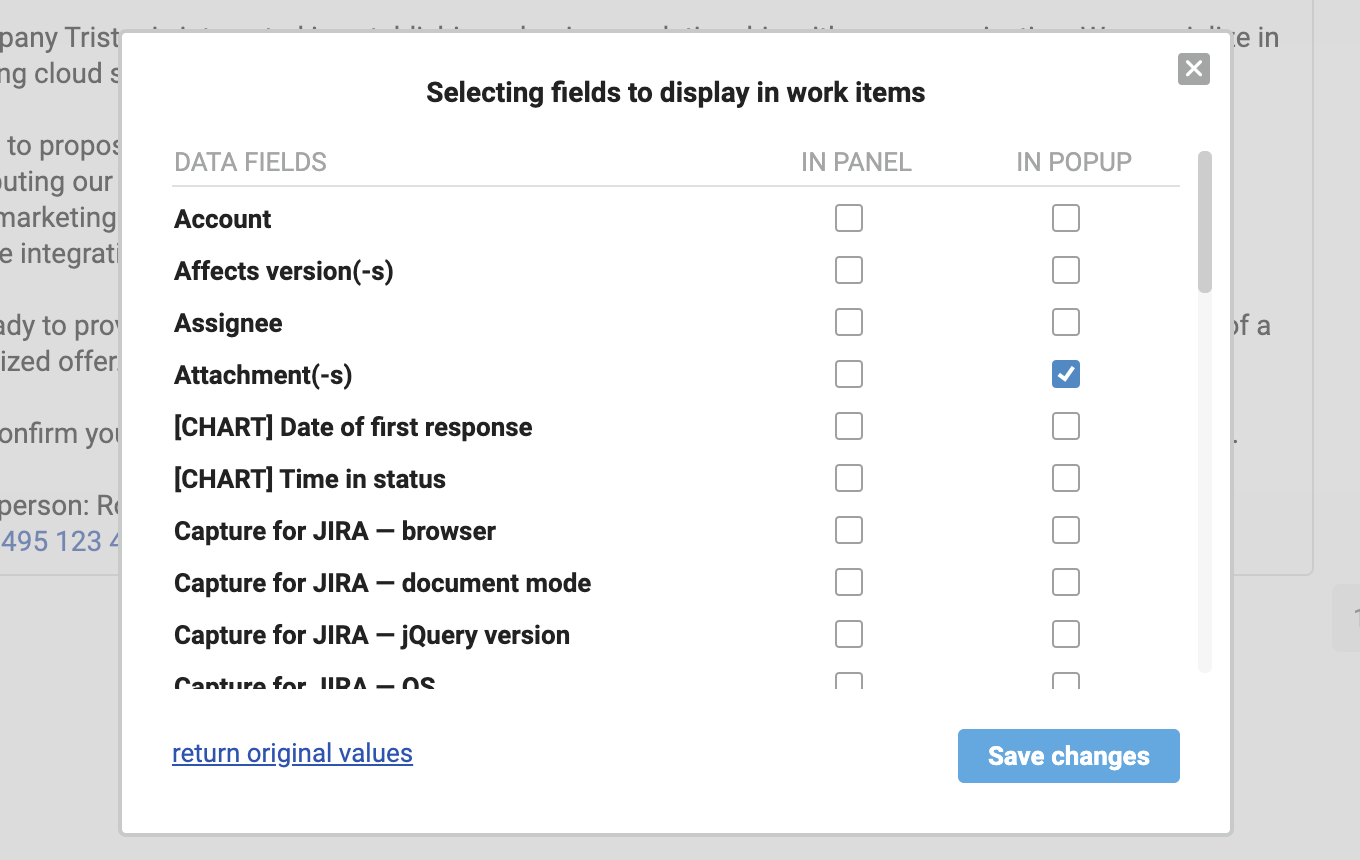
- There are a lot of data fields from Jira, so for convenience we display them in alphabetical order.
- If an agent makes changes and wants to undo them, they can use the "return original values" link.
- Widget settings are stored separately for each agent, so everyone can customize how Jira data is displayed for themselves.
2. Clicking the integration's name collapses or expands the block. Learn more
3. Clicking "create work item" opens a popup for creating a new work item in Jira.
a) Initially, only the "Project" field is active in the form:
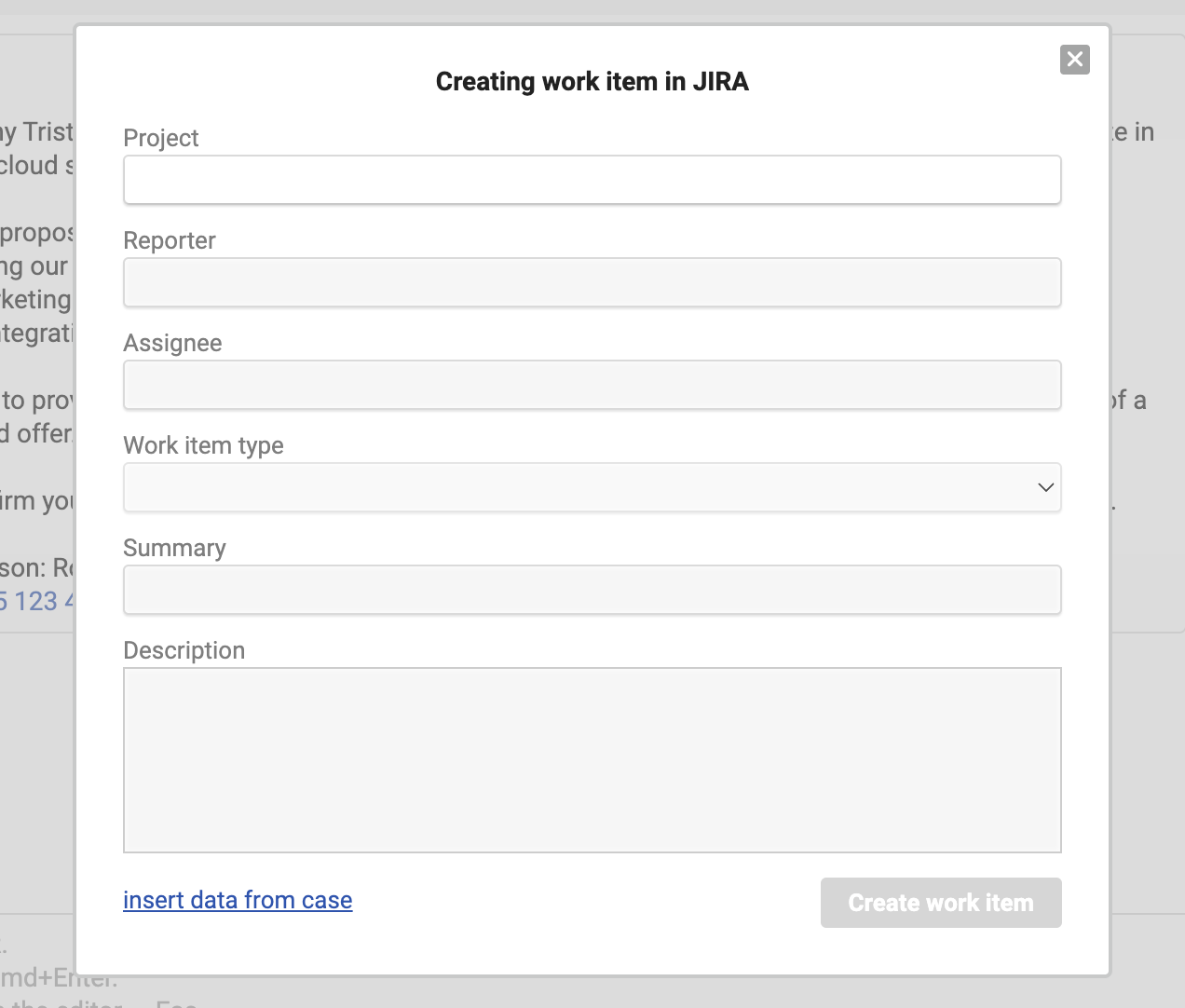
Clicking the field shows a tooltip asking the agent to type at least three characters, after which we suggest matching projects from your Jira.
b) Once a project is selected, the other fields become active.
c) Once the first five fields are filled in, the "Create work item" button becomes active — meaning the "Description" field isn't required.
d) Clicking "insert data from case" fills the "Summary" field with the case subject, and the "Description" field with the last message from the case (notes are included too).
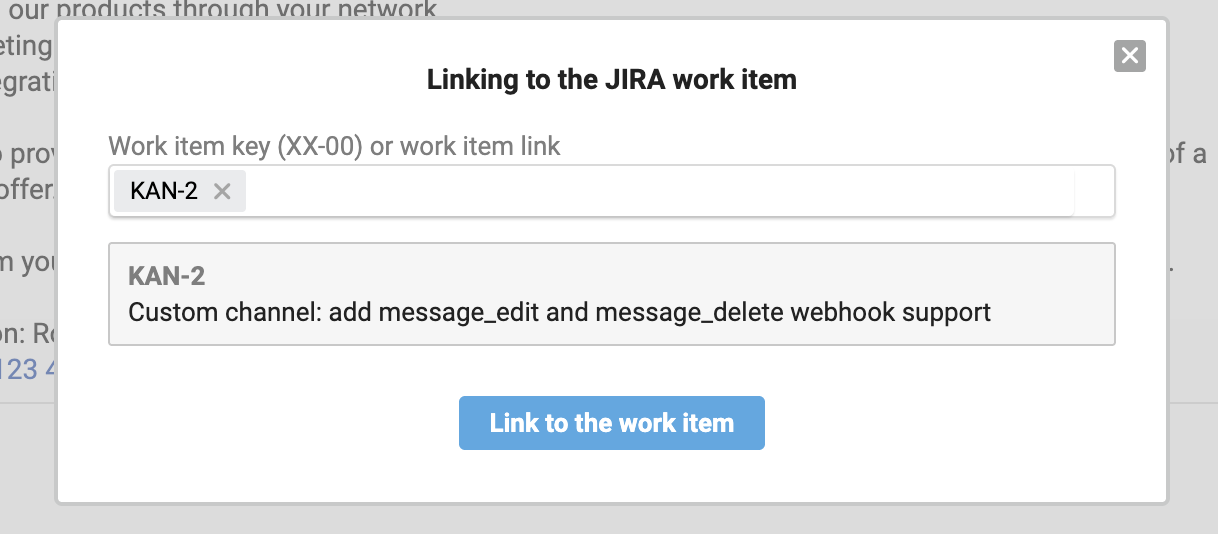
4. Clicking "link to the work item" opens a popup for linking the current case to a Jira work item. Once the work item is found, we display its ID and name and activate the "Link to work item" button:
5. The "notify in Jira" link lets you send a notification to every work item linked to the current case:
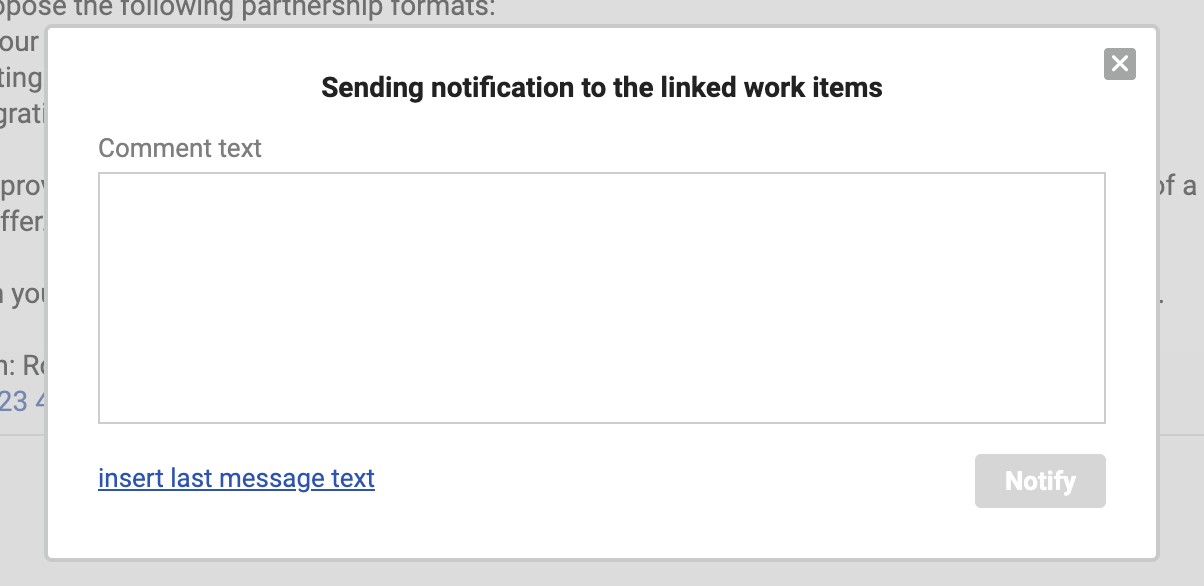
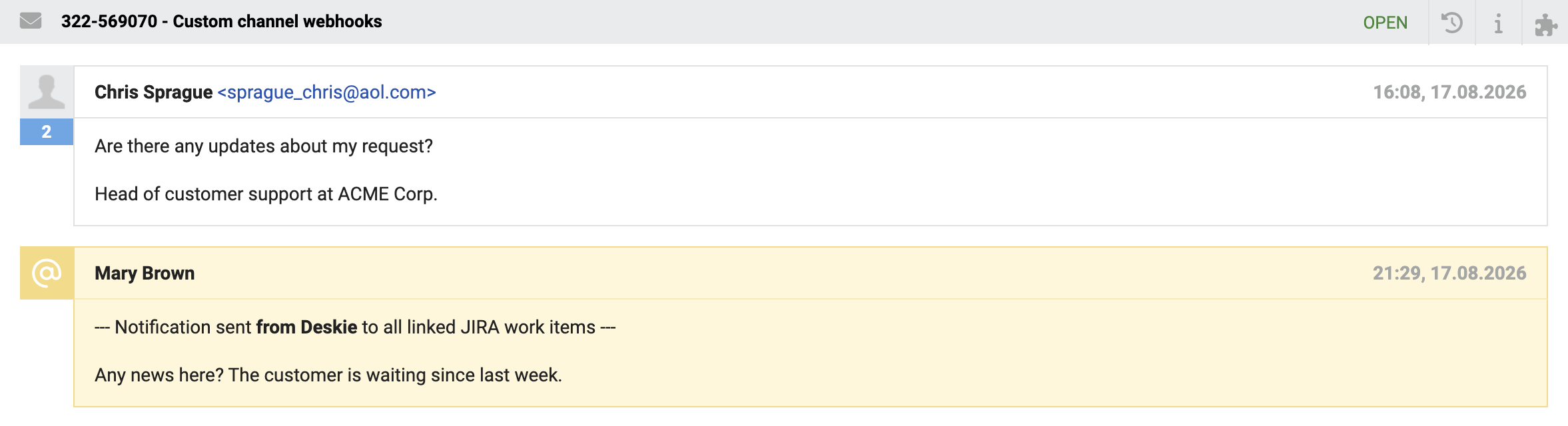
When an agent sends a notification from Deskie, it's also added to the case as a note:
6. Clicking a work item ID in the list opens a popup with detailed data:
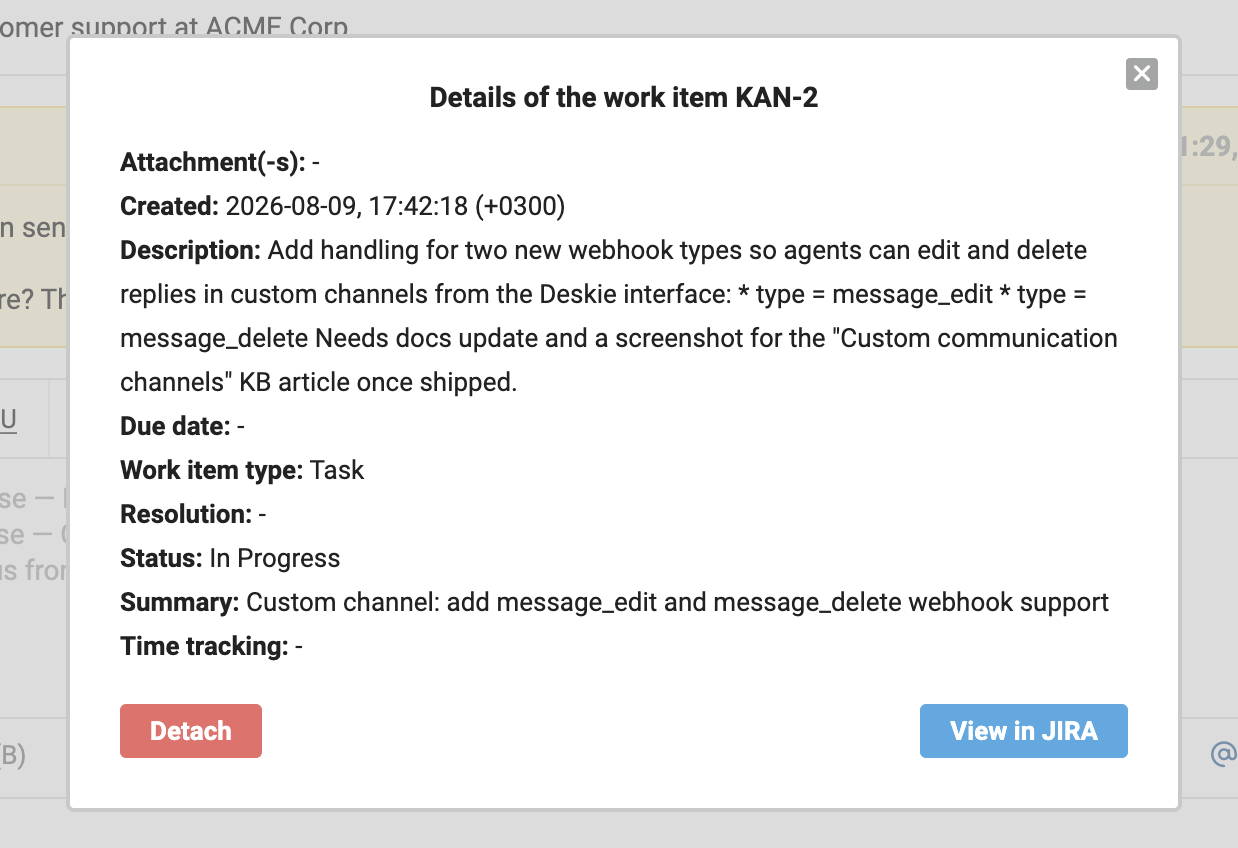
You can choose exactly which data to show in this view in the widget settings.
Clicking "View in Jira" opens the selected work item's page in a new tab (this requires a Jira account you're signed in to). Clicking "Detach" closes the popup and unlinks the case from the work item, which then disappears from the widget.
Deskie widget in Jira
Once the integration is connected, Deskie case data appears in the right sidebar and in the "Activity" block on the work item page in Jira.
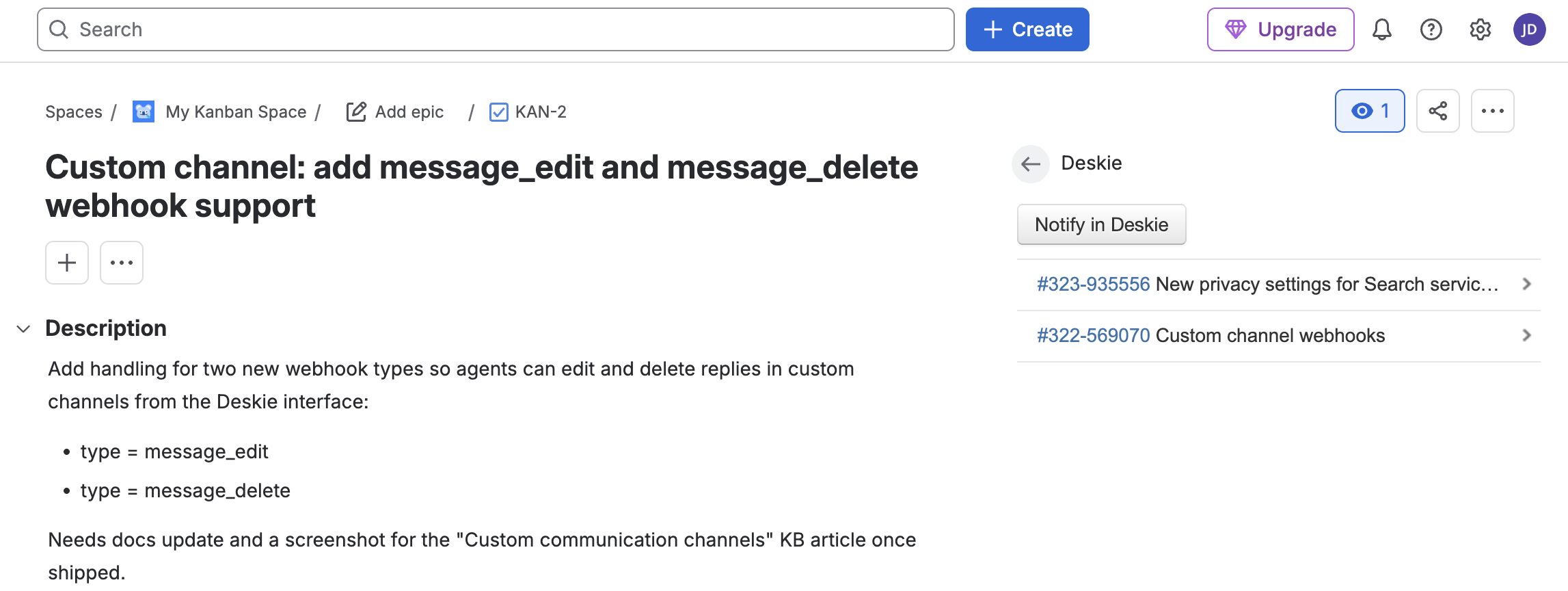
a) Clicking the subject shows additional data.
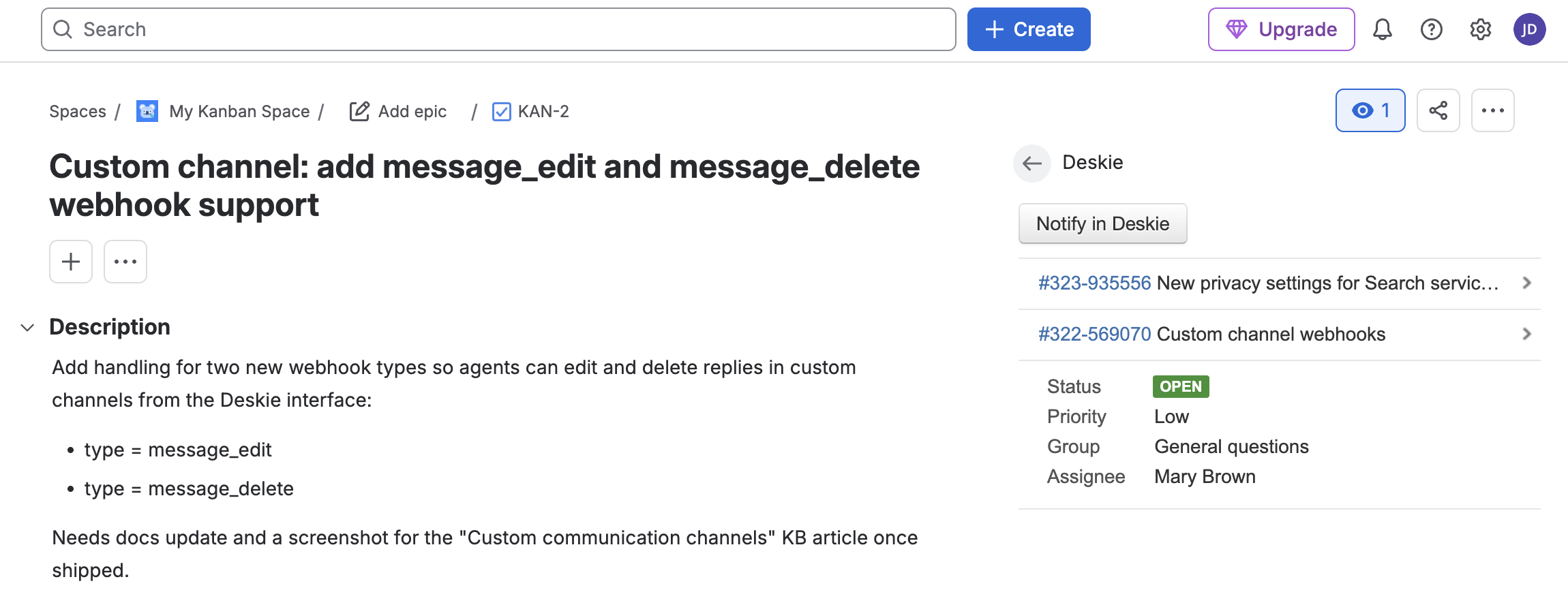
b) The case number is a link to the case page in Deskie. To open it, the Jira user needs a Deskie account.
For developers and staff in other departments who don't talk to customers but need access to conversations in Deskie, we recommend the "View only" access level — these accounts cost less. Read more
c) The "Notify Deskie" button lets a developer send a notification to every case linked to the work item. These notifications are added to Deskie as a note:

- The note is added on behalf of the agent assigned to the case. If the case has no assignee, your help center's name is shown instead.
- The first line of the note is standard — it contains an ID linking to the work item in Jira.
8. The "Deskie" tab in the "Activity" block is where you view the conversation history for every case linked to the work item.
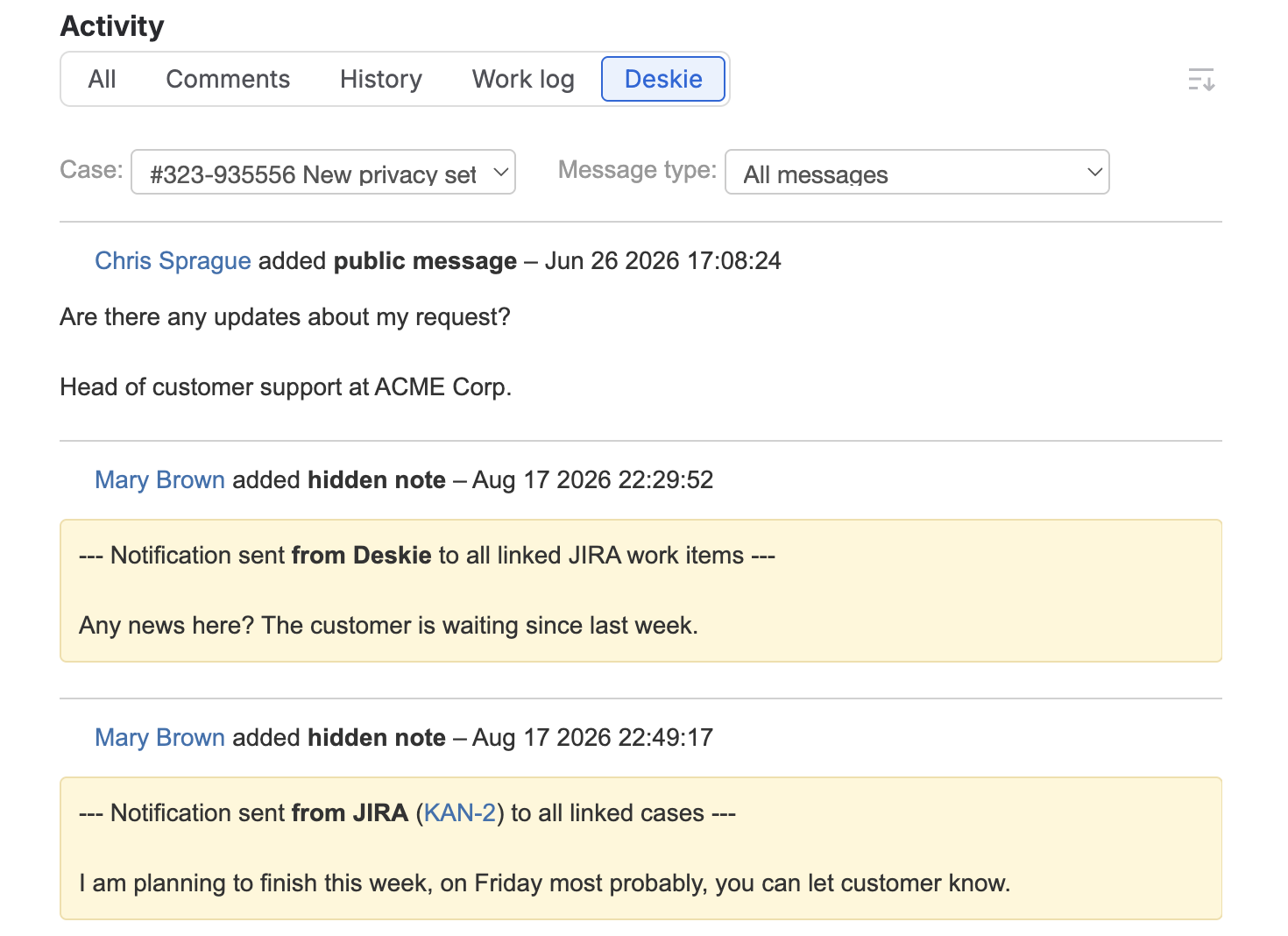
It shows user and agent messages, case notes, and notifications that support agents send from Deskie to Jira.
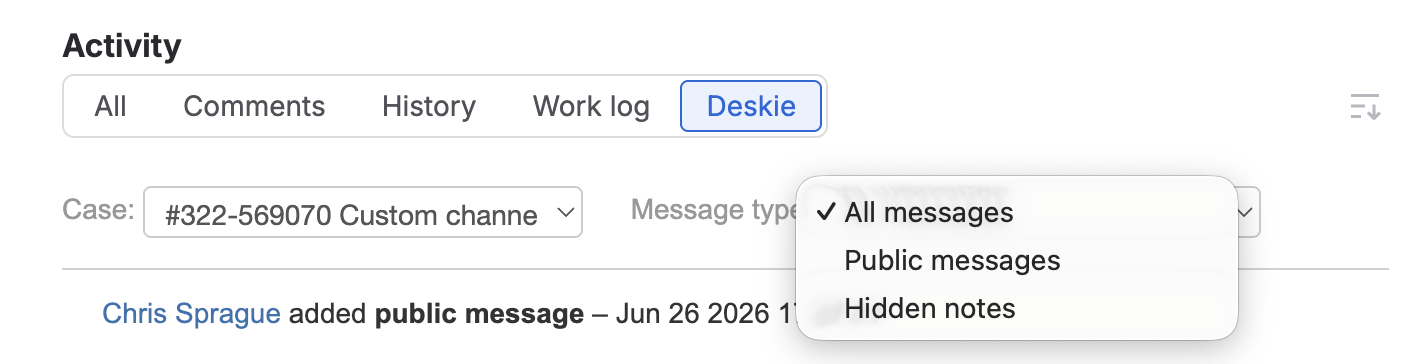
At the top, there are two dropdowns: the first lets you choose which case's messages to display, and the second lets you filter by message type (all messages, public, or internal).
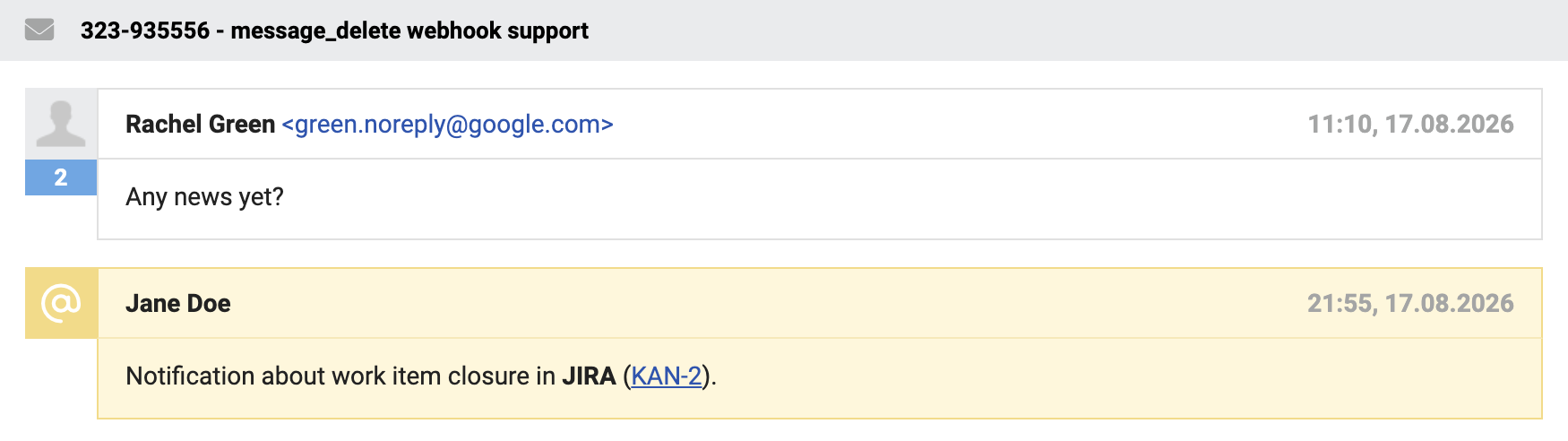
9. When a work item is closed in Jira, a notification mentioning the assignee is automatically sent to every linked case, and their status changes to "open". This makes sure support agents don't miss these cases and let the customer know everything's done.
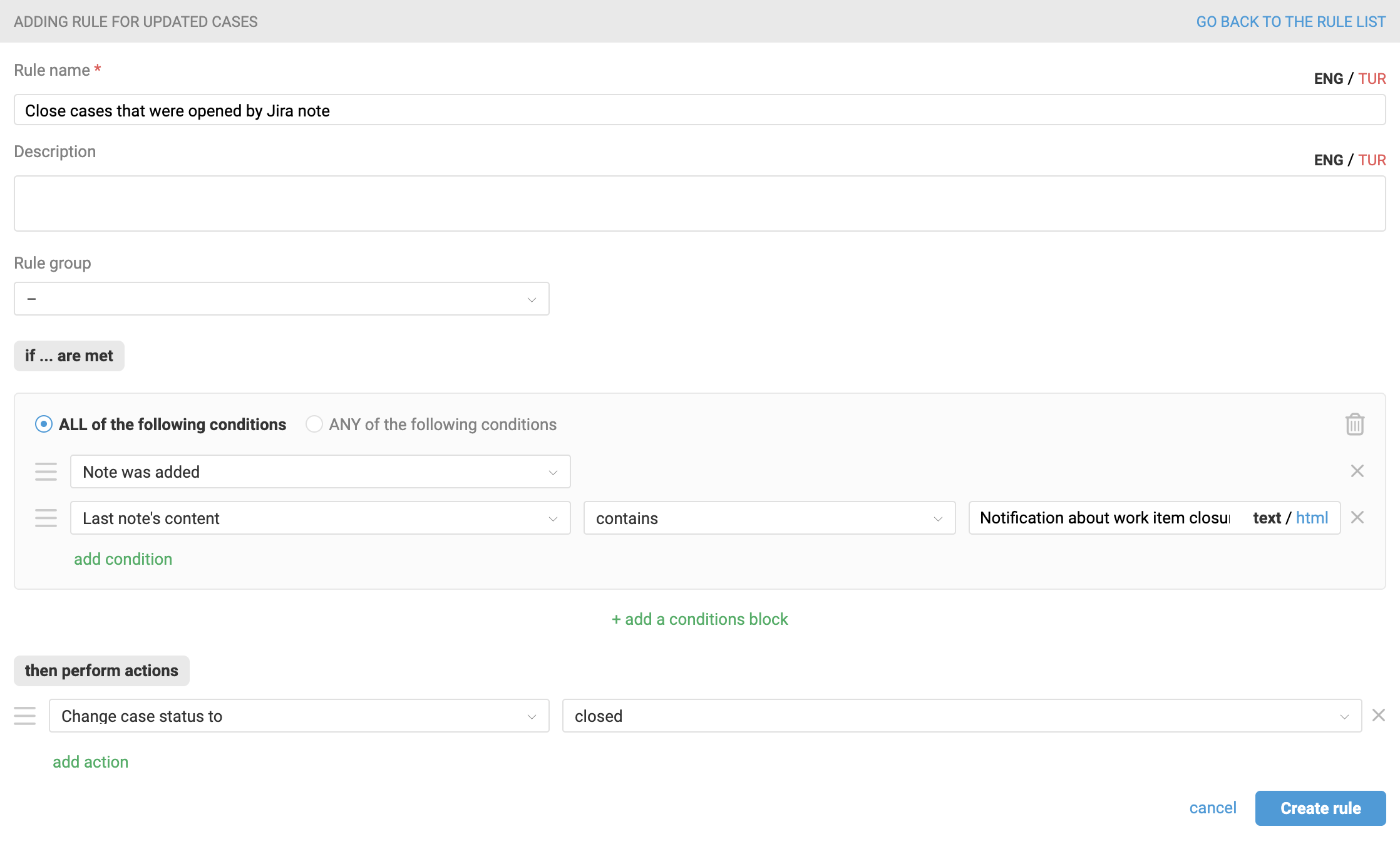
If this default behavior doesn't work for you — for example, you don't notify customers when work items are completed and would rather have linked cases close automatically — you can set this up with a rule for updated cases: