
We've made automation rules more flexible: you can now add up to five condition blocks and connect them with AND / OR logical operators.
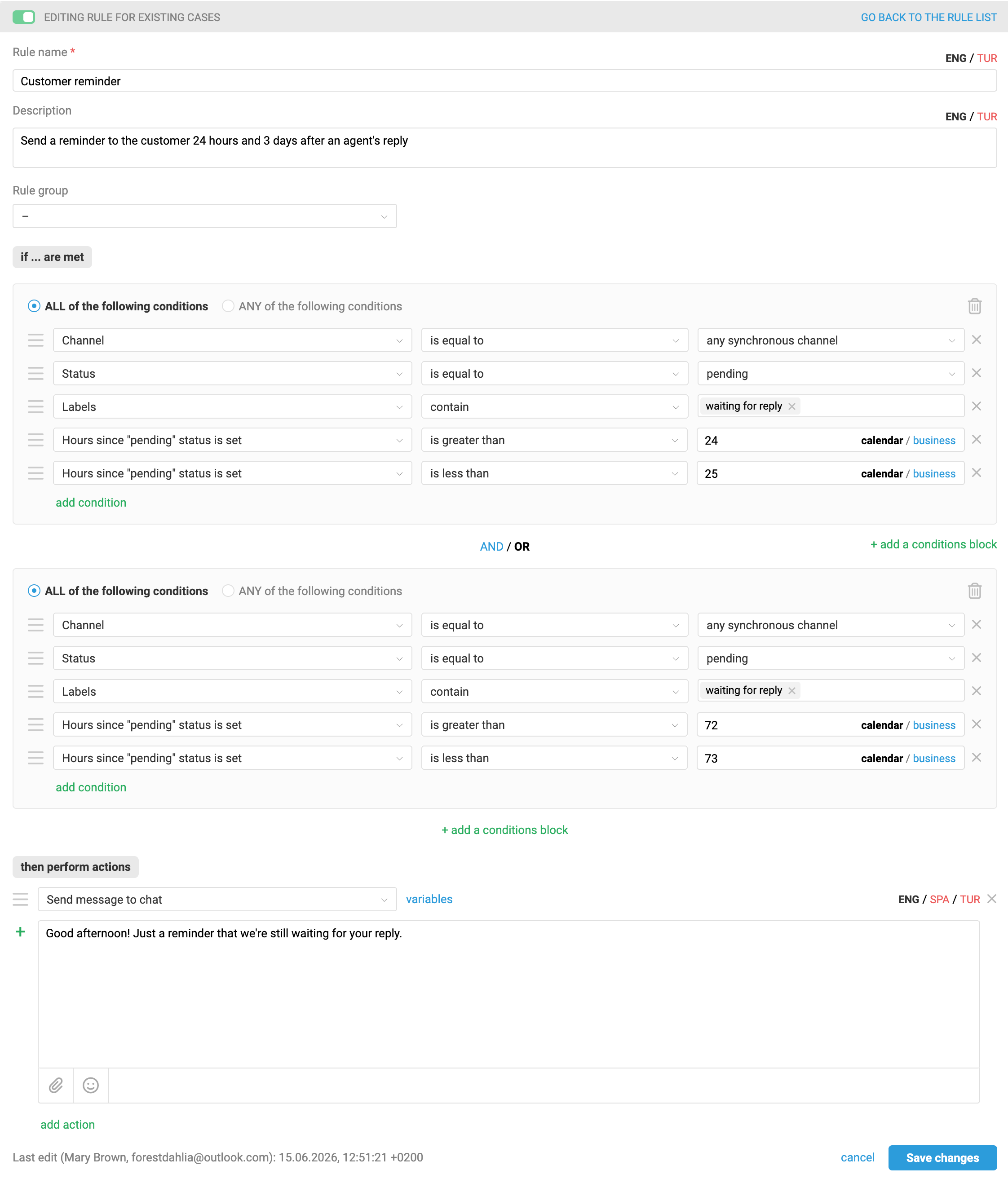
For example, within a single rule you can configure customer reminders at different time intervals:
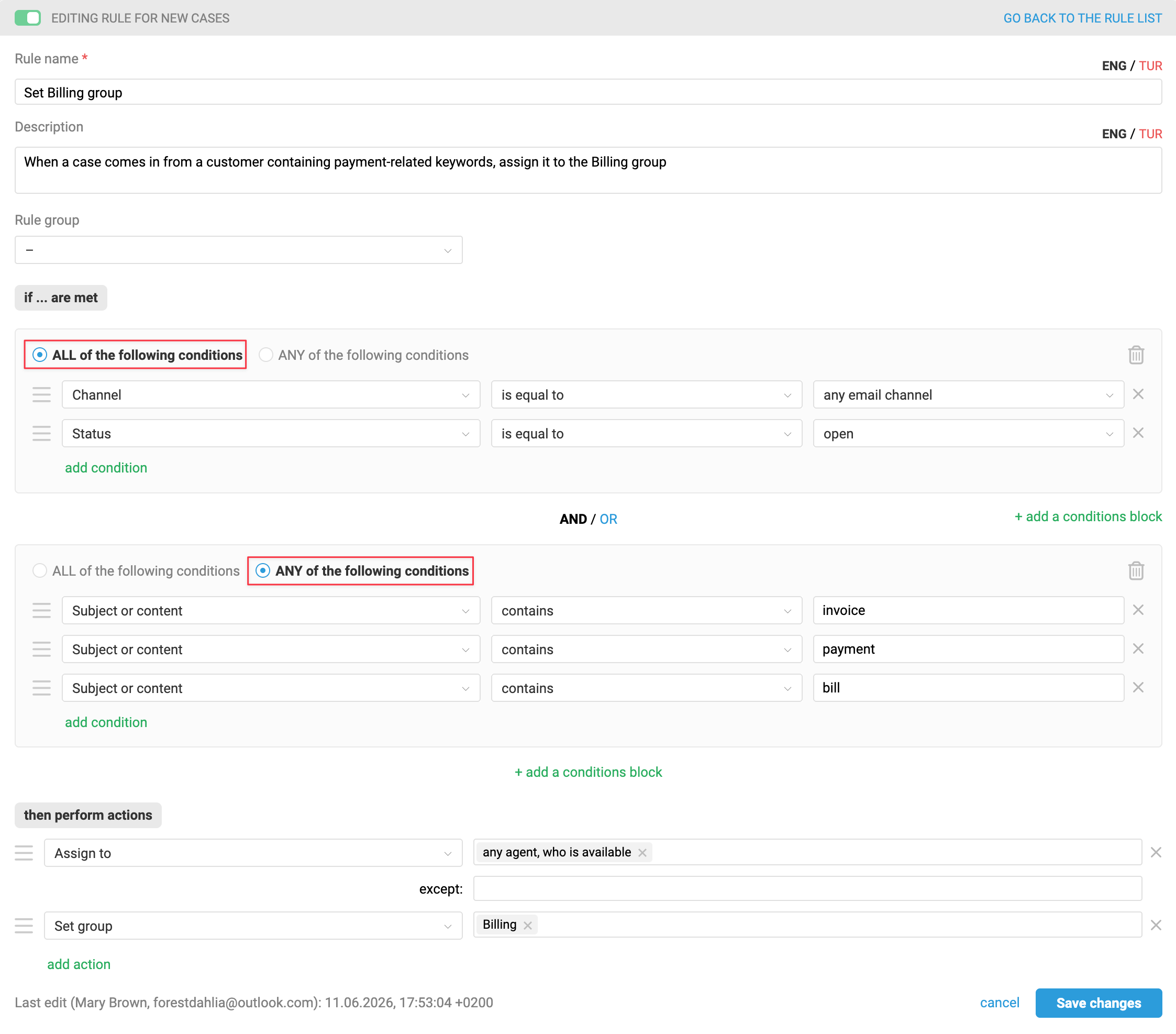
We automatically migrated all existing rules to the new condition block system. If the old logic worked for you and you don't want to change anything, when editing existing rules or creating new ones:
- use only two condition blocks — "ALL of the following conditions" and "ANY of the following conditions";
- set the AND operator between them.
The "Send message to chat" and "Send email to user" actions now also support up to five auto-response text variations. When the rule is triggered, the system randomly picks one.
Let's take a closer look at how the new options work.
Condition blocks in rules
Previously, each automation rule had a single condition block with two parts — "ALL of the following conditions" and "ANY of the following conditions". The rule was triggered if all conditions in the first part were met and at least one from the second.
If you needed to check multiple different sets of conditions under "ANY of the following conditions", you had to create separate rules. For example, sending the same auto-response outside business hours and on holidays — but only for cases in specific groups — required two separate rules.
Now you can add up to five condition blocks to a single rule. Each block can be either "ALL of the following conditions" or "ANY of the following conditions" type, and you can set AND / OR operators between them to define how blocks connect.
The new condition logic lets a single rule handle multiple logical scenarios, simplifying management in accounts with many automations and helping you stay within the rule limit.
The more condition blocks you use in a single rule, the more carefully you need to review their order and the logic connecting them.
How it works
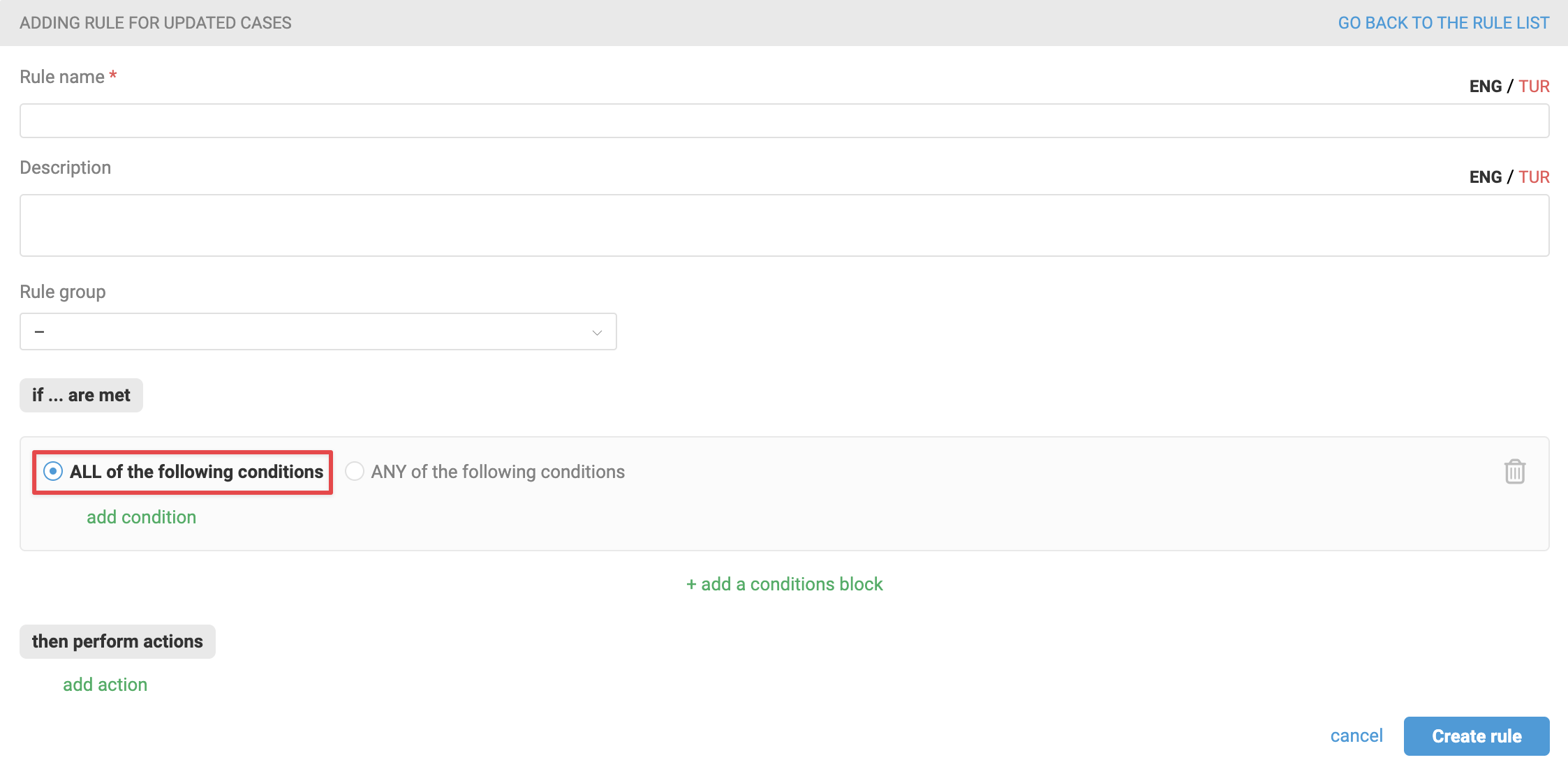
1. When creating a new rule there is always one condition block that can't be deleted. You can choose its type — "ALL…" or "ANY of the following conditions".
AND / OR logical operators
A block of the "ALL of the following conditions" type uses the AND operator — meaning every condition listed in the block must be met for the rule to trigger.
A block of the "ANY of the following conditions" type uses the OR operator — meaning at least one condition in the block must be met for the rule to trigger.
Pay attention to the block type when using negative conditions. Learn more
2. You can add one more condition block. By default, when a new block is added:
- the AND operator is set;
- the block type is "ALL of the following conditions".
You can add up to five blocks with a combined total of no more than 100 conditions.
After adding blocks, you can change their type and the operator connecting each block to the previous one, subject to the existing limitations. If a particular block type or operator would break the overall rule logic, that option becomes inactive.
If the current AND-connected chain already includes an "ALL of the following conditions" block, the new block is automatically set to "ANY of the following conditions" to preserve the overall rule logic.
3. When deleting a block the system removes its associated operator:
- deleting the first block removes the operator after it;
- deleting a middle or last block removes the operator before it.
Limitations
a) If blocks are connected by AND, only one of them can be of the "ALL of the following conditions" type. All mandatory conditions must go in that block.
b) If a rule already has a standalone "ANY of the following conditions" block (one not connected to other blocks via AND), you can't add another "ANY of the following conditions" block via OR. This is because the system can't determine which of the two independent sections should be evaluated first.
Examples
❌ Not allowed: [ANY] OR [ALL] OR [ALL] OR [ANY]
— both "ANY" blocks are isolated and not connected to others via AND — the rule logic is invalid.
✅ Allowed: [ANY] OR [ALL] OR [ALL] AND [ANY]
— the second ANY block is connected to the previous one via AND, meaning the rule triggers if either a condition from the first ANY block is met, a condition from the first ALL block is met, or the ALL and ANY blocks are both met together.
Logic conflicts
If a logic conflict arises during editing that would break the rule:
- the type of one of the condition blocks is changed automatically;
- a warning appears at the bottom of that block, letting you know the type was changed and asking you to verify the settings still match your intent.
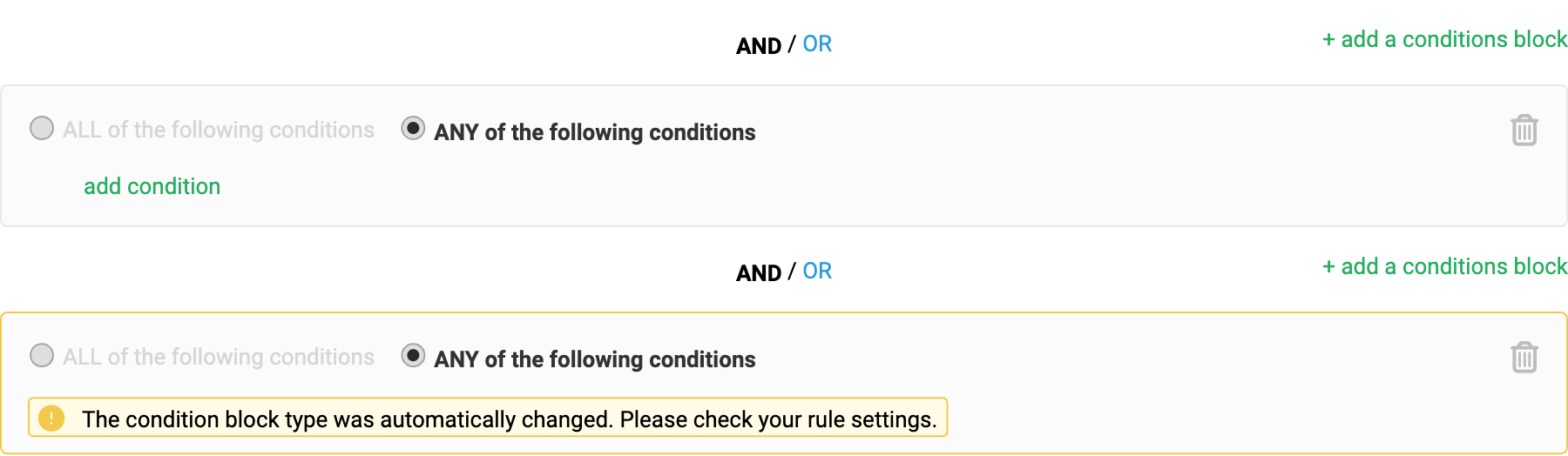
The warning disappears automatically when you click anywhere on the page.
How to "read" rules
If two or more blocks are connected by AND, they are evaluated together — all of them must be met (per their respective types) for the rule to trigger.
If OR is placed between blocks, the rule triggers when the conditions in any one of them are met.
AND → merges neighboring blocks into a single branch.
OR → splits into alternative branches.
Let's look at some examples:
[1. ALL] AND [2. ANY] OR [3. ALL]
The rule triggers in two cases:
— all conditions from block 1 are met and at least one from block 2;
— all conditions from block 3 are met.
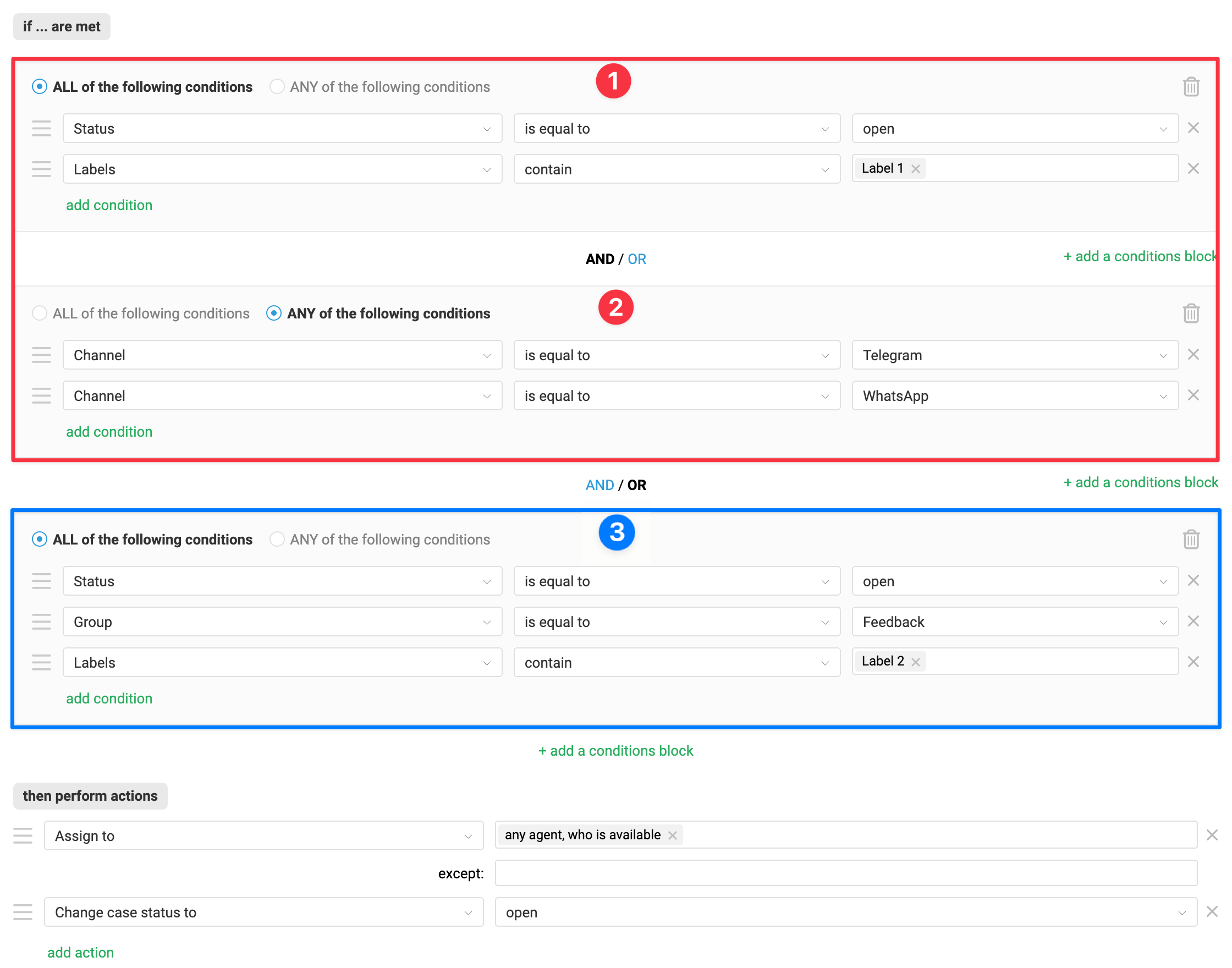
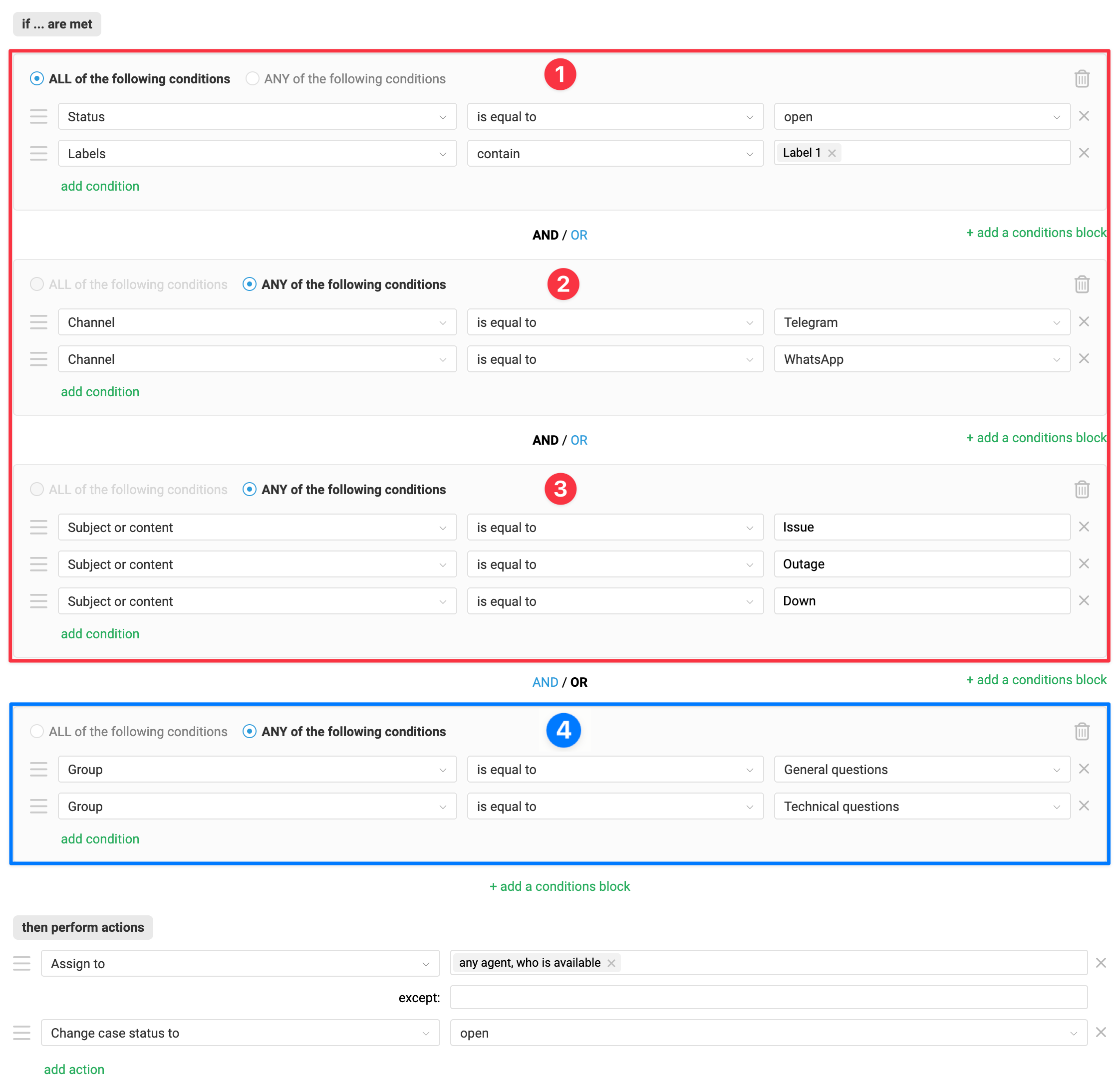
[1. ALL] AND [2. ANY] AND [3. ANY] OR [4. ANY]
The rule triggers if:
— all conditions from block 1 are met and at least one from each of blocks 2 and 3;
— at least one condition from block 4 is met.
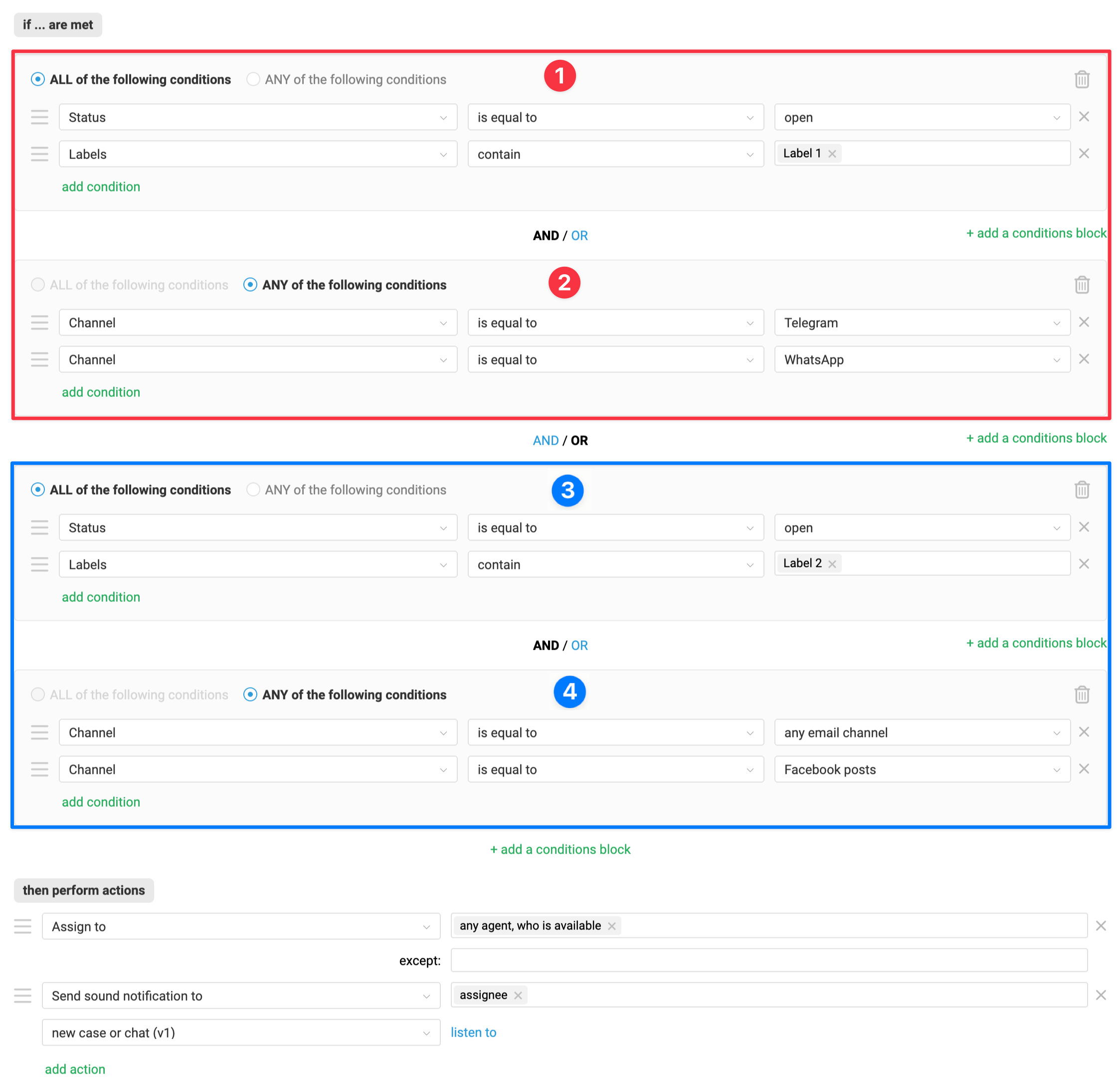
[1. ALL] AND [2. ANY] OR [3. ALL] AND [4. ANY]
For the rule to trigger:
— all conditions from block 1 must be met and at least one from block 2;
— all conditions from block 3 must be met and at least one from block 4.
Auto-response variations
In the "Send message to chat" and "Send email to user" actions, tap + to add up to five auto-response text variations. When the rule triggers, the system randomly picks one.
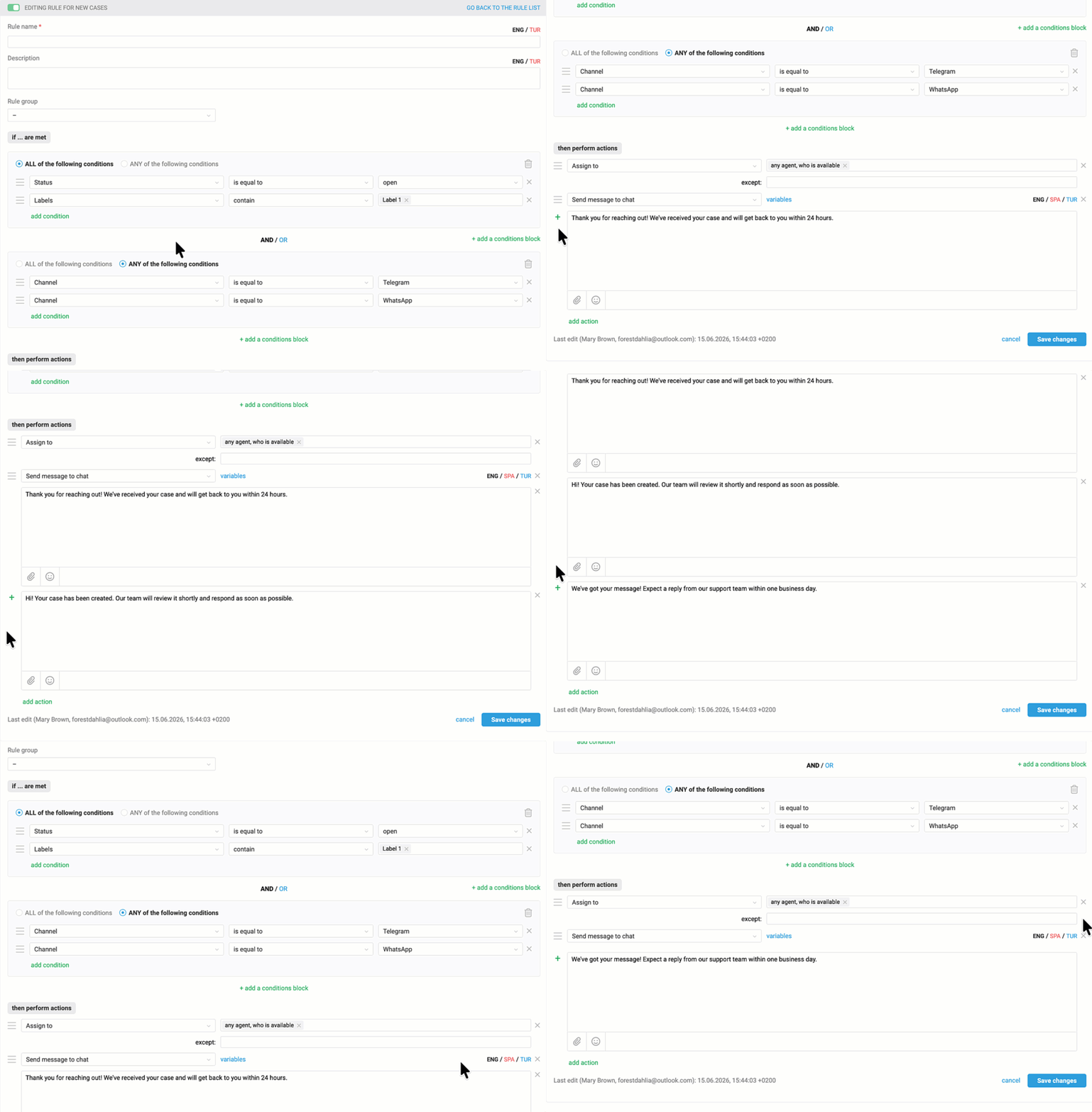
This keeps automated responses varied and natural — so more users will actually read them closely instead of skipping past important instructions :)