Continuing our rollout of AI features: we've added an integration with OpenAI — Responses API.
OpenAI is ending support for the Assistants API on August 26, 2026, and recommends switching to the Responses API. Learn more
If you're using the "OpenAI — ChatGPT" integration with Assistant, set up the "OpenAI — Responses API" integration and update your rules that use the "Send text request to AI Assistant" action: in that action, replace the "OpenAI — ChatGPT" integration in use with the new "OpenAI — Responses API".
Don't carry over your previous Assistant's settings and instructions unchanged: they may behave differently in Responses API, so review and adapt them for the new integration.
The "OpenAI — Responses API" integration helps solve two types of tasks:
1. Processing individual messages without case context. Each customer message is processed independently, without considering the conversation history.
Example use case: you can translate a customer's message or convert an image into text, then add the result to the case as an internal note.
2. AI assistant operation with case context. Customer messages are processed sequentially by a specific set of rules, taking into account the entire conversation in a given case and using File search to look up information in materials preloaded into an OpenAI Vector store.
Example use case: the OpenAI Assistant on the first line scenario.
Do I need to switch to Responses API if I'm not using the Assistants API?
If you're already using "OpenAI — ChatGPT" integration actions in your rules, check the table below to help you decide. The choice between Responses API without context and Chat Completions API (ChatGPT) without Assistant functionality depends on your task.
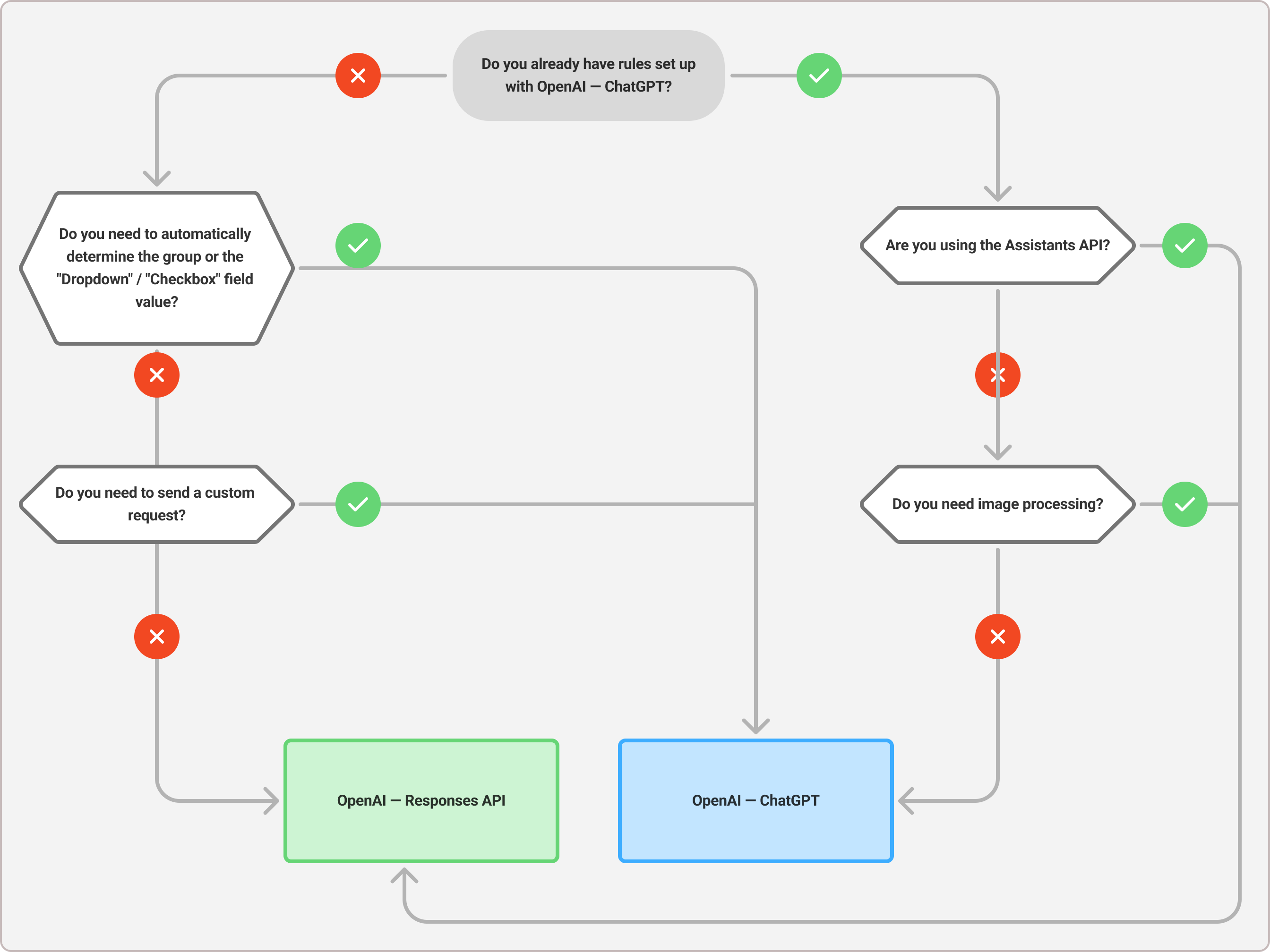
The following diagram can also help you quickly decide whether you need to connect the new integration and update your rules.
Deskie doesn't charge any fees for connecting or using the integration. OpenAI — Responses API services are billed separately.
Their cost depends on the following factors:
- the number of tokens the model uses to process the request and generate the response, including the instructions and the reasoning tokens for Reasoning mode and Reasoning effort;
- the cost of using the File search tool, including storing data in OpenAI Vector stores and running the tool's calls.
In your OpenAI account, you can monitor token usage using the budget management tools.
* Deskie is not responsible for the pricing policies of third-party services and does not monitor changes to them. Always check current costs directly with OpenAI.
Integration setup
To connect the integration, you first need to get an API key on the OpenAI side, and, if needed, create and configure a Vector store. Then enter this data on the Deskie side.
Steps on the OpenAI side
Step 1
Log in to your account on OpenAI's official developer platform. If you don't have an account yet, create one.
Step 2
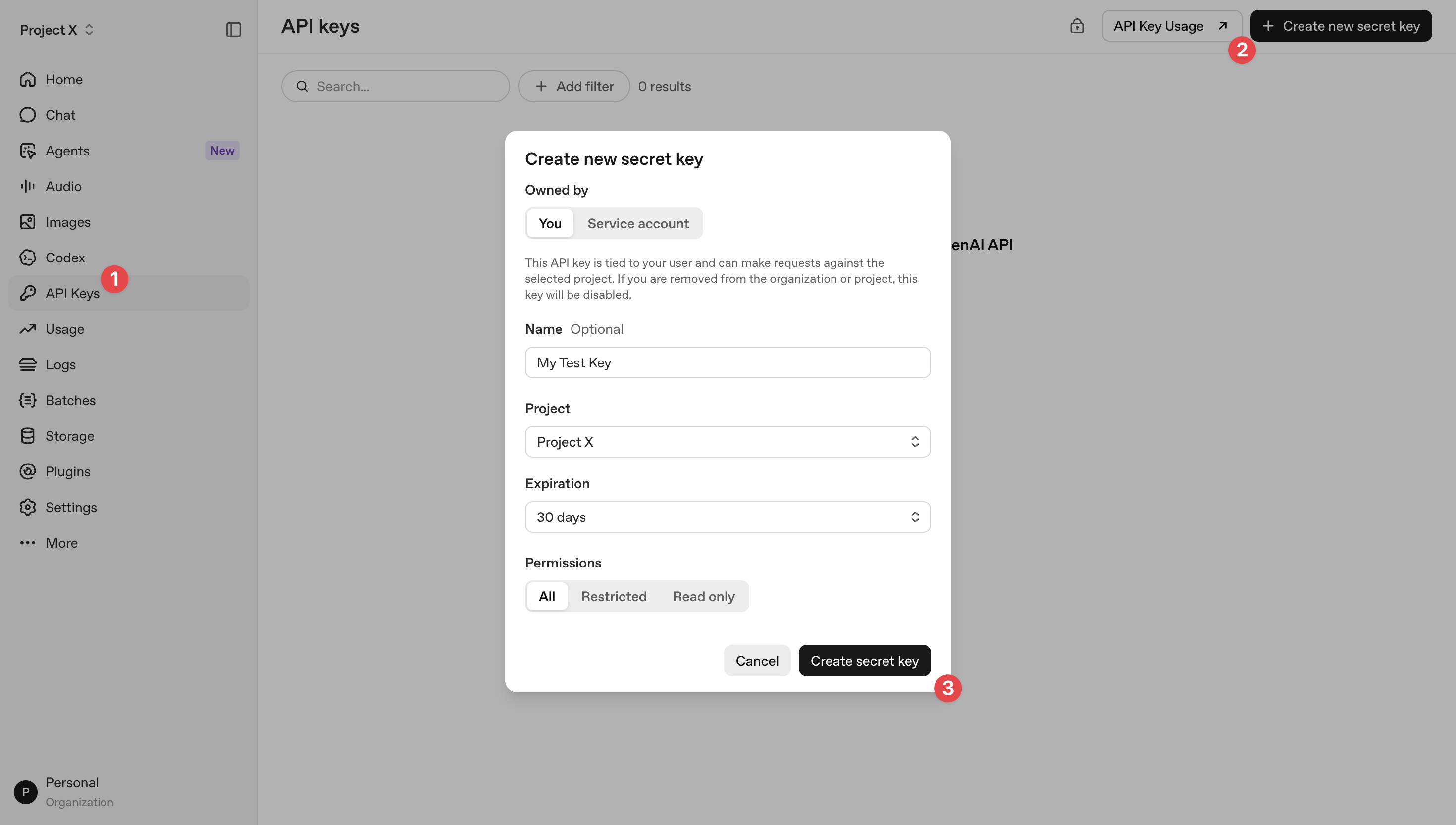
Create an API key within the relevant project (Project page → API keys → Create new secret key → Create secret key) and copy it — you'll need it when connecting or editing the integration in Deskie.
Step 3
Optional — only for the "OpenAI Assistant on the first line" scenario
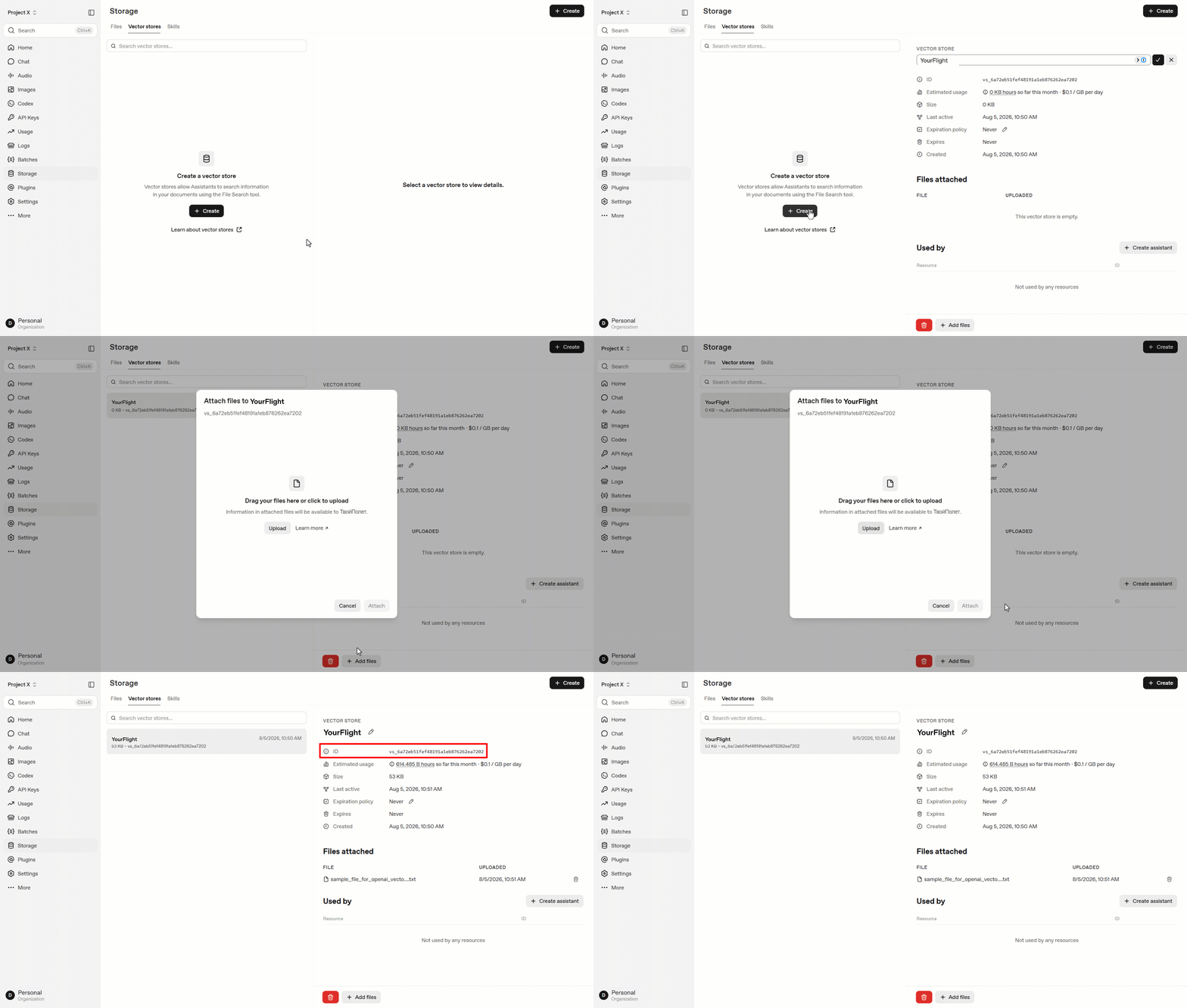
Create a Vector store within the relevant OpenAI project, upload the necessary materials to it, and copy its ID — you'll need it when connecting or editing the integration in Deskie.
A Vector store is only needed for scenarios where the AI assistant looks up information in preloaded materials using File search — for example, when answering questions about your company. If you don't need to search materials, for example when extracting text from an image, you don't need to create a Vector store.
How does it work?
Let's use the example of "Service X" to explain how the "OpenAI Assistant on the first line" scenario works within the "OpenAI — Responses API" integration.
Internal data, or data from the Vector store: when setting up the integration in Deskie, specify the Vector store ID. Preload this vector store with information about your company or service — documentation, knowledge base articles, specifications, and other materials.
- The File search tool lets the AI assistant quickly find the information it needs in the vector store.
- The vector store's content doesn't change while the assistant is working with a customer, and is updated by the administrator as needed.
Example: the AI assistant can explain pricing plans, share the return policy, or send step-by-step registration instructions, provided these materials were preloaded into the vector store.
External data, or case context: when a customer contacts support, the AI assistant not only uses data from the vector store but also analyzes the customer's message and the conversation context within the case. This allows it to generate more accurate and relevant responses.
Example: a customer reports a login error. The AI assistant analyzes the external data (the customer's message and a screenshot of the error text), uses File search to find the relevant instructions in the vector store, and generates a response by combining its knowledge of the service with the details of the customer's specific problem.
Using external context lets the AI assistant tailor its responses to the customer's specific situation, while internal data provides the foundational knowledge and general background about your service.
To use context, select the "Consider the case context…" checkbox in step 5.
Setting up and optimizing the integration for the "OpenAI Assistant on the first line" scenario is done on your own. The Deskie support team does not provide consultations on these matters.
If you don't have the right specialists on staff or think the setup will take them too much time, you can order a paid turnkey setup, which includes:
— creating a Vector store in your OpenAI account, uploading internal data to it (knowledge base articles, macros, cases from your Deskie account, and other materials), converting it into vector format, and building the database;
— three free updates to the Vector store's content (by prior request, no more than once a month);
— a one-time setup of rules in your Deskie account to ensure the "OpenAI Assistant on the first line" scenario works correctly according to the algorithm.
The service costs €1,000 plus VAT. To order a turnkey assistant setup, please contact us.
Steps on the Deskie side
In your Deskie admin account, go to Settings → Integrations → OpenAI — Responses API.
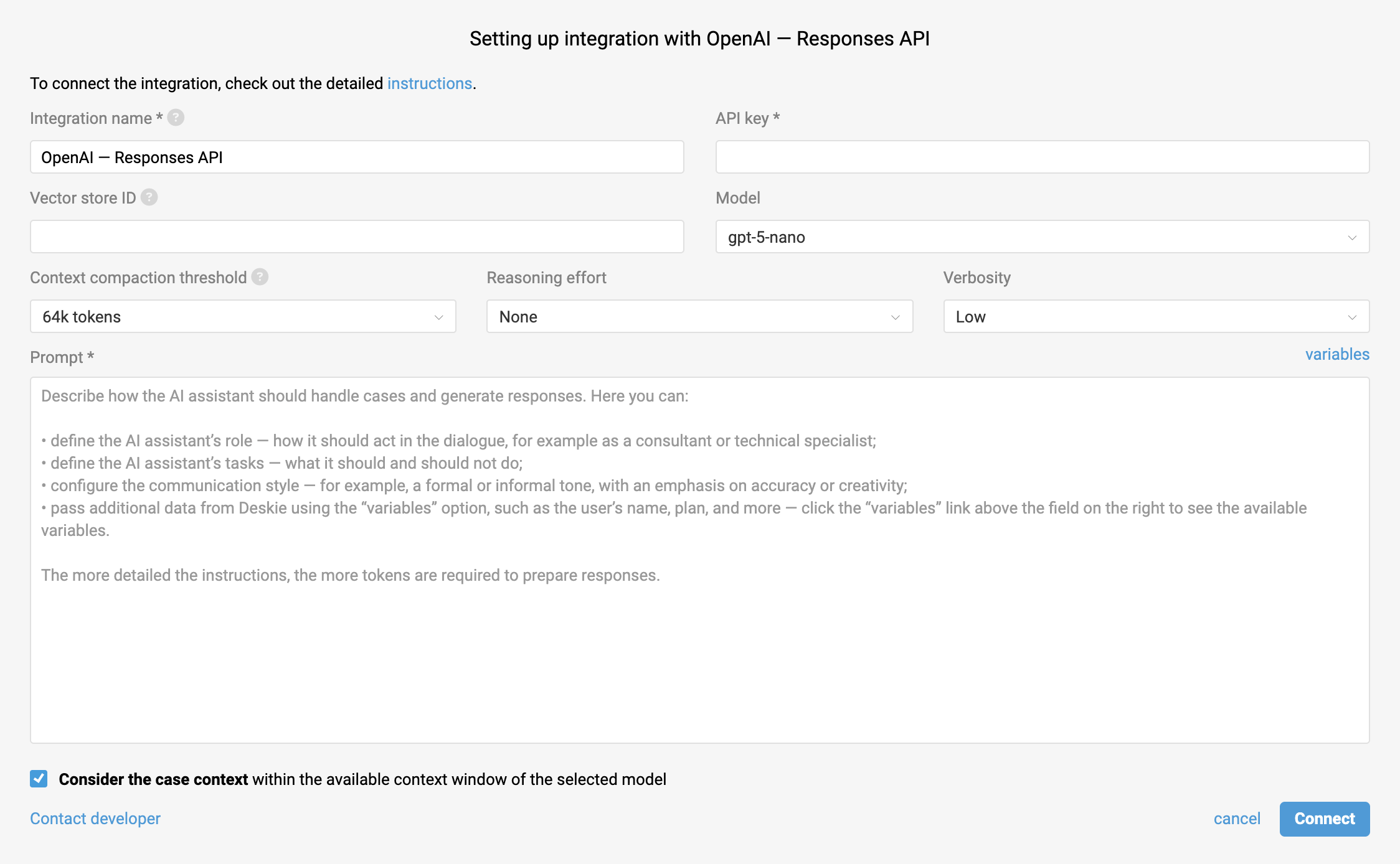
Step 4 — basic settings: name, API key, model
Give your integration a name and enter the API key you obtained earlier from your OpenAI account settings. Choose the OpenAI language model that will be used to process requests and generate responses.
The integration supports multimodal OpenAI models starting from the fifth generation. Third- and fourth-generation models are not available.
The integration supports all image and file formats that the available models can work with.
💰 Access to certain, most expensive models is limited to reduce the risk of unexpectedly high costs.
Step 5 — data and context for the "OpenAI Assistant on the first line" scenario
Enter the Vector Store ID you obtained in step 3, select the "Consider the case context…" checkbox, and set the context compaction threshold.
The "Consider the case context…" option
Determines whether the case's conversation history should be taken into account when preparing a response.
💰 Enabling the "Consider the case context…" setting can improve the accuracy and relevance of OpenAI's responses, but it increases the cost of requests since the model processes more tokens.
— If the checkbox is selected, two situations are possible:
a) interaction with "OpenAI — Responses API" within the case hasn't happened yet → a new conversation is created based on the message sent;
b) interaction with "OpenAI — Responses API" within the case has already happened → the message sent is added to the conversation linked to the case, which takes into account the case's previous conversation history.
— If the checkbox is not selected, no conversation is created based on the message sent. OpenAI only processes the content of the variable sent, according to the instructions.
Once this option is enabled, the "Context compaction threshold" setting becomes available.
OpenAI's conversation
A conversation is an object in which OpenAI stores the correspondence within a Deskie case. What ends up in it depends on settings on the Deskie side.
With the "Consider the case context…" option enabled, and when using the [case_description] or [last_message] variable, the following go into the conversation:
- the customer's messages;
- the integration's responses;
- agents' responses.
The following do NOT go into the conversation — meaning they are not taken into account:
- auto-replies sent by Deskie rules — including responses from other AI integrations added via the sub-action "Received response — send to user", if any are present in the case;
- notes added by an agent, on behalf of the integration, or by a rule, including notes that use the [note_text] variable.
You can't use the [note_text] variable in rules that send a request to OpenAI — Responses API with the "Consider the case context…" option enabled. This is a built-in limitation on Deskie's side.
Context compaction threshold
This setting is only available when the "Consider the case context…" option is enabled, and it determines when OpenAI triggers context compaction. Learn more
💰 The higher the threshold, the more context can be passed to the model in its original form, without compaction — but the higher the token usage and request cost.
If you select "No compaction", context compaction is not applied, and the maximum context size is determined by the limits of the selected model.
We recommend finding the optimal value for your scenario by testing different settings.
Context compaction is performed by OpenAI. Deskie only passes along the selected compaction threshold; the compaction process itself and its degree are determined on OpenAI's side and may vary depending on the context.
Step 6 — model behavior: reasoning effort, verbosity, instructions
Configure the parameters that determine how the model analyzes the request and generates a response.
Reasoning effort
Reasoning effort determines how thoroughly the model analyzes a request before generating a response. At a low level, the model responds faster and uses fewer tokens. A higher level allows it to work through complex tasks more thoroughly, but increases generation time and token usage.
Verbosity
Verbosity determines the balance between the brevity and completeness of the assistant's response. Low values are suited for fast, compact responses: the model generates less text, which reduces response time and token usage. High values produce more detailed responses with additional explanations, context, and clearer structure.
Instructions
Instructions let you:
- assign the AI assistant's role — who it acts as in the dialogue: a consultant, technical specialist, assistant, etc.;
- define the AI assistant's tasks — what it should and shouldn't do;
- set the communication style — a formal or informal tone, an emphasis on accuracy or creativity;
- pass additional data from Deskie using the "variables" option, such as the customer's name, their plan, etc.
💰 The more detailed the instructions, the more tokens are consumed when generating responses.
In the materials on setting up rules for interacting with "OpenAI — Responses API", we provide examples of such instructions.
Interacting with OpenAI — Responses API
Sending requests to OpenAI within the integration is configured through automation rules. The action responsible for sending the request is "Send text request to AI Assistant" from the "— AI integration" category.
Examples of such rules are available here.
💰 To avoid duplicate requests and excessive token usage, this action can only be specified once within a single rule.
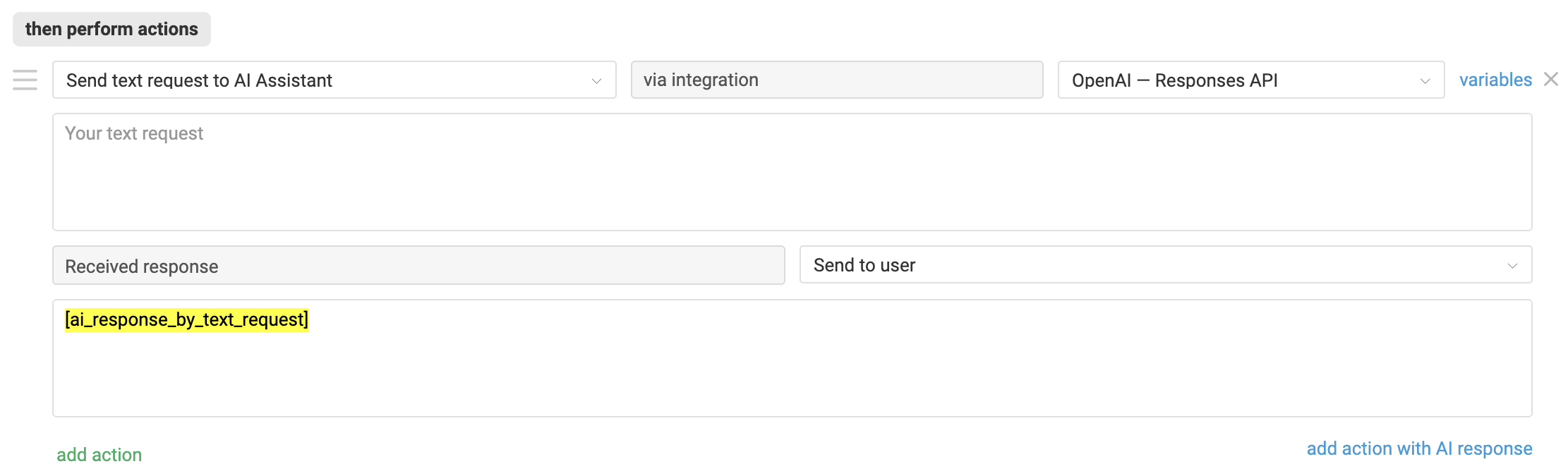
This action can be used in all types of rules and lets you send a customer's or agent's message, or a note, for processing by the "OpenAI — Responses API" integration specified in the action.
You can specify the message or note you want using variables:
- [case_description] — first message in a case;
- [last_message] — last message in a case;
- [note_text] — last note in a case.
- The variable sends the entire message or note: text, signature, quoted content, and attachments.
- The [note_text] variable can't be used when the "Consider the case context…" option is enabled. Learn more
The OpenAI model isn't always able to correctly recognize and/or match data from a submitted image or other attachment with the content of materials in the Vector store.
OpenAI's response is saved during the rule's execution in the variable [ai_response_by_text_request]. It can be used in sub-actions of the same rule, for example to:
- send it to the customer;
- add it to a note;
- record it in a case field of the type "text field" or "text area".
Features of change log recording in a case
A rule with the "Send text request to AI Assistant" action doesn't execute instantly. Execution time depends on the volume of data, the response speed of OpenAI — Responses API, and the number of cases in which the rule is triggered simultaneously.
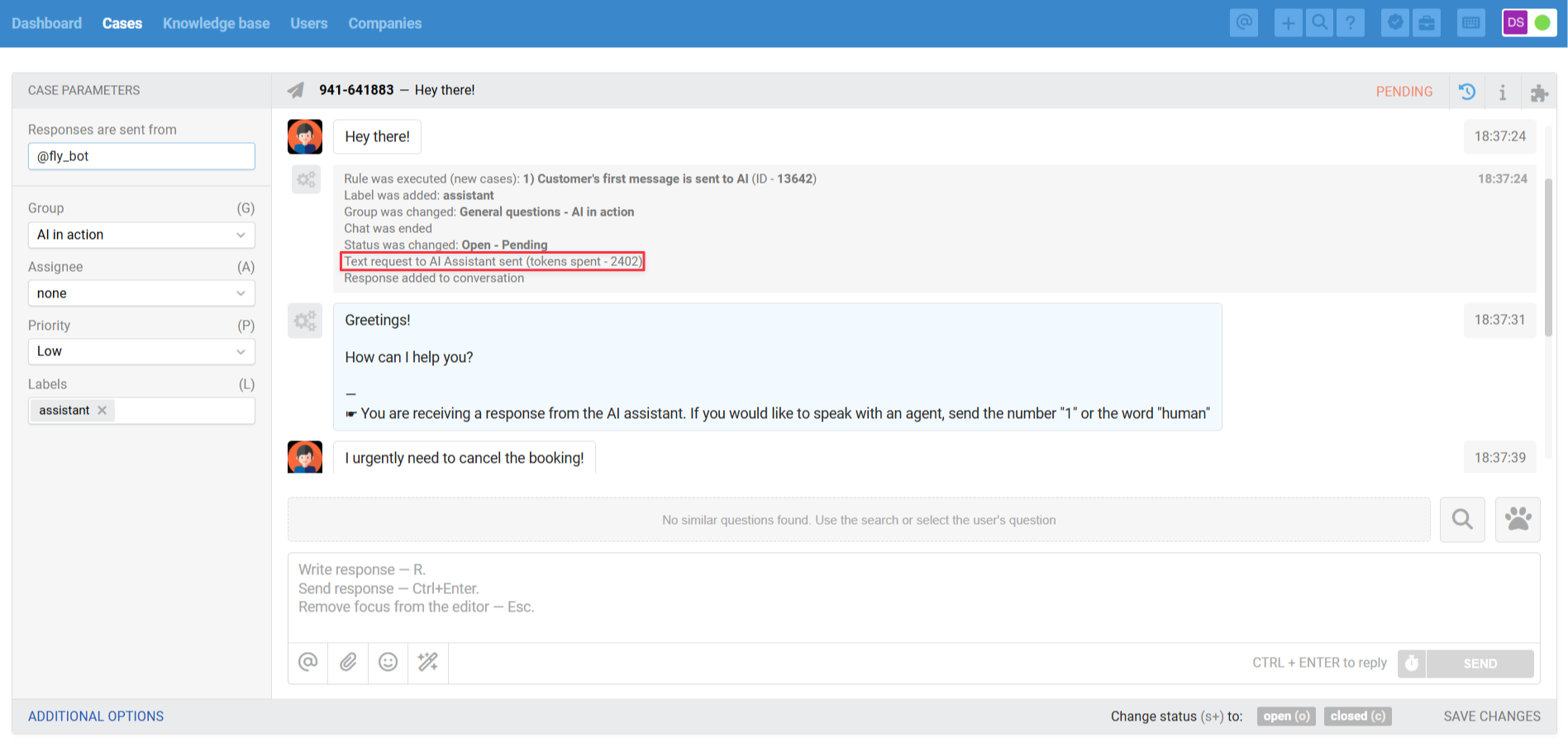
Operations — sending requests to OpenAI, receiving responses from OpenAI, and executing the rule's sub-actions in the relevant cases — run in the background. That's why the change log for the "Send text request to AI Assistant" action, including token usage information, is recorded in the case in stages, as the rule's sub-actions are completed.
Errors in the integration's operation
OpenAI-side issue
Sometimes OpenAI doesn't return a response to a request, while all other rule actions still execute — including setting the "pending" status on the case in the "OpenAI Assistant on the first line" scenario. When this happens, Deskie adds a system note and an undeletable label ai_error_in_rule_action to the case:

To make sure customers don't go unanswered and agents are notified of the error in time, you can track these situations using rules for updated cases with the following conditions:

OpenAI's responses in statistics
In Deskie, auto-responses configured through rules aren't included in statistical metrics. So for cases fully handled by the "OpenAI Assistant on the first line" scenario via the "OpenAI — Responses API" integration, speed metrics aren't calculated.
SLA settings depend on the group. We recommend not setting service level parameters for groups where AI assistants handle cases.
However, if a case is transferred from the AI assistant to an agent — whether the customer asked for a human or the AI assistant couldn't handle it — the speed metrics for such cases will start counting as if no one had replied in the case before.
To prevent such cases from skewing agent statistics, there are a few options:
1) add special labels when transferring to a human, such as "AI assistant couldn't help", "customer requested a human", "AI error", etc. Using these labels, you can filter out these cases during statistical analysis and review them separately from the main flow that agents handle on their own;
2) enable the option "Take into account only the time user spends while waiting for agent response", so that time the case spends in the "pending" status isn't included in the statistics.
Disabling and deleting the integration
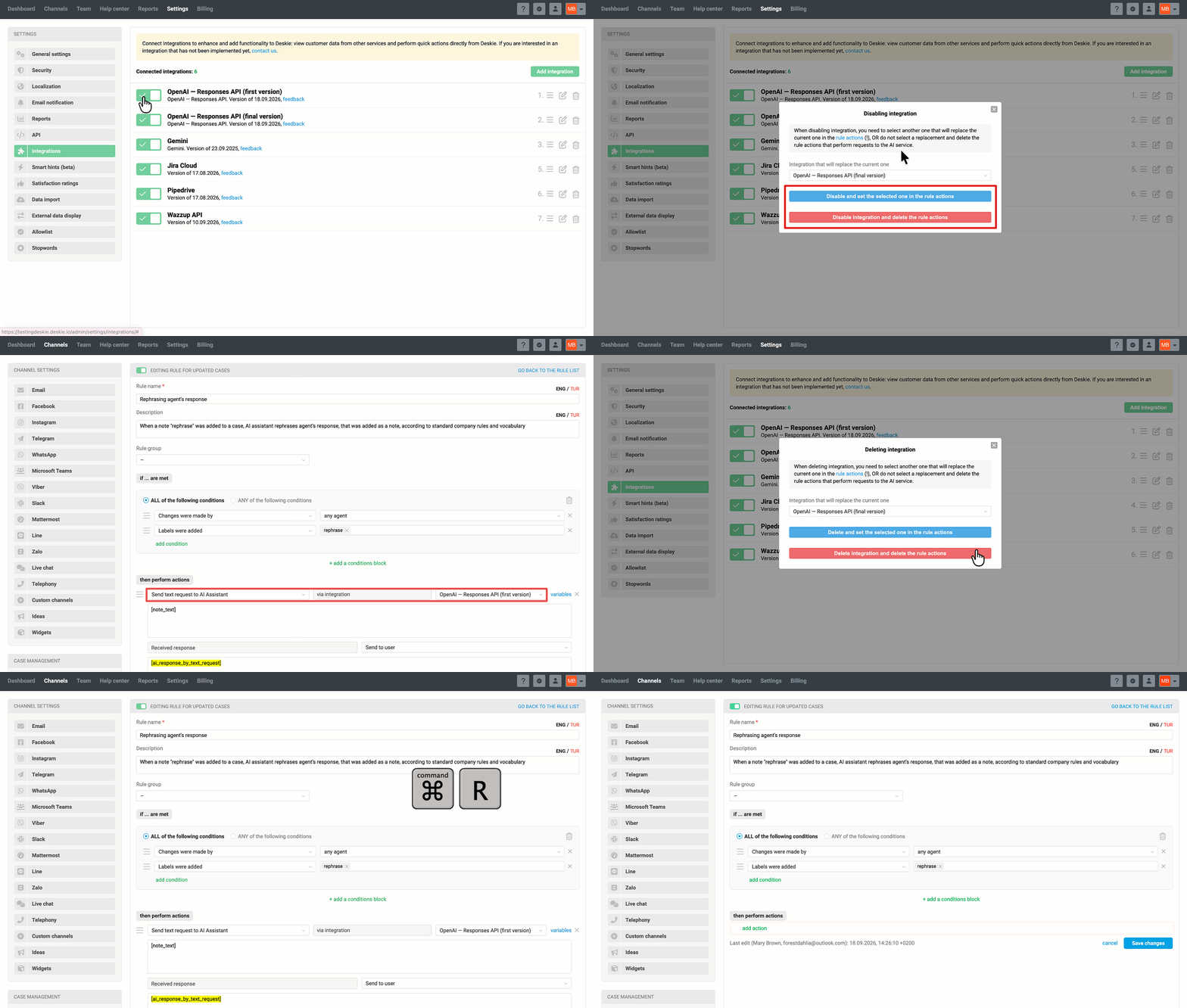
If there is more than one active "OpenAI — Responses API" integration in the admin account, when disabling or deleting an integration, we'll prompt the administrator to choose:
a) replace the disabled integration in the rules with one of the remaining active integrations of the same type ("OpenAI — Responses API"):
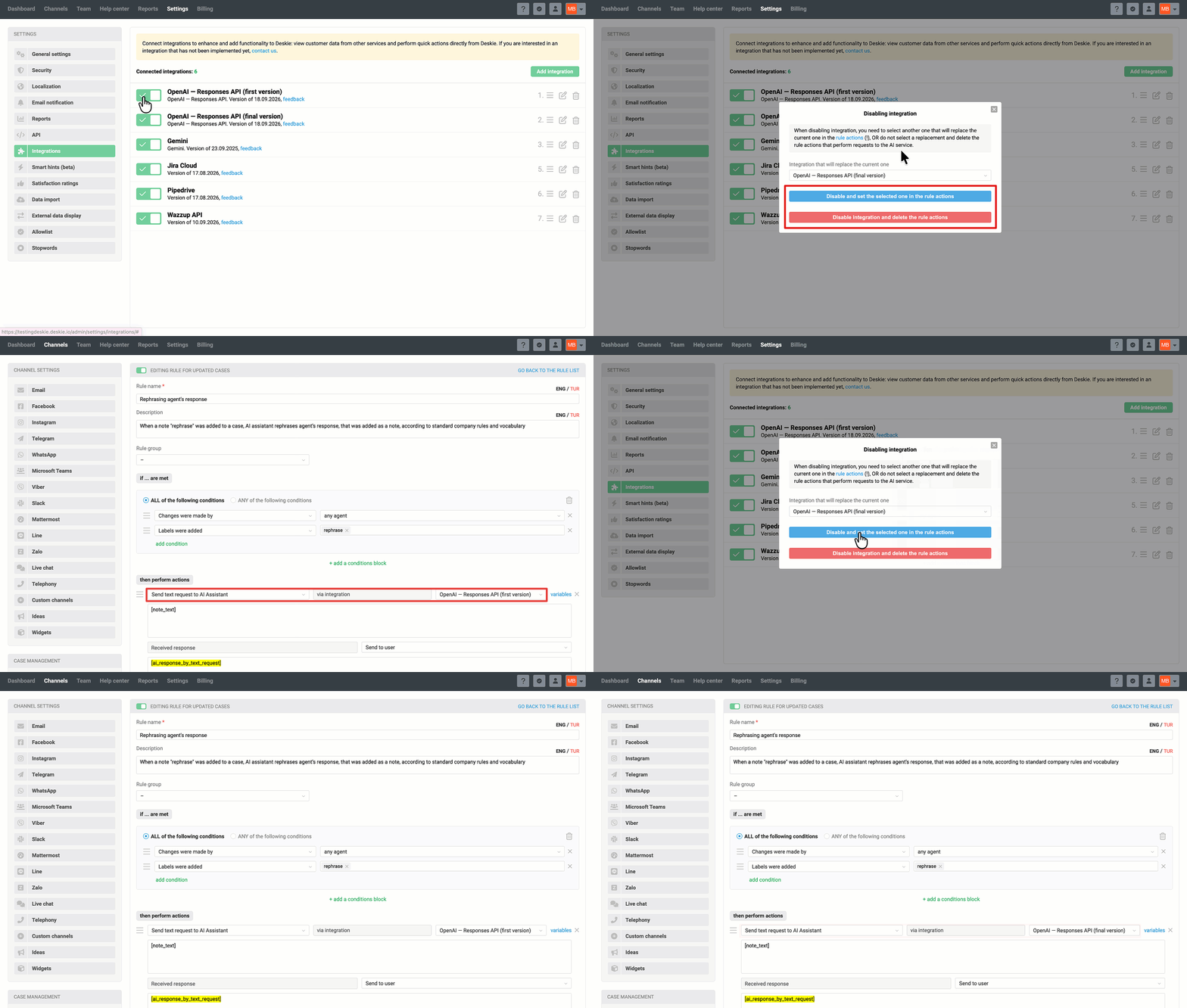
b) delete all rule actions related to the disabled "OpenAI — Responses API" integration: