WhatsApp connects to Deskie through integrations with third-party services. You can connect the channel via the official or the unofficial WhatsApp API. Each option has its pros and cons, so you can pick the connection method that works best for you. The table below shows the key differences between the official and unofficial WhatsApp APIs.
Official WhatsApp Business API |
Unofficial API |
A communication method between businesses and customers that WhatsApp officially allows |
Prohibited by WhatsApp rules |
Getting an account takes a few days, and only registered businesses (sole proprietors or legal entities) can get a Business account |
You connect a regular WhatsApp account — no paperwork required |
A Business account isn't tied to a phone |
For the integration to work properly, the phone with the WhatsApp account must always be on and connected to the internet |
A 24-hour "service window" applies.
You always have 24 hours from the user's last message to reply to them. After 24 hours, WhatsApp blocks your replies, and you can only reach the user with a paid template message approved by WhatsApp. |
No time limit tied to the user's last message |
Business accounts can't be added to WhatsApp group chats |
Uses a regular WhatsApp account, which you can add to group chats and receive messages from those chats in Deskie.
Works only with the Wazzup integration, with one limitation: Wazzup doesn't pass on who exactly wrote in the group chat, so all group chat messages in Deskie appear as messages from the group rather than from a specific user. |
Channel connection guides
To set up an integration with your chosen provider, follow the guide:
What WhatsApp cases look like in Deskie
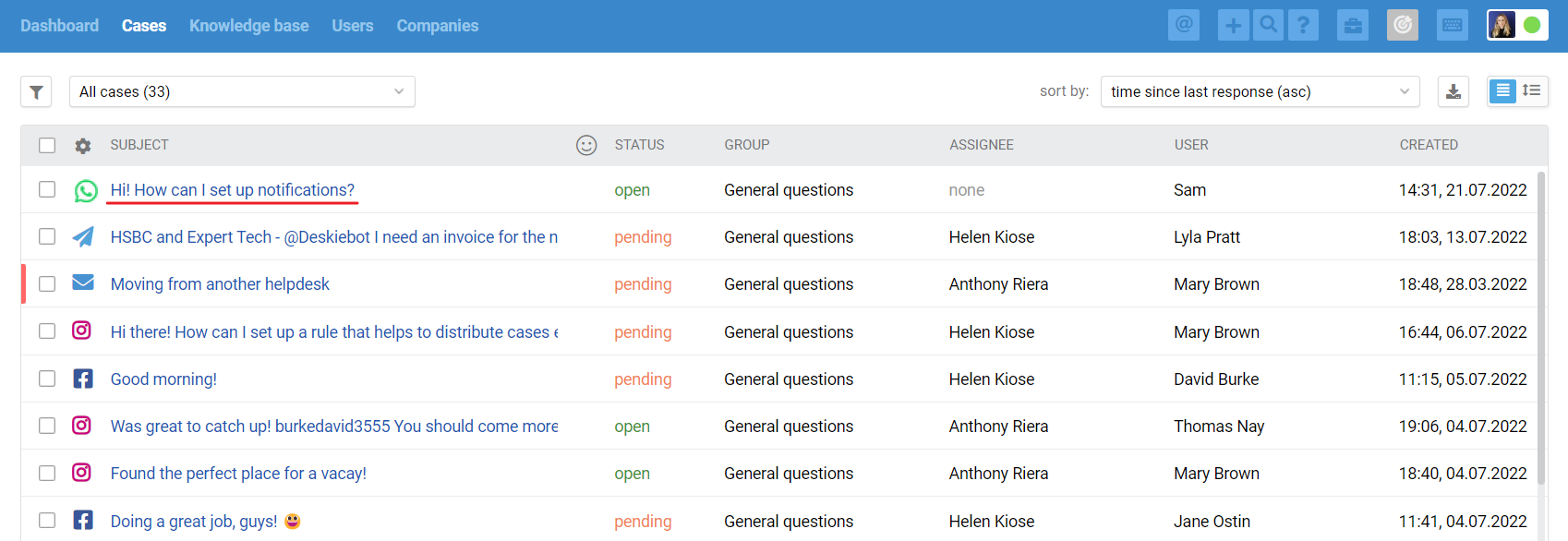
The all cases list only shows cases with asynchronous communication — each side replies whenever they can. Real-time chats are handled through a separate interface.
When a new chat comes in — for example, from WhatsApp, Telegram, Viber, Slack, Facebook messages, live chat, and other synchronous channels — a green icon appears in the top-right corner of the agent account. Incoming chats and new replies in chats show up there.
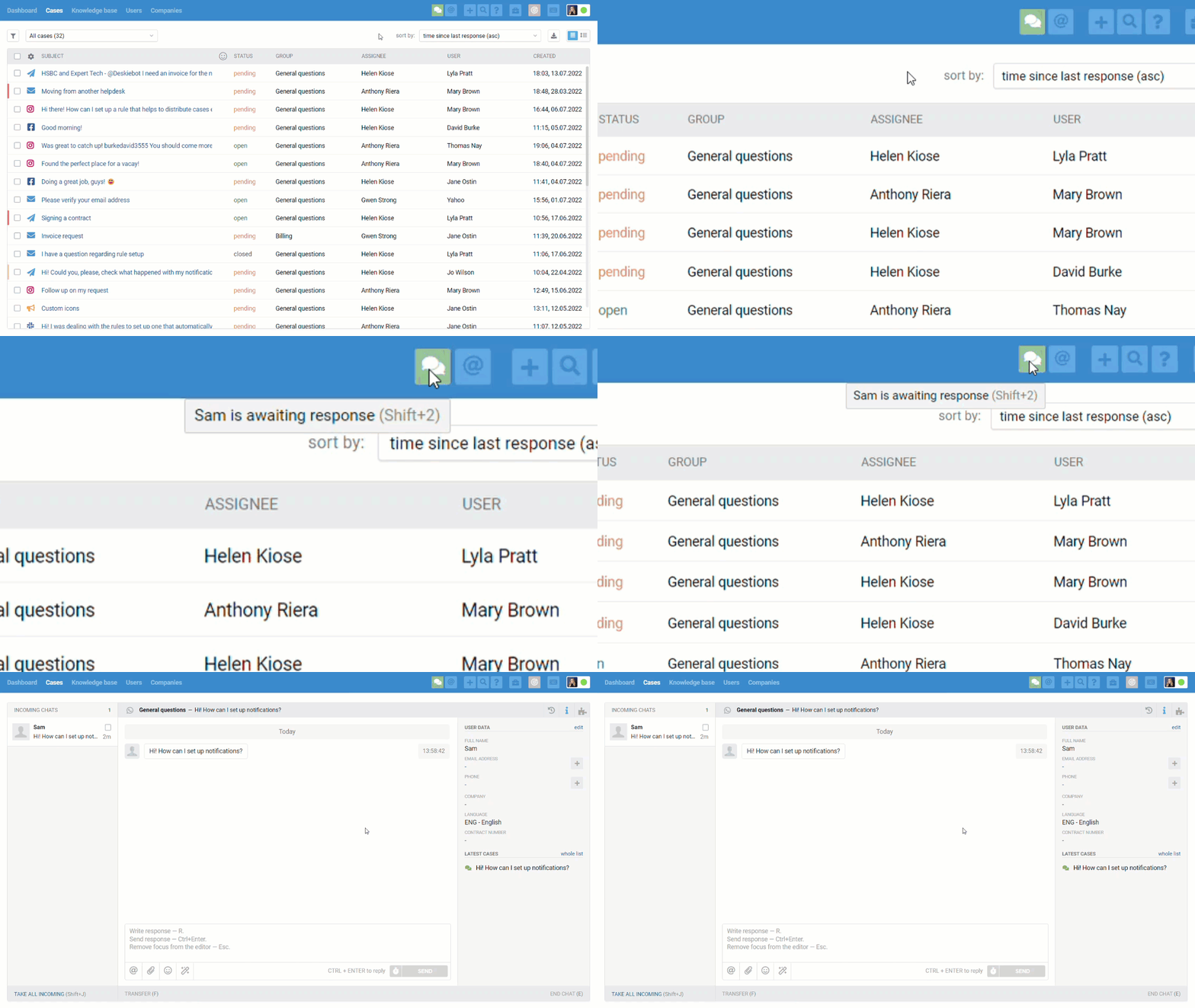
Chats also appear in the all cases list, but only once they've ended:
- if the agent ends the chat themselves via the "end chat" link in the bottom-right corner;
- after 10 minutes of inactivity on both sides, if you use the default value;
- when one of the automation rules with an "end chat and set status" action is triggered — for example, if you want to see chats in the all cases list right away.
We separate synchronous and asynchronous communication on purpose, because customers judge response speed differently depending on the channel. For example, when they email you, they're usually fine waiting a couple of hours for a reply, but in a chat, even a few minutes can feel like a delay.
Learn more about using chats in our video tutorial.
Channel specifics
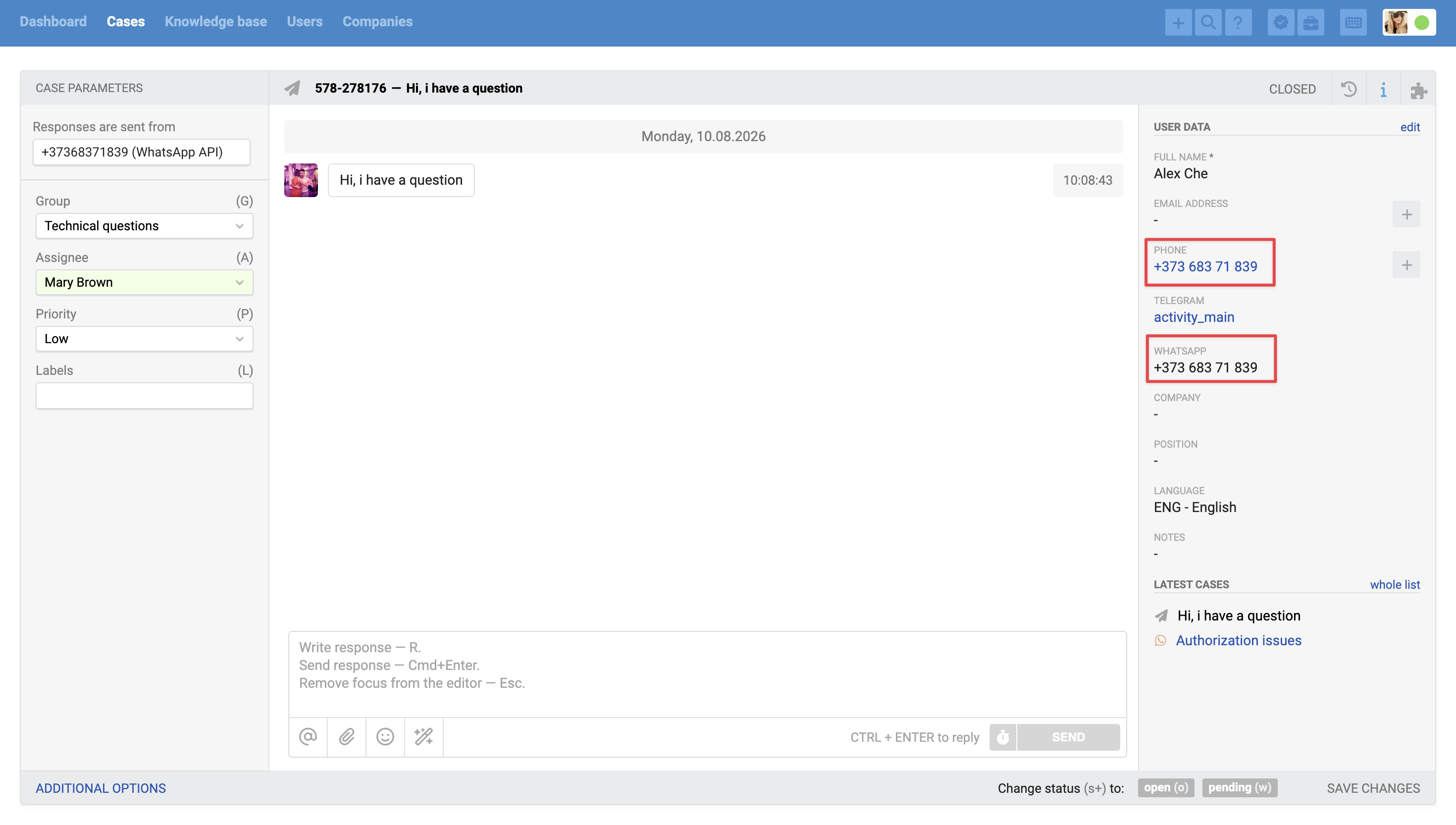
1. The user's phone number linked to their WhatsApp account is pulled into the "WhatsApp" field in their user data. If you identify users by phone number or want to link profiles from different channels, copy this number into the "Phone" field as well.
In Deskie, a separate user profile with a unique user_id is created automatically for each channel a customer uses to contact support.
For example, the same customer can:
- email your mailbox connected to Deskie → a profile for the Email channel is created;
- message you on WhatsApp → a profile for the WhatsApp channel is created;
- call you → a profile for the Calls channel is created.
All these profiles are stored separately in the database and have different user_ids. You can link them by:
- manually entering the same email address or phone number;
- using the API;
- importing contacts from a CSV file.
Once profiles are linked, the user data panel shows the last five cases across all channels, plus a "whole list" link that takes you straight to the customer's page in the "Users" section. There you'll find a summary of their data and a list of all their cases across the linked channels.
⚠️ Never add your company's phone numbers, shared mailboxes like [email protected], or other non-unique contacts to customer data. If you need to record this kind of information, use the standard "Notes" field or a separate custom text field linked to the user and created for this purpose. Learn more about data fields here.
2. WhatsApp calls are only possible to personal numbers. With the Wazzup integration via the unofficial API, if a user calls you on WhatsApp, a message about it appears in your conversation with them.

If you want, you can set up a rule based on this message text that sends an auto-reply letting the user know you can't take calls and they should send a text or voice message instead.
3. Group chats aren't supported in WABA: WhatsApp Business accounts can't be added to group chats. If you connect a personal number to Wazzup (via Wazzup's unofficial API), messages from group chats are sent to Deskie, but without information about the specific sender — all messages appear as messages from the group.
4. File limits. With Twilio, you can receive files up to 25 MB and send files up to 16 MB. To send larger files, connect an integration with cloud storage.
5. Replies sent from the phone or from Wazzup also appear in Deskie, marked "sent from phone" or "sent from phone or via Wazzup".
6. Editing or deleting agent replies is only available when you connect a personal number via Wazzup's unofficial API.
7. You can start a conversation in WhatsApp. Learn more
Approved templates for WABA
WhatsApp Business accounts have a 24-hour window during which you can reply to a customer with free-form text. Once it closes, you can only send templates registered with and approved by Meta. You also use these templates to start a conversation with a user who has never messaged you before.
When connecting the integration, you can check the "Display approved WABA templates" option to show them in the Deskie interface. These templates are only available in WhatsApp cases.
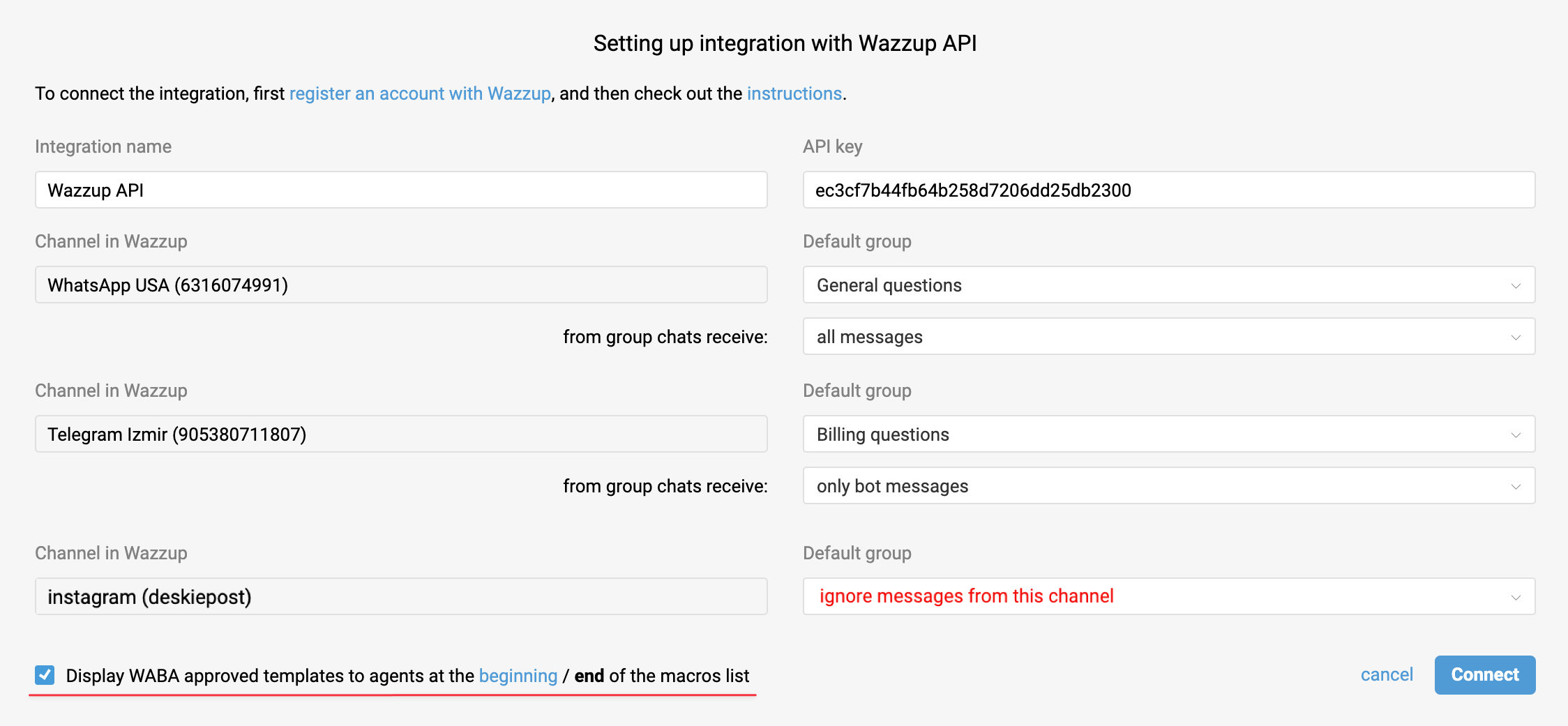
1. Once you enable the option, you can choose where to show WABA templates — at the end of the list, after agents' shared and personal macros, or at the very top.
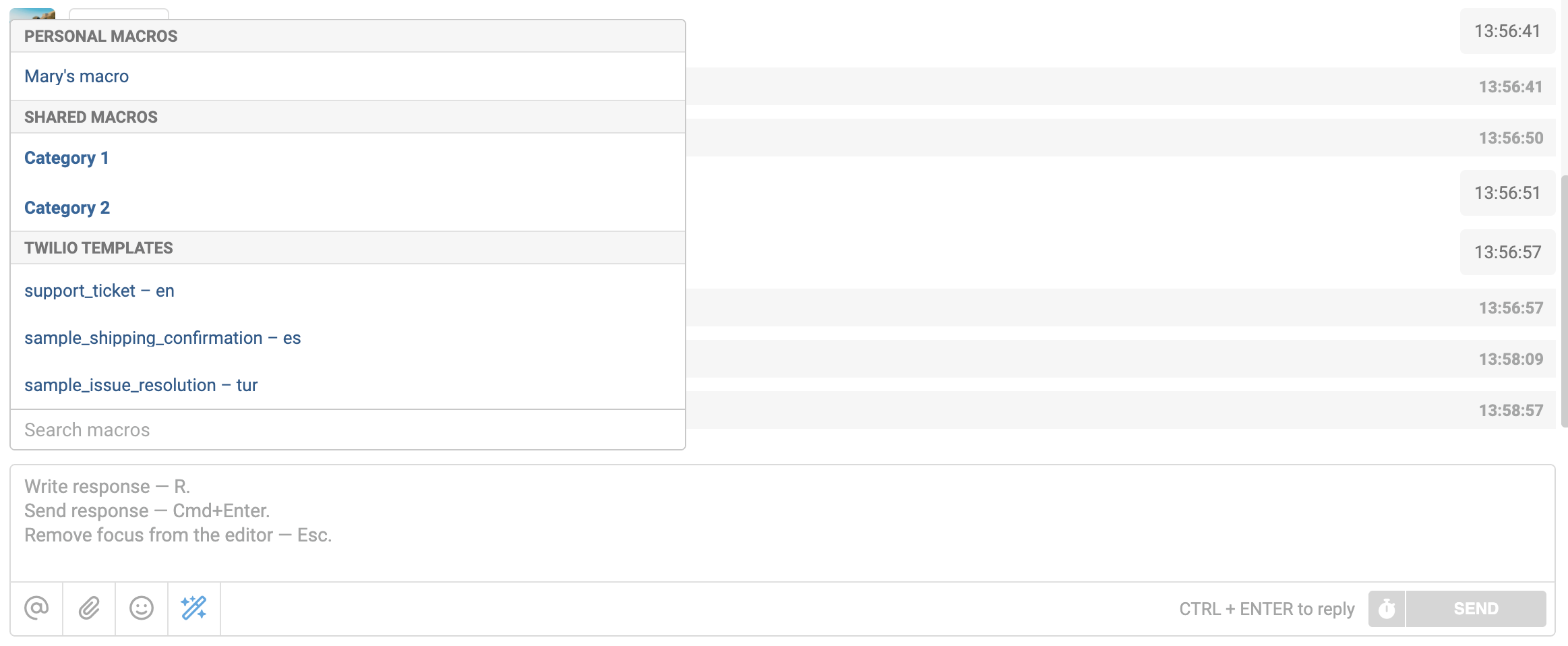
- The template name is followed by the language it's written in;
- Templates received from the provider are listed in alphabetical order;
- The list refreshes every time you open the macros.
2. When you select an approved template, its text is automatically inserted into the reply field. A special comment appears at the beginning and end of the text, letting the agent know the template can't be edited.

3. If the template text contains variables, the agent needs to fill in the values before sending. All variables are listed below the template's closing comment.

4. Only the template text itself is sent to the user — the content between the comments in angle brackets <>. Service comments and variable hints aren't included in the sent message.

5. If variable values weren't filled in or the message text was changed, Meta returns an error. The message is then highlighted in orange, like other sending errors. The text keeps the comments in angle brackets and the variable hint.
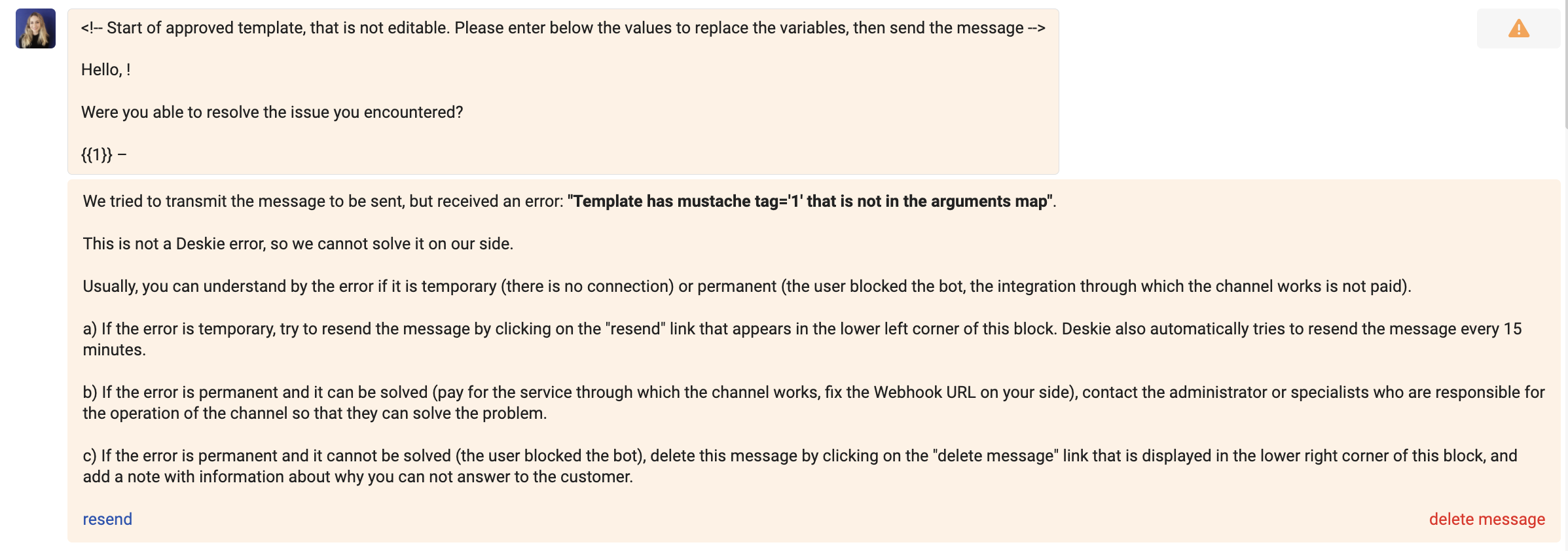
There's no point resending this message, so delete it using the "Delete message" link in the bottom-right corner. Then select the template from the list again and fill in the variables correctly so the text meets Meta's requirements.
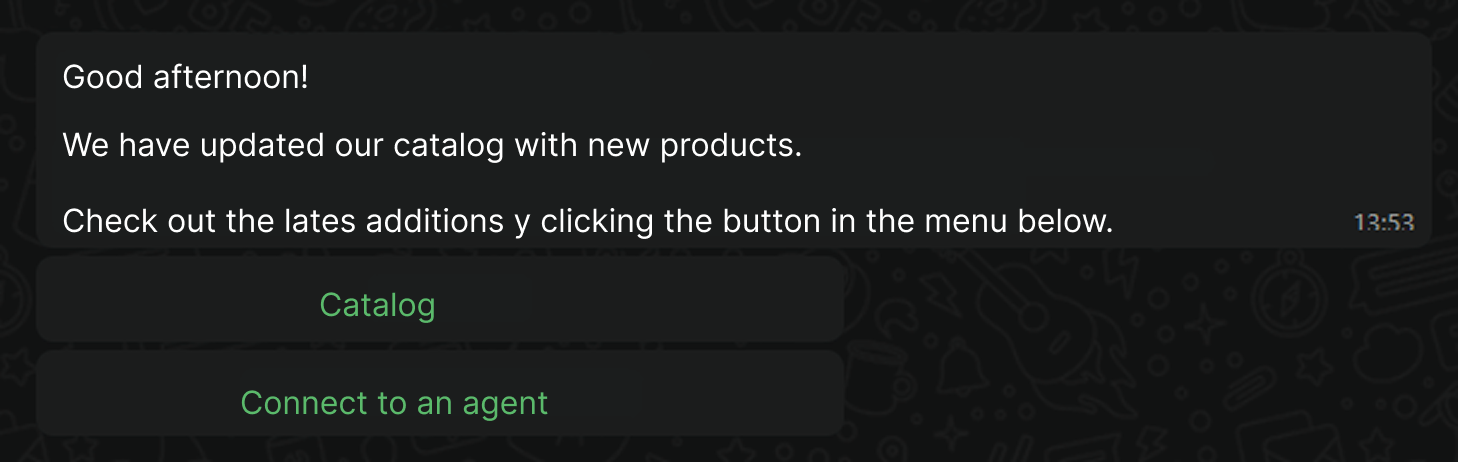
6. When you connect via 1msg, you get not only text templates but also quick reply templates, which include an interactive menu.
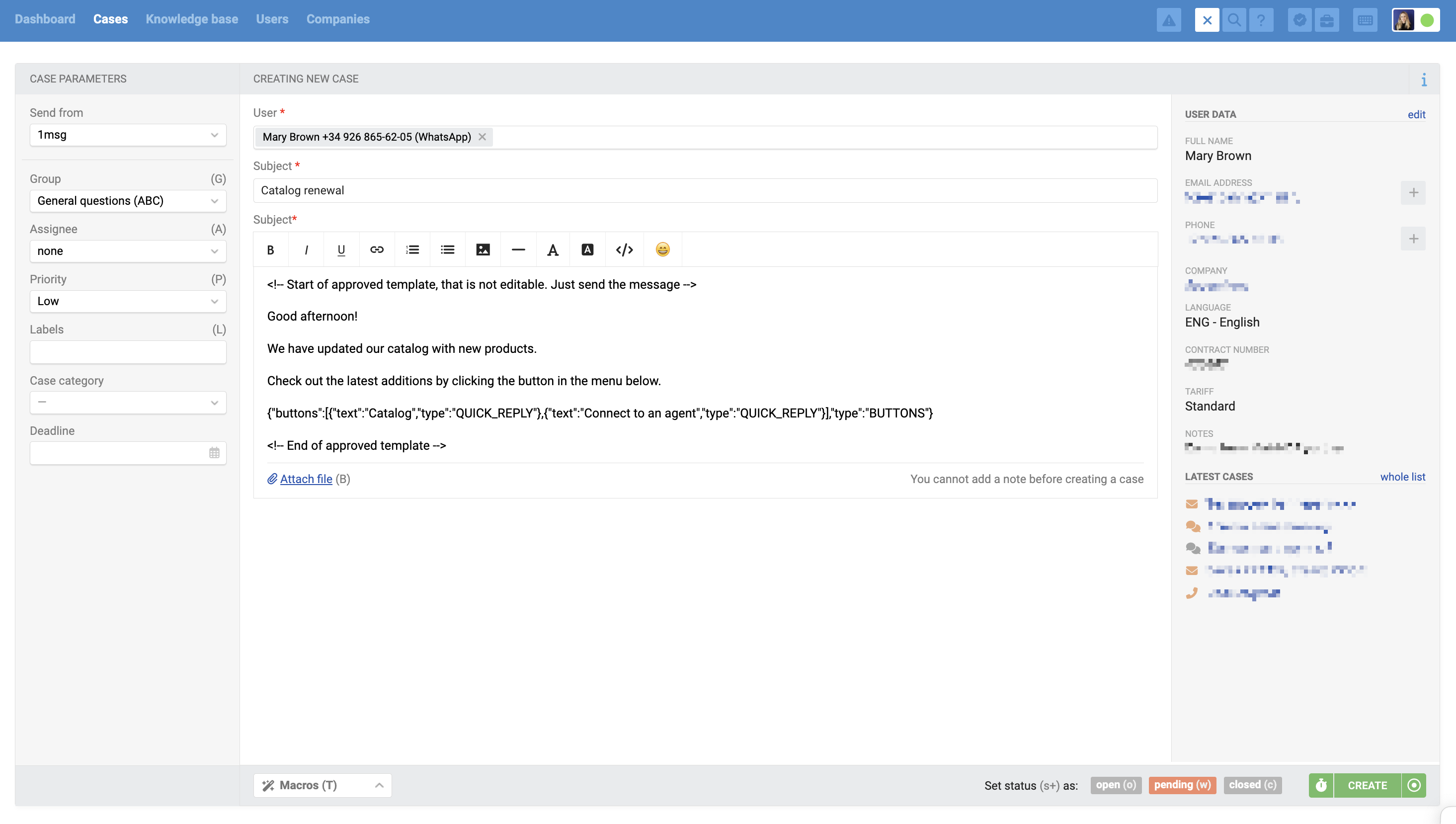
The user receives this menu along with the message.